69 70
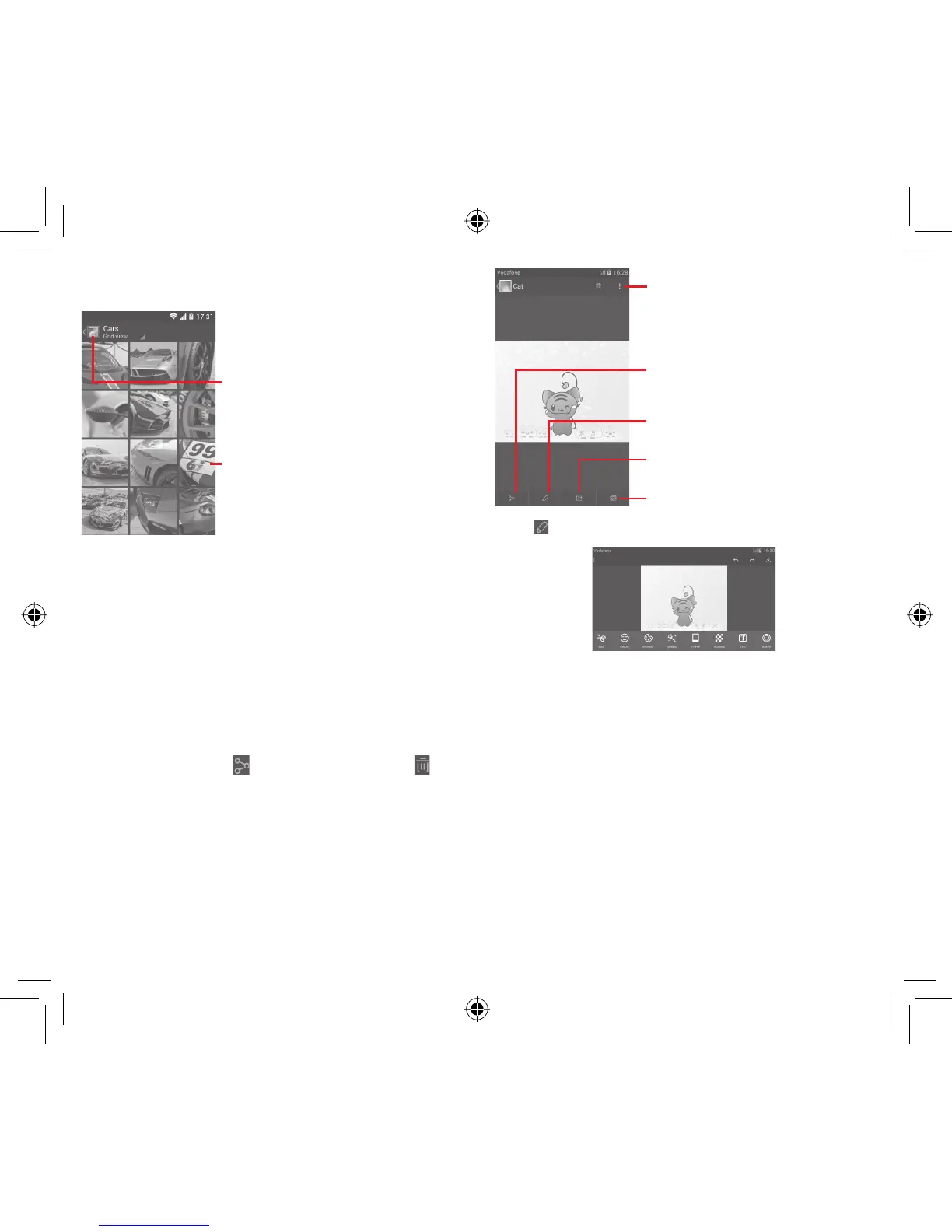
To view a picture/play a video
Pictures and videos are displayed by albums in Gallery.
Touch to return to gallery’s main screen
Slide left or right to view more pictures
Touch an album and all pictures or videos will spread the •
screen.
Touch the picture/video directly to view or play it.•
Slide left/right to view previous or next pictures/videos.•
Working with pictures
You can work with pictures by rotating or cropping them, sharing
them with friends, setting them as contact photo or wallpaper,
etc.
Locate the picture you want to work on, touch the picture from
full-screen picture view. Slide the icon bar below left and right
to select one, touch icon
to share the picture, touch icon
above and confirm OK to delete the picture.
Touch to play the slideshow
Touch to set the picture as contact photo
or wallpaper
Touch to edit the picture: Beauty, Enhance,
Effect, Frame, Mosaics, etc.
Touch to share the picture through selected
apps
Touch to view details of the picture or
directly print it
Touch from full-screen picture view to edit a picture.
Edit
Touch to Crop, Rotate or Sharpen the picture.
Beauty
Touch to beautify the picture by Dermabrasion,
Whitening or Complexion.
Enhance
Touch to open Toning color and Smart fill light.
Effect
Touch to set effect of Lomo, Portrait, Fashion or Art.
Frame
Touch to choose frame.
Mosaics
Touch to add mosaics to the picture.
Tex t
Touch to add text to the picture.
Bokeh
Touch to set Circle bokeh or Line bokeh.
IP4907_VF985N_UM_Eng_GB_09_140528.indd Sec2:69-Sec2:70IP4907_VF985N_UM_Eng_GB_09_140528.indd Sec2:69-Sec2:70 2014-5-28 15:05:072014-5-28 15:05:07



 To Next Page