910
Power on your phone1.2.2
Hold down the Power key until the phone powers on. It will take
a few seconds before the screen lights up. Unlock your phone
(Slide, PIN, password or pattern) if necessary and confirm. The
Home screen will display.
If you do not know your PIN code or if you have forgotten it,
contact your network operator. Do not leave your PIN code with
your phone. Store this information in a safe place when not in
use.
Set up your phone for the first time
The first time you power on the phone you will be asked to set
the following options: language, mobile data, Google account,
date & time, etc.
1 Select the phone’s language, then touch Next.
2 Select Mobile Data, then touch Next.
3 Setup Google account: Touch Setup now. If you have a
Google Account, touch Existing to sign in, then enter your
Email and password. If you forget your password, you can go to
http://www.google.com/ to retrieve it. Touch Next to skip to
the next step.
4 Set your date and timezone, you can also choose Automatic
time zone, then touch Finish to confirm.
If you power on your phone with no SIM card inserted you will still
be able to connect to a Wi-Fi network to sign into your Google
account and to use some features.
Power off your phone1.2.3
Hold down the Power key from the Home screen until the Phone
options appear, then select Power off.
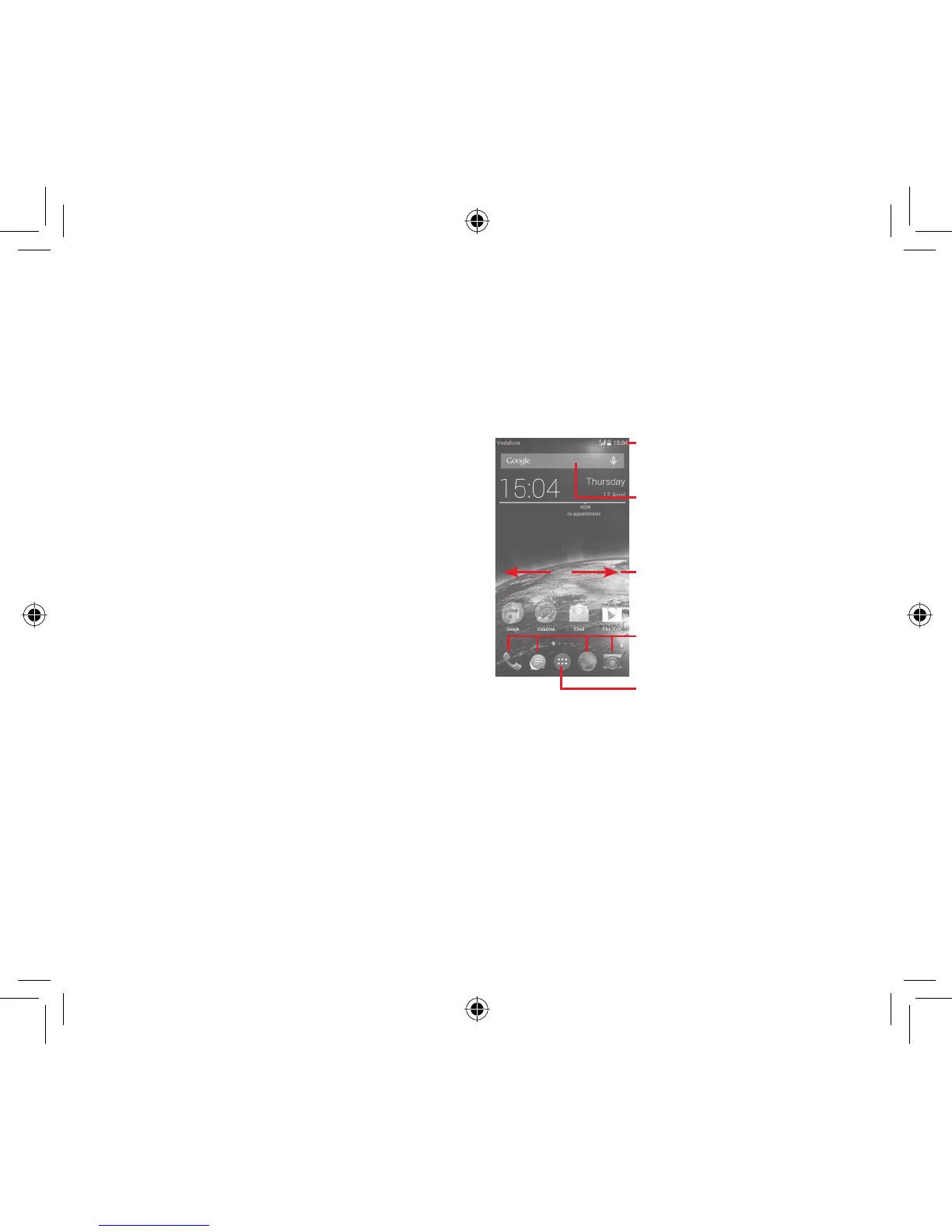
Home screen1.3
You can bring all your favourite items (apps, shortcuts, folders and
widgets) to your Home screen for quick access. Touch the Home
key to switch to the Home screen.
Status bar
Status/Notification indicators•
Touch and drag down to open the •
Notification panel
Application tab
Touch to open All apps•
Slide left or right to view other panels on the
Home screen
Google Search bar
Touch • a to enter text search screen
Touch • b to enter voice search screen
Favourite tray apps
Touch to enter the app•
Touch and hold to move or change apps•
a
b
The Home screen extends on either side of the screen to allow
more space for adding apps, shortcuts, etc. Slide the Home
screen horizontally left and right to get a complete view of the
Home screen. The white spot in the lower part of the screen
indicates which screen you are viewing.
IP4907_VF985N_UM_Eng_GB_09_140528.indd Sec2:9-Sec2:10IP4907_VF985N_UM_Eng_GB_09_140528.indd Sec2:9-Sec2:10 2014-5-28 15:04:592014-5-28 15:04:59



 To Next Page