55
8 Multimedia applications
8.1 Camera
Your mobile phone is fitted with a Camera for taking photos and
shooting videos.
Before using the Camera, be sure to remove the protective lens
cover before use to avoid it affecting your picture quality.
To take a photo when your phone is active, touch the Camera
icon in the Favourites tray on your Home screen.
If the phone is locked, press the Power button and then swipe
the camera icon to the left to open the camera.
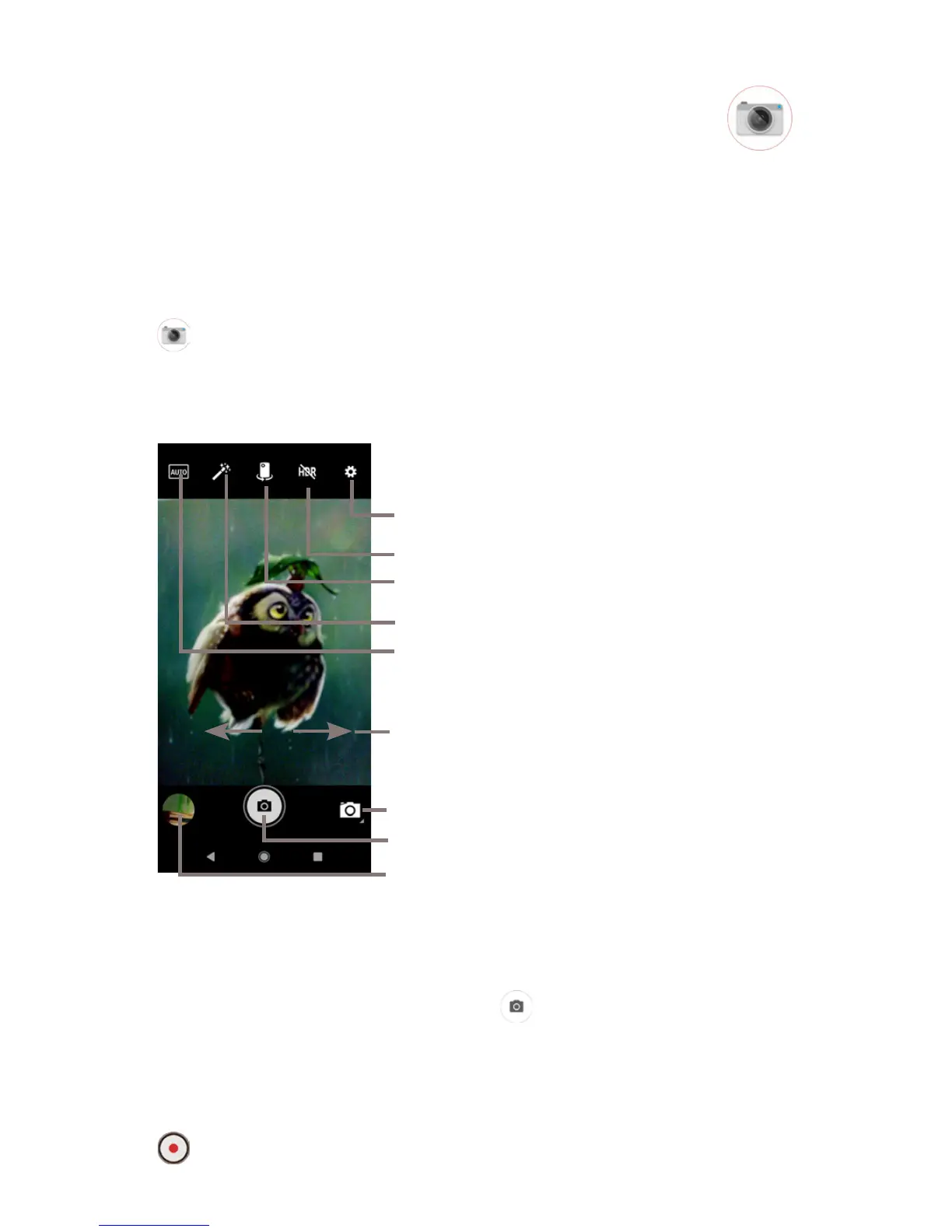
Touch to take a picture
Touch to turn on HDR (high-dynamic
range) function
Slide to switch camera mode
between Pano, Photo and Video
Pinch/Spread to zoom in/out
Touch to view pictures or videos
you have taken
Touch to switch between front/back camera
Touch to set flash mode, picture size, ISO, etc
Touch to set the exposure
To take a picture
The screen acts as the viewfinder. First position the object or
landscape in the viewfinder, touch icon to take the picture
which will be automatically saved.
To shoot a video
Slide to switch camera mode to Video and touch the red spot
in the bottom centre of the screen to start recording a video.
Touch to switch between AUTO, Portrait,
Landscape and sports



 To Next Page