1 2
For more information about how to use this phone, please go to
www.vodafone.com/smartmini to download full user manual. At this
website, you can also view the FAQs, check for software updates, and
more.
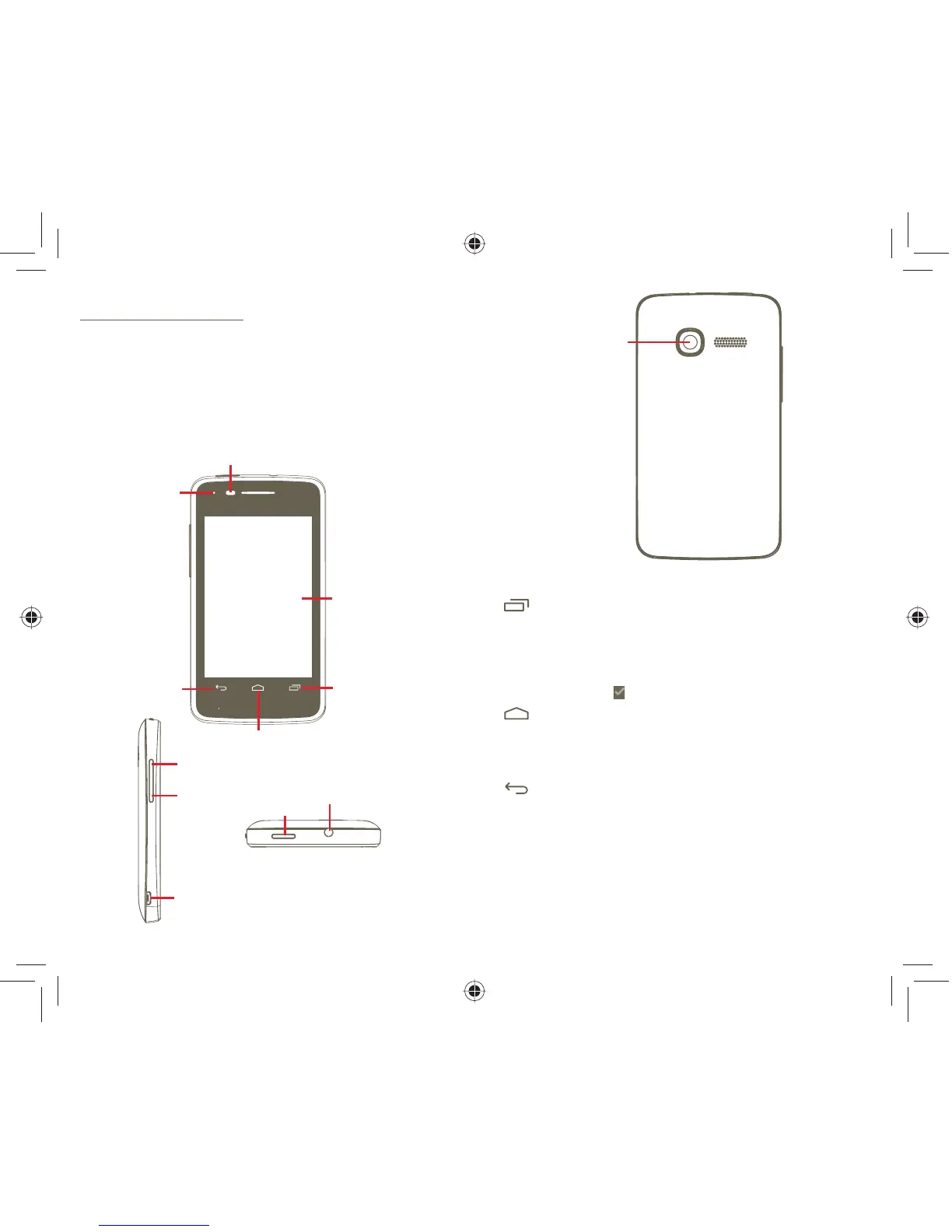
Your mobile 1
Keys and connectors1.1
Proximity sensor
Touch screen
LED light
Back key
Home key
Multitask key
Headset connector
Power key
micro-USB connector
Volume up
Volume down
Camera
Multitask key
On the Home screen, a short press shows all running apps.•
Quick menu: pressing and holding the Multitask key can •
bring up a quick menu for settings and managing apps. To
enable this, go to Settings > Display > Menu appearance
and select
Home key
Press to return to the central Home screen. •
Use a long press to access "Google Now" and "Voice •
Search".
Back key
Press to go back to the previous menu or screen.•
IP4464_VF875_QG_Eng_GB_31_130520.indd Sec1:1-Sec1:2IP4464_VF875_QG_Eng_GB_31_130520.indd Sec1:1-Sec1:2 2013-5-20 14:48:292013-5-20 14:48:29



 To Next Page