58 59
Uninstall
On Google Play Store screen, touch
and select My apps. Touch the
application you want to uninstall to enter the details screen, touch
Uninstall, and finally touch OK to confirm.
Refund
On Google Play Store screen, touch
and select My apps. Touch the
application you want to uninstall for a refund, touch Refund, and finally
touch OK to confirm.
Update notification
On Google Play Store screen, touch
and select My apps. Touch and
select Settings\Notifications to enable update notification.
Auto update
To auto update all installed applications, touch
and select My apps
from Google Play Store screen. Touch
and select Settings\Auto-
update apps to enable this function.
To auto update one specific application, mark the checkbox of Allow
automatic updating from the details screen,
Rate and review
Open the details screen for an application, touch the stars
under RATE & REVIEW to award and input comments, touch OK to
confirm.
Flag
You can report an inappropriate application to Google Play Store by
flagging it. Open the details screen for the application, scroll to the
bottom and touch Flag as inappropriate, enter the reason and finally
touch Submit.
8 Multimedia applications
8.1 Camera
Your tablet is fitted with a Camera for taking photos and shooting videos.
Before using the Camera, please be sure to open the protective lens
cover before use to avoid it affecting your picture quality.
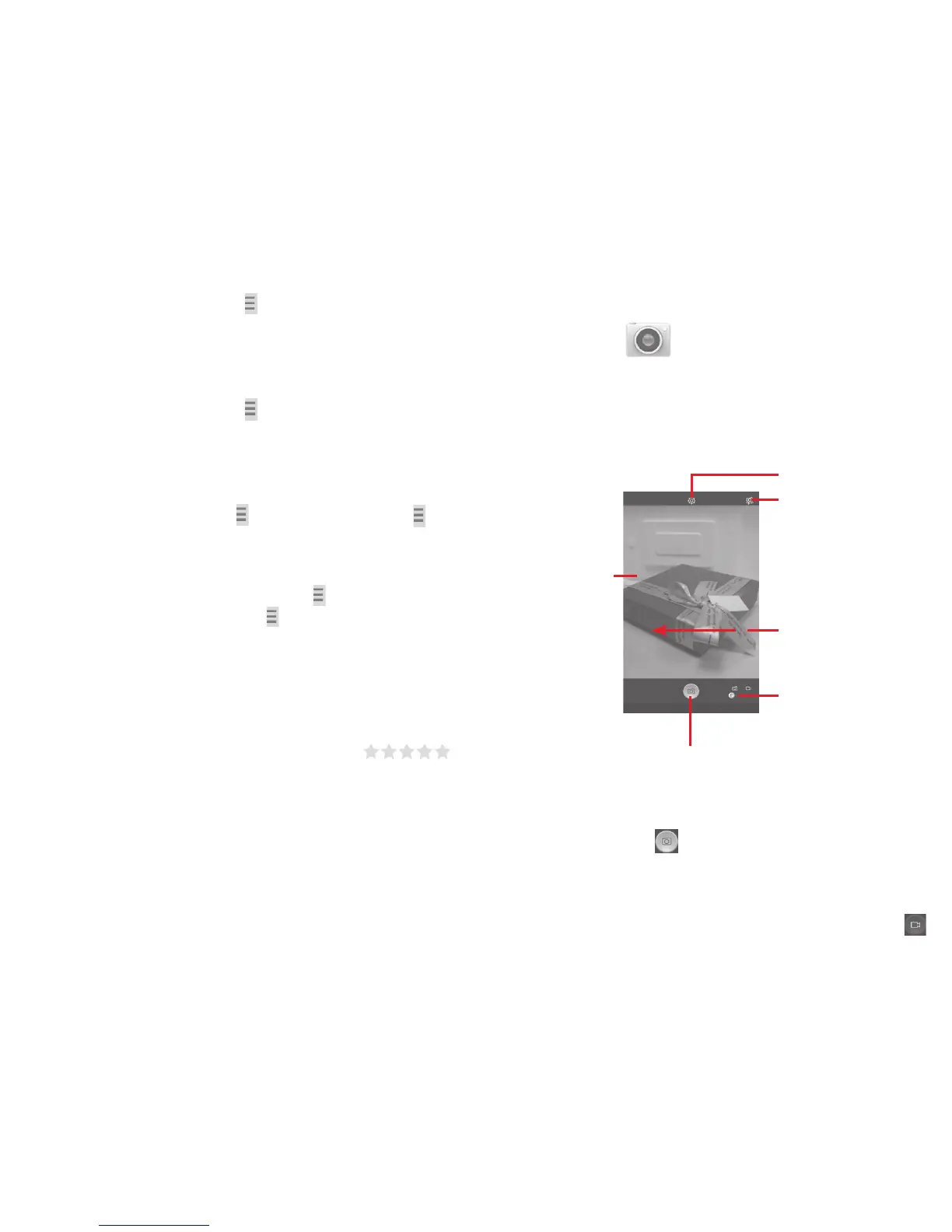
Slide to view pictures or
videos you have taken.
Touch to take a picture or video.
Slide to switch between
camera and camcorder.
Touch to show settings
Pinch two or more
fingers together or
spread them apart
to zoom in/out.
Touch to switch between
front/rear camera
To take a picture
The screen acts as the viewfinder. First position the object or landscape
in the viewfinder, touch
icon to take the picture which will be
automatically saved.
To shoot a video
First position the object or landscape in the viewfinder, and touch


 To Next Page
 Loading...