60 61
icon to start recording. Touch
to pause recording, touch to save
the video.
Further operations when viewing a picture/video you have taken
• Touch the icons below the screen to share and edit the photo or video
you have taken.
• Touch the photo icon to access Gallery.
8.1.1 Settings in framing mode
Before taking a photo/shooting a video, touch the icon to adjust a
number of settings in framing mode.
Back camera shooting mode
Touch the icon
to access camera settings and below options will
display for your choice:
• Normal Touch to turn on the Normal mode.
• Panorama Touch to turn on panorama function. Press the
Shutter button or the Volume key to start taking
panoramic photo and move the tablet towards your
capture direction and overlap the two lines. Once the
nine slots below the screen are filled, the tablet will
automatically save the photo.
• Night Touch to turn on night function.
Front camera shooting mode
Switch to front camera, touch the icon
to access camera settings and
below options will display for your choice:
• Make up Touch to turn on/off make up function.
• Expression
(4-shot)
Touch to turn on expression (4-shot) function and
once four photos taken, the tablet will automatically
synthesize and save in one picture.
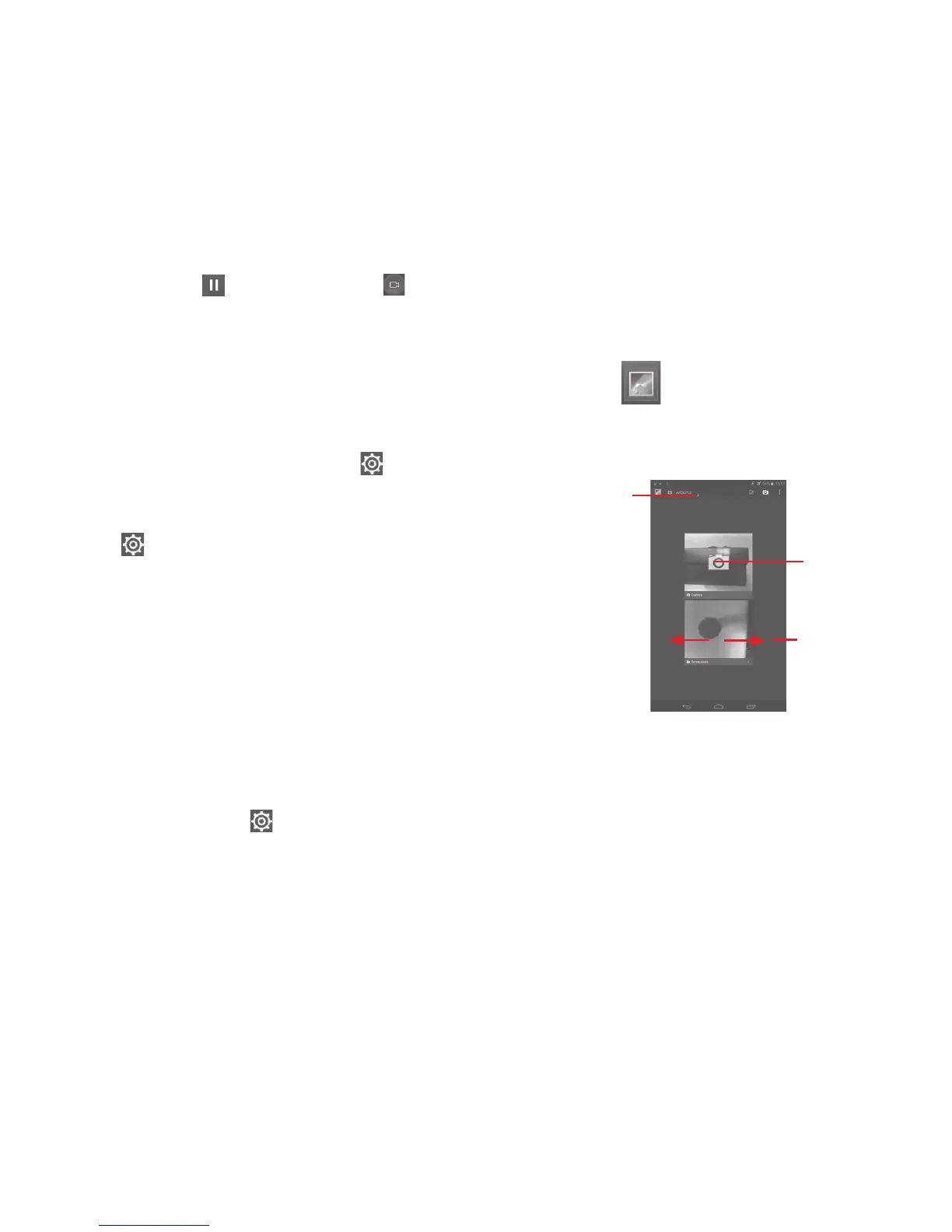
8.2 Gallery
Gallery acts as a media player for you to view photos and playback
videos. In addition, a set of further operations to pictures and videos are
available for your choice.
Touch the album
to spread it apart.
Slide left or right to
view more albums.
Touch to select
categories: Albums,
Locations, Times.
To view a picture/play a video
Pictures and videos are displayed by albums in Gallery.
• Touch an album and all pictures or videos will spread the screen.
• Touch the picture/video directly to view or play it.
• Slide left/right to view previous or next pictures/videos.
Working with pictures
You can work with pictures by editing them, sharing them with friends,
etc.


 To Next Page
 Loading...