18 19
2 Text input
2.1 Using Onscreen Keyboard
Onscreen Keyboard settings
Touch the Application tab from the Home screen, select Settings\
Language&input, touch the Settings icon
on the right of
Android keyboard (AOSP), a series of settings are available for your
selection.
2.2 Android keyboard
Touch to switch
between symbol
and numeric
keyboard.
Touch & hold, then
select to enter
symbols/emoticons.
Touch & hold to
show input options;
When Wi-Fi or
data connection is
on, touch to enter
voice input.
Touch to switch
between "abc/Abc"
mode; Touch & hold
to switch between
"abc/ABC" mode.
2.3 Text editing
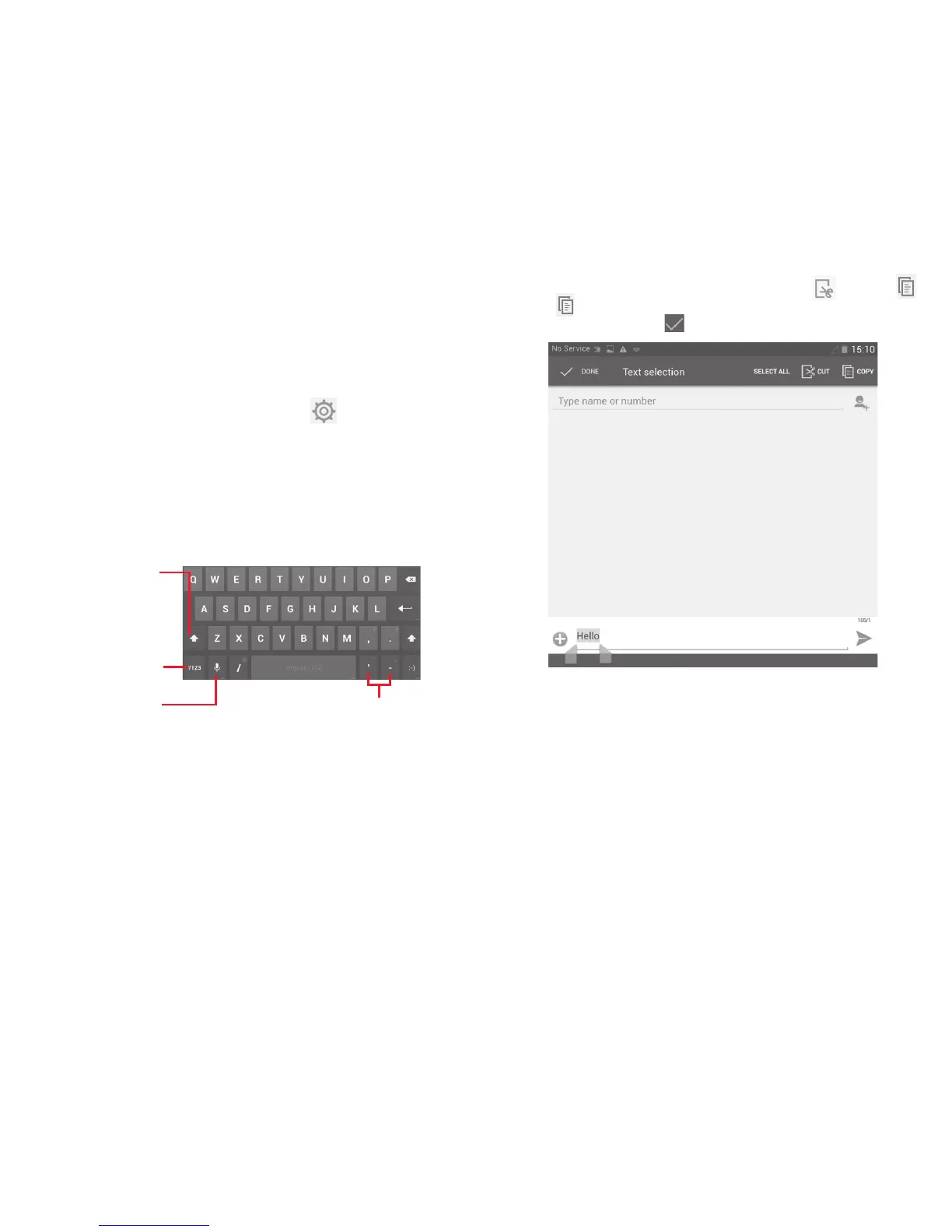
You can edit the text you have entered.
• Touch and hold or double-tap within the text you would like to
edit.
• Drag the tabs to change the high-lighted selection.
• Following options will show: Select all, Cut
, Copy ,
Paste
• Touch the icon DONE to confirm.
You can also insert new text
• Touch where you want to type, or touch and hold a blank space,
the cursor will blink and the tab will show. Drag the tab to move
the cursor.
• If you have selected any text, touch the tab to show PASTE icon
which allows you to paste any text you have previously copied.


 To Next Page
 Loading...