72 73
8.3.1 Watch videos
Touch a video to play it. In the Playing screen, you can view
information and video comments, and also browse links to related
videos.You can also rate, share, label as favorite, create a new playlist,
etc from this screen.
To exit video playing screen, touch Back key to return to the video
list.
8.4 Music
Using this menu, you can play music files stored on the microSD card
or the tablet storage. Music files can be downloaded from computer
to tablet using a USB cable.
You will find four categories in which all songs are classified:
Artists, Albums, Songs and Playlists. Slide left and right to view all.
Touch
icon and select Shuffle all to shuffle all songs.
8.4.1 Playing music
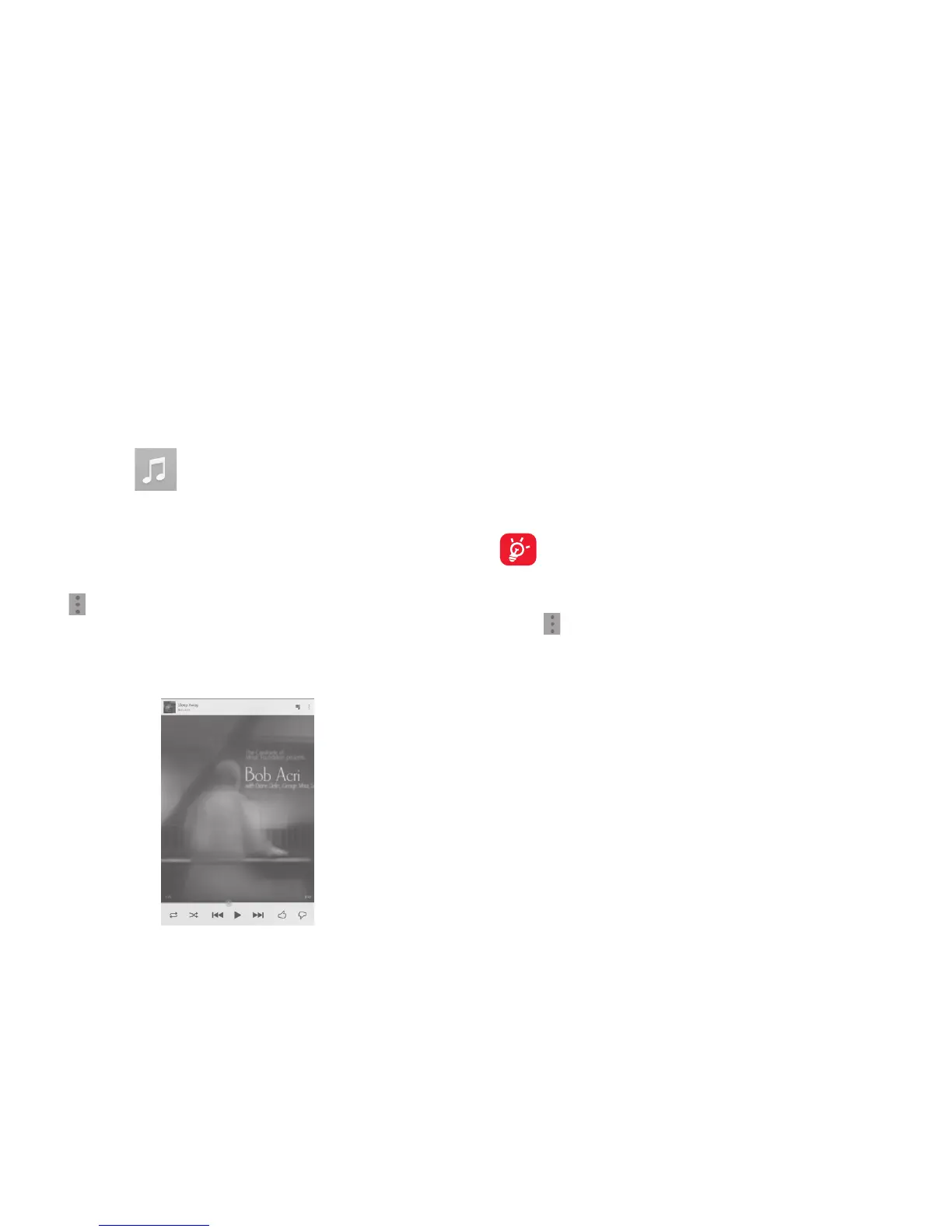
Touch a song to play it.
Touch to select repeat mode: Repeating all songs,
Repeating current song, or Repeat is off.
Touch to play the current playlist in shuffle mode (tracks
are played in random order).
Touch to skip to the previous track in the album, playlist,
or shuffle.
Touch to pause/resume playback.
Touch to skip to the next track in the album, playlist, or
shuffle.
Touch to show the displaying song.
Touch to hide options.
While playing songs with Play Music, the operation of pause,
play or skip is still available even if the screen is locked.
Adjust sound effects
Touch
icon and select Sound effects from Now playing screen to
enable and adjust sound effects.
8.4.2 Working with playlists
Playlists allow you to conveniently organize all songs stored in the SD
card or tablet storage.
You can create a new playlist, add a song to the list, and delete or
rename a playlist.


 To Next Page
 Loading...