For more information on Media Manager please refer to the full user guide.
This can be downloaded from:
vodafone.co.nz/station/pdfs/media-manager-user-guide.pdf
The Vodafone Media Manager user guide includes easy instructions of how to
share fi les, a printer or your music, photos & video using the Vodafone Media
Manager (by Twonky).
Vodafone Media Manager is DLNA compatible, so you can make the most of
your Vodafone connection.
4.12 DLNA
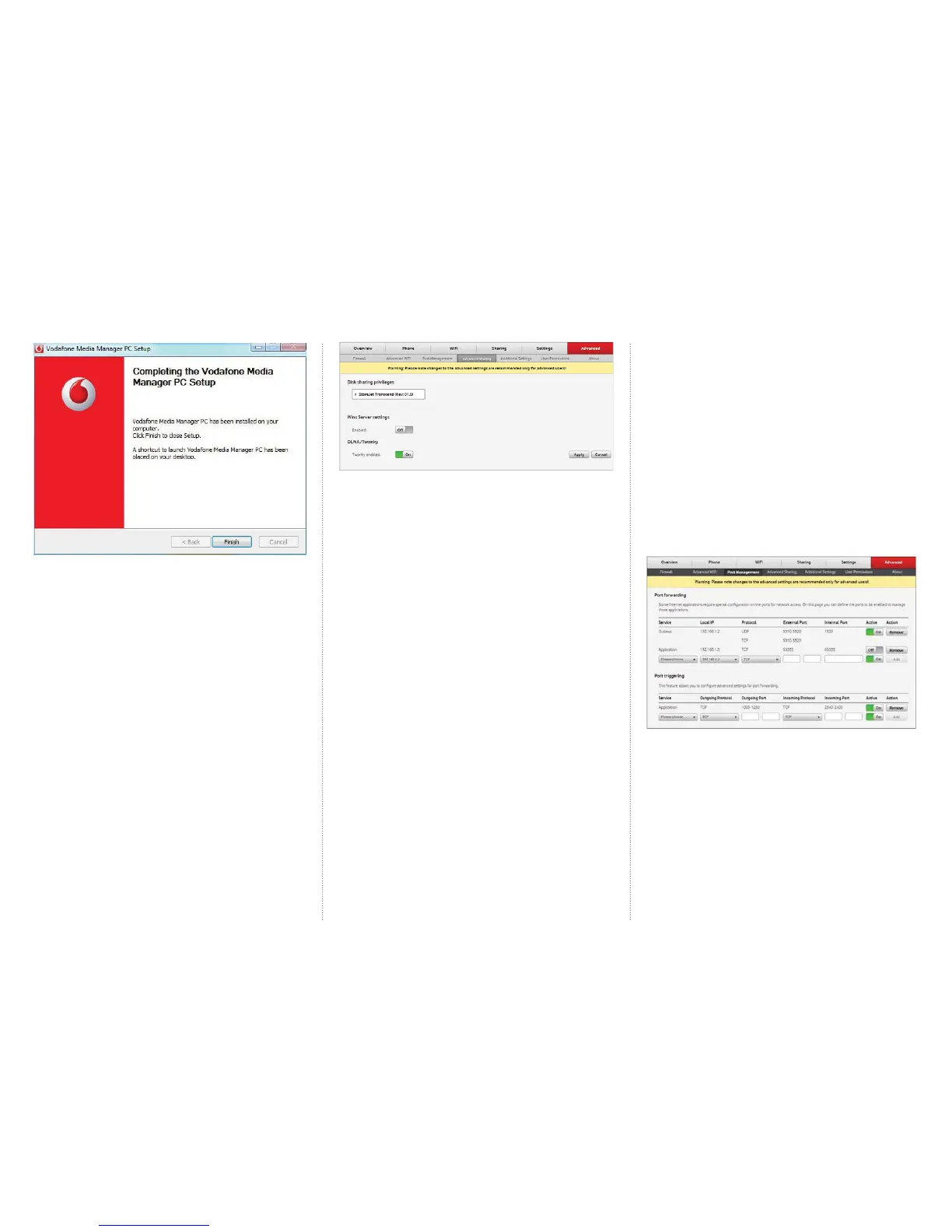
How to enable or disable DLNA.
Enabling DLNA means that you can plug an external hard drive into your
Vodafone Station and share any media content on your drive will be indexed
and available on your home network and any other DLNA compatible devices,
such as Sony’s Playstation 3.
1. Log into the Vodafone Station by entering the following URL into your
internet browser: http://vodafone.station
2. Click on Advanced on the top menu
3. Click on Advanced Sharing on the sub menu
4. Turn DLNA on by selecting On with the button below it
4.13 Firewall
1. Log into the Vodafone Station by entering the following
URL in to your internet browser: http://vodafone.station
2. Click on Advanced on the top menu
3. Select the level of security on the fi rewall you prefer.
By default this is set to medium.
4. To block certain services, select Custom from the
drop down menu and Add details to blocked
5. Scroll to the bottom of the page and click Apply
The preset fi rewall profi les work like this:
Disabled
All ingoing and outgoing traffi c shall be allowed to pass through
the modem including Game and Application Sharing.
All outgoing connections are allowed. All incoming connections
are blocked, except for ICMP (Internet Control Management
Protocol) and inbound connections assigned to a local host via
Game and Application Sharing
All outgoing connections are allowed. All incoming connections
are blocked, except for inbound connections assigned to a local
host via Game and Application Sharing
All outgoing connections are blocked except MS Windows
protocols such as NetBIOS, RPC and SMB. All incoming
connections are blocked. Game and Application Sharing is
allowed.
All outgoing connections are blocked, except for traffi c from
well-known protocols such as DNS, HTTP, HTTPS, FTP, TELNET,
IMAP and POP. All incoming connections are blocked. Game and
Application Sharing are allowed.
All traffi c coming from and going to the Internet is blocked.
Game and Application Sharing is not allowed
Low
Standard
Medium
High
Block All
4.14 Port forwarding
Some internet applications may require a special confi guration on the ports
for network access. Port forwarding allows you to defi ne the ports to be
enabled to allow/block those applications.
To set up port forwarding on the Vodafone Station:
1. Log into the Vodafone station by entering the following URL into your
internet browser: http://vodafone.station
2. Click on Advanced on the top menu
3. Click on Port Management
4. Choose an option from the drop-down menu under Service. Local IP,
Protocol, External Port, Internal Port settings can be entered from the
recommended service/application.
5. Click on Add



 To Next Page
 Loading...