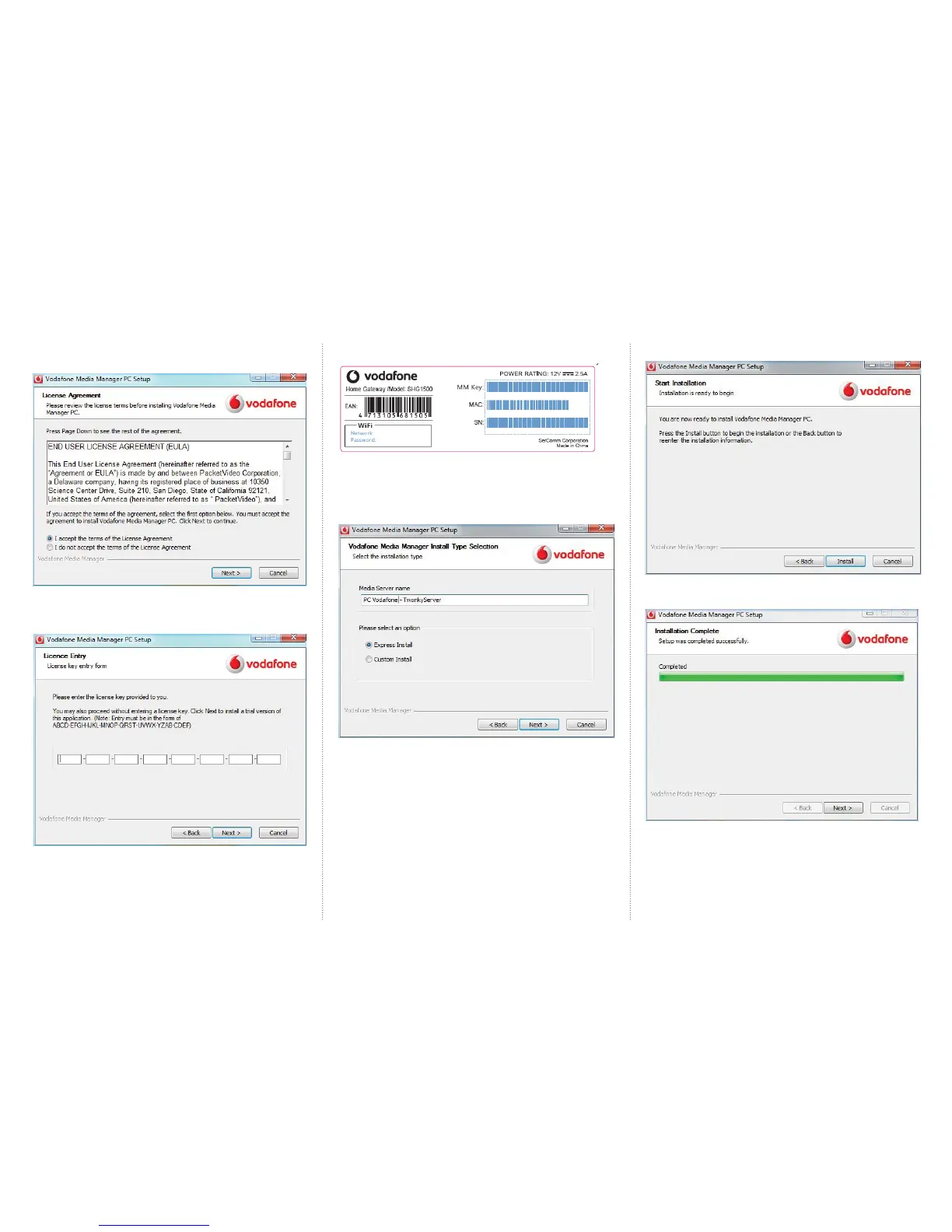
7. Vodafone Media Manager is now ready to install. Click Install to proceed.
8. Once complete, click next to fi nish.
Congratulations you have successfully installed Media Manager.
To open Media Manager please double click the Media Manager icon
on your desktop.
Once opened you will be able to view media on your computer and other
devices connected to your network by selecting the device from the drop
down box.
3. Continue through the Licence Agreement by
selecting the appropriate choice and then select Next.
4. Enter in the MM key (Media Manager Key), this can be found
on the back of your Vodafone Station and then click Next.
The sticker on the backof Vodafone Station looks like this:
5. Enter in a server name. You can either use the default name or any name
of your choice. We recommend using the default Express Install option
unless you have specifi c installation requirements in which case select
Custom Install.
6. Click next.


 To Next Page
 Loading...