4.8 VPN
Use this function for Virtual Private Networks
To set up a VPN connection
1. Log into the Vodafone Station by entering the following URL into your
internet browser: http://vodafone.station OR 192.168.1.1
2. Click on Advanced on the top menu
3. Click on Additional Settings on the sub menu
4. Select the type of VPN setup that you are trying to
set up from the dropdown menu
5. Enter the required details and click apply
4.9 Access Control
Access control is the opposite of port forwarding (see 4.13) as it allows you to
block access to a particular port or service such as games or internet.
To set up Access Control:
1. Log into the Vodafone Station by entering the following URL into your
internet browser: http://vodafone.station OR 192.168.1.1
2. Click on Advanced on the top menu
3. Move the On/Off switch to the On position
4. Select a service or game that you wish to block. Click on the Add button
and click on Apply at the bottom right of the screen.
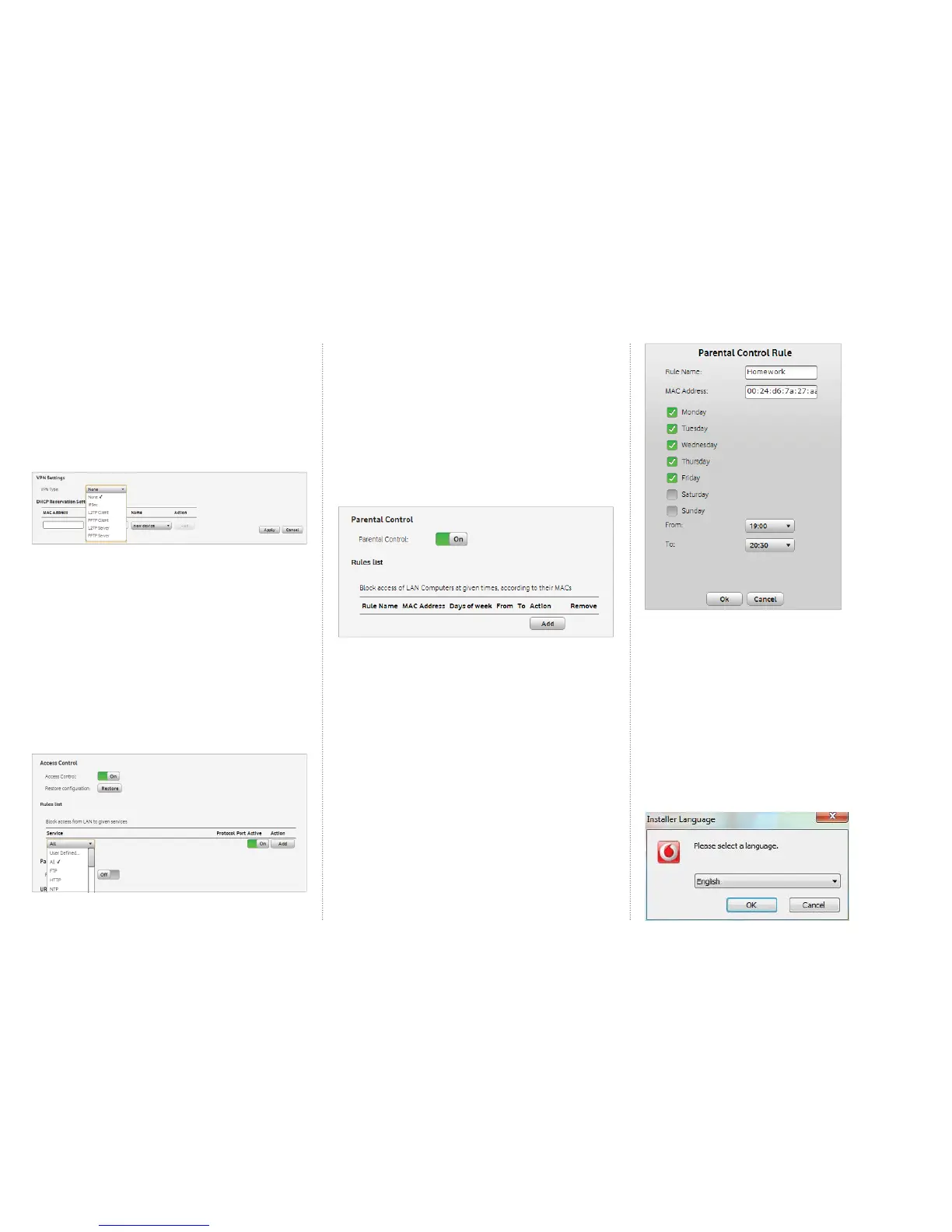
4.10 Parental Control
Parental Controls allow you to restrict a specifi c computer or device’s
internet access at certain times of the day. For example you may want to
block a games console, such as a Playstation or Xbox from accessing the
internet during exams.
To set up a Parental Control:
1. Log into the Vodafone Station by entering the following URL into your
internet browser: http://vodafone.station OR 192.168.1.1
2. Click on Advanced
3. Click on Firewall
4. Scroll down to the section Parental Control and set the slider to On
5. Click Add
6. Give the rule a name
7. Enter the MAC address of the computer or device you want to
restrict access too.You can view the MAC addresses of attached devices
in the settings menu of the Vodafone Station, under the Connected
Device History
8. Select the days and times you wish to restrict access
9. Click Ok
10. Click Apply at the bottom of the Firewall page
11. You may need to reboot your Vodafone Station for
these changes to take effect
4.11 Vodafone Media Manager
Vodafone Media Manager is software designed to share your music, movies
and pictures over your home network.
To set up Vodafone Media Manager
1. Go to http://downloads.vodafone.co.nz/
VodafoneMediaManagerSetup.exe and download the Media Manager
software
2. Once you have downloaded Media Manager,
double click on the fi le to begin.
3. Select your preferred language and click OK



 To Next Page
 Loading...