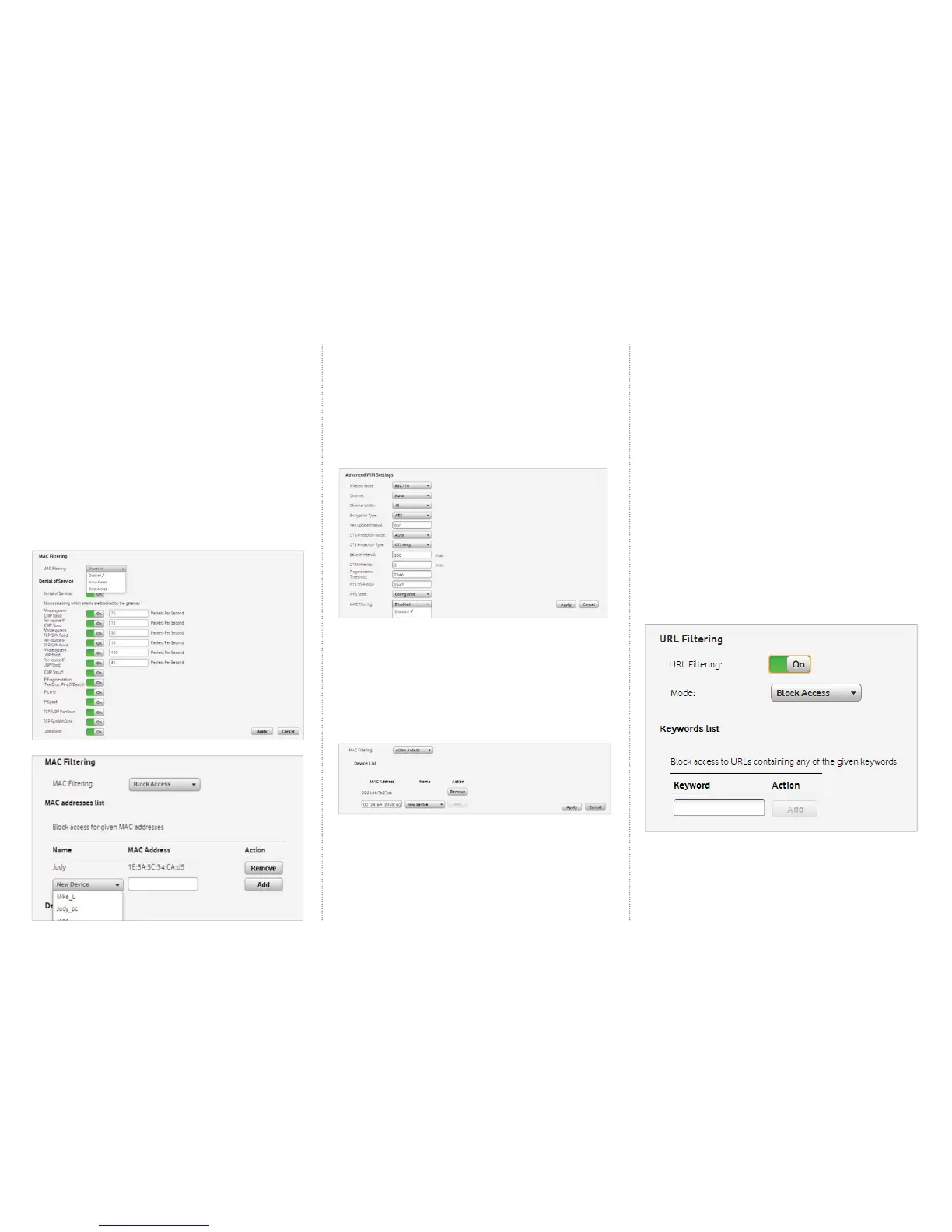
4.6 MAC address fi ltering
Every computer, phone or tablet in the world will have a MAC address. This
function allows you to block or allow a particular device to connect to the
internet based on the device’s MAC address.
Filter a Mac address for ethernet connections
1. Log into the Vodafone Station by entering the following URL into your web
browser: http://vodafone.station OR 192.168.1.1
2. Click on Advanced on the top menu
3. Scroll down the page to Mac Filtering
4. Adding a device to the Allow Access list will only allow devices in the allow
list to access the Vodafone Station
5. Adding a device to the Block Access list will deny access to that particular
device to access the Vodafone Station
6. Select a device from the drop down menu to add to the list or select
new device and add the MAC address for the device. Click on the Add button
and click on Apply
To fi lter a Mac address for wireless connections
1. Log into the Vodafone Station by entering the following URL into your
internet browser: http://vodafone.station OR 192.168.1.1
2. Click on Advanced on the top menu and then select Advanced WiFi
3. Scroll down the page to Mac fi ltering
4. Adding a device to the Allow Access list will only allow devices in the allow
list to access the Vodafone Station
5. Adding a device to the Block Access list will deny access to that particular
device to access the Vodafone Station
6. Select a device from the drop down menu to add to the list or select
new device and add the MAC address for the device. Click on the Add button
and click on Apply
4.7 URL fi ltering
URL fi ltering allows you to restrict access to web pages. If you set the mode
to blocked, web pages whose URL includes a keyword that you select will be
blocked. If you set it to allow, only websites with the specifi c keywords you
have provided will be accessible.
For example, you may want to block access to torrenting websites if you
suspect people in your house may be downloading illegally.
You could add keywords such as torrent and pirate to your URL fi lter.
Remember that this will only restrict keywords in the URL of the webpage, not
the content of the webpage itself.
1. Login to the Vodafone Station by entering the following URL in to your
internet browser http://vodafone.station OR 192.168.1.1
2. Click on Advanced
3. Click on Firewall
4. Scroll down to the section URL Filtering and set the slider to on
5. Select if you wish to block or allow access
6. In the keywords list, enter the keywords you wish to allow or deny
and click add
7. Click Apply at the bottom of the Firewall page
8. You may need to reboot your Vodafone Station for these changes
to take effect
9. When removing a URL fi lter, you may also need to clear your internet
browser’s cache



 To Next Page
 Loading...