Mac
1. Connect the Printer to the Vodafone Station using a USB cable
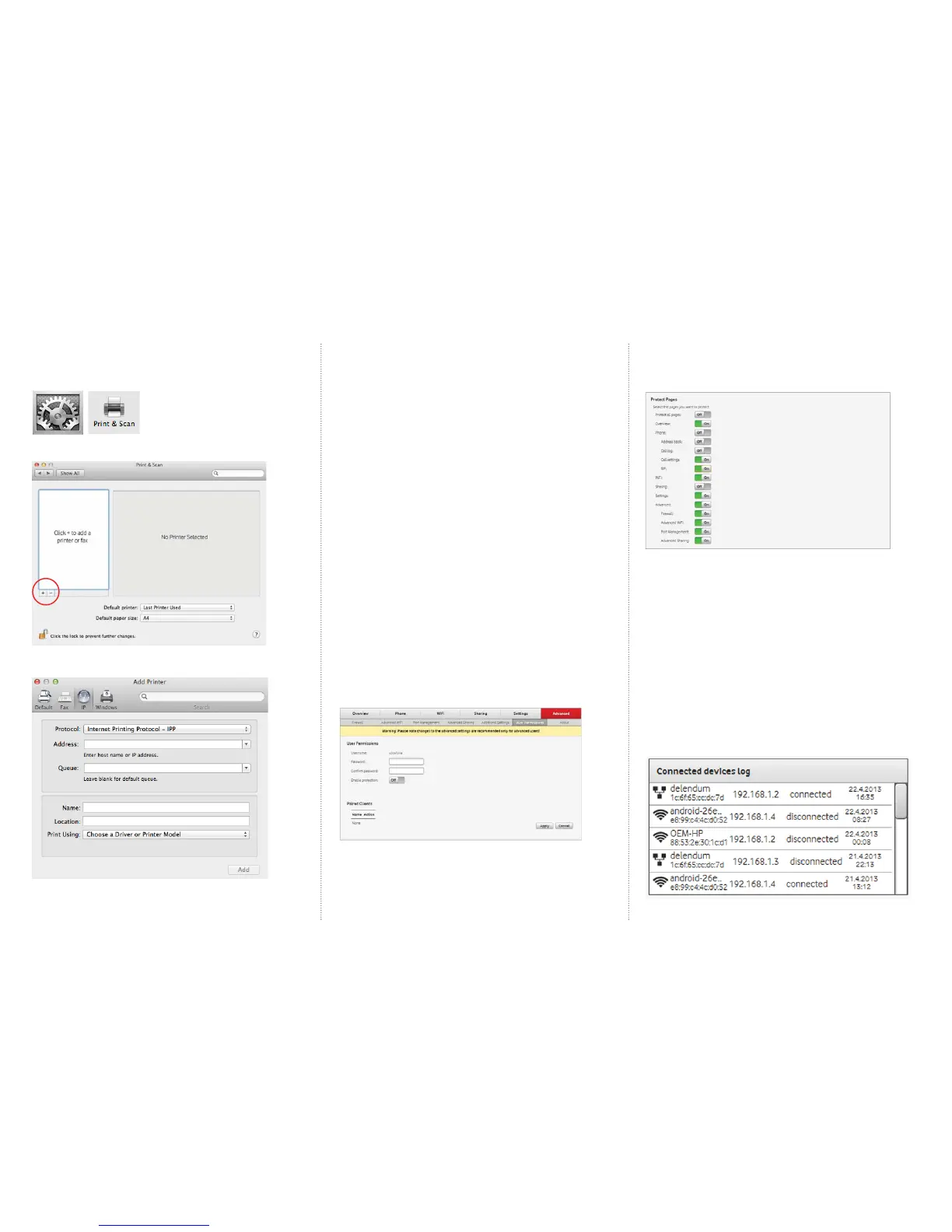
2. Open up System Preferences and select Print and Scan
3. Select the + Button to add a new printer
4. In the box that opens select IP
Protocol: Internet Printing Protocol – IPP
1. Enter the Address: 192.168.1.1:631
2. Queue: printers/printer (or whatever you
named the printer where it says printer)
3. Name and Location: Type whatever you like
4. Print Using: It will change to a generic driver, if you know the model you can
manually select it from a list.
5. Click Add
4.4 Setting up user permissions
Setting up user permissions allow you to restrict access to either the
entire web portal or sections of it. For example, you could restrict access to
everything but phone and sharing sections.
To change the password on your Vodafone Station
1. Log into the Vodafone station by entering the following URL into your
internet browser: http://vodafone.station OR 192.168.1.1
2. Click on Advanced on the top menu
3. Click on User Permissions
4. Enter a new password in the Password fi eld
5. Click Apply
6. The Vodafone Station will now only be able
to accessed with the security password
To enable password protection for specifi c
Vodafone Station menu pages
1. Turn the option Enable Protection on by clicking
on the button next to it
2. Click and turn on all pages that you would like protected with a password
3. Click Apply
4. The selected pages will now only be able to
be accessed with the security password
4.5 Device connection history
The connected device log allows you to view devices that are currently and
have previously been connected to your network.
Along with the name of the connected device you will be able to tell you how
the device is connected (Ethernet or WIFI), its MAC address and the IP address
that it connected with.
To access the connected device log
1. Login to the modem by browsing to
http://vodafone.station OR 192.168.1.1
2. Click on Settings
3. The connected device log will be located at the
bottom right hand corner of the window.



 To Next Page
 Loading...