Require Authentication to On.
To add a user
1. Click on + Add user
2. Enter a username and password
3. Set the permissions to either read+write or read only
4. Click apply
4.3 Sharing a USB printer
By connecting a USB printer to the Vodafone Station you can easily
print from any device on your network.
To enable the USB printer function
1. Connect the USB cable of the printer to the
USB port on your Vodafone Station
2. Log into the Vodafone station by entering the
following URL into your internet browser:
http://vodafone.station OR 192.168.1.1
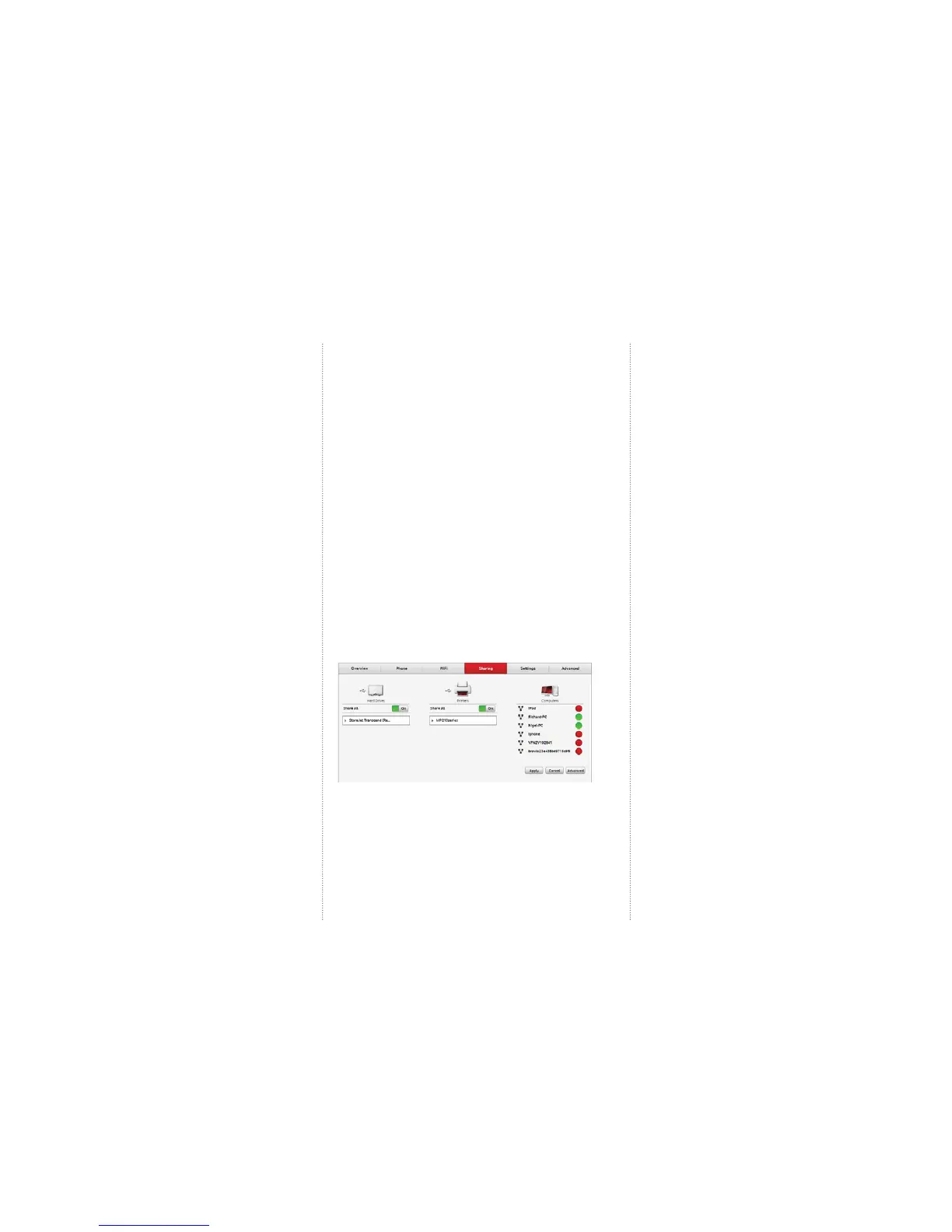
3. Click on Sharing on the top menu
4. Turn on the Share all function under Printers on the page
5. Click on Apply
Windows 7 / Windows Vista
1. From the start menu open Devices and Printers
2. Click Add a printer
3. Select Add a network, wireless or Bluetooth printer
4. Select The printer that I want isn’t listed . Under Select a shared printer
by name enter the network address of your printer. This can be found in the
sharing section of the Vodafone Station web portal, it should look something
like http://vodafone.station:631/printers/yourpintermodel
Mapping a network drive in Windows XP
1. Open My Computer
2. From the tools menu, click map network drive, this will open a map
network drive window
3. In the map network drive window, choose an available letter from the
dropdown list located next to the ‘Drive’ option. If any drives are currently
mapped they will have a folder name displayed next to the letter.
4. Enter the network name of of your drive (identifi ed in step 6 of the setup
instructions) This should look something like \\vodafone.station\a
5. Click the reconnect at login check box if this network drive should be
mapped permenantly, otherwise this will only be temporary until you log out
of your computer
6. Click fi nish
Mapping a network drive on Mac OS X
The drive will be automatically detected in your Mac device.
However, if this doesn’t work you can:
1. From the Mac OS X Finder, hit Command+K to bring up the
‘Connect to Server’ window
2. Enter the path to the network drive you want to map,
\\vodafone.station\a and click ‘Connect’
3. Enter your login/password and click “OK” to mount the network drive
4
. The drive will now appear on your desktop and in the
Finder window sidebar
Set up Disk Sharing Privileges
You can set up a username and password for USB hard drives connected to
your Vodafone Station.
Note: A password restriction only applies while the device is attached to the
Vodafone Station. If someone unplugs the hard drive and plugs it directly into
a computer, this authentication will no longer work.
You can confi gure different levels of access to the hard drives. For example
you might give yourself read+write privelages, but other users read only.
1. Login to the modem by browsing to http://vodafone.station
2. Click on Advanced
3. Click on Advanced Sharing
4. In the Disk Sharing Privileges section, click on your hard drive
5. If you are using Samba/FTP, slide the switch beside
5. Select Next
6. Select your printer make and model number from
the list and click Next
7. Click “Finish”
Windows 8
1. From the Start screen click windows explorer.
2. From the menu on the left hand side of the window click Computer.
3. Select the Computer tab at the top of your screen.
4. Select Open control Panel
5. Select Not fi nding what you are looking for. At this point you will need to
make sure the View by option in the top right hand corner of the window is set
to Category
6. Click Hardware and Sound
7. Under Devices and Printers click Advanced printer setup
8. Select The printer that I want isn’t listed. Under Select a shared printer
by name enter the network address of your printer. This can be found in the
sharing section of the Vodafone Station Web Portal, it should look something
like http://vodafone.station:631/printers/yourpintermodel
9. Select Next
10. Selet your printer make and model number from the list and click Next
11. Click Finish
Windows XP
1. Choose Start > Printers and Faxes. Click the Add Printer icon on the left
side of the displayed page.
2. Click Next in the Welcome to the Add Printer Wizard page.
3. Select a network printer, or a printer attached to another computer
and then click Next.
4. Select Connect to a printer on the Internet or on a home or offi ce
network.
5. Enter http://vodafone.station:631/printers/yourpintermodel/
myprinter in the URL text box. Then click Next.


 To Next Page
 Loading...