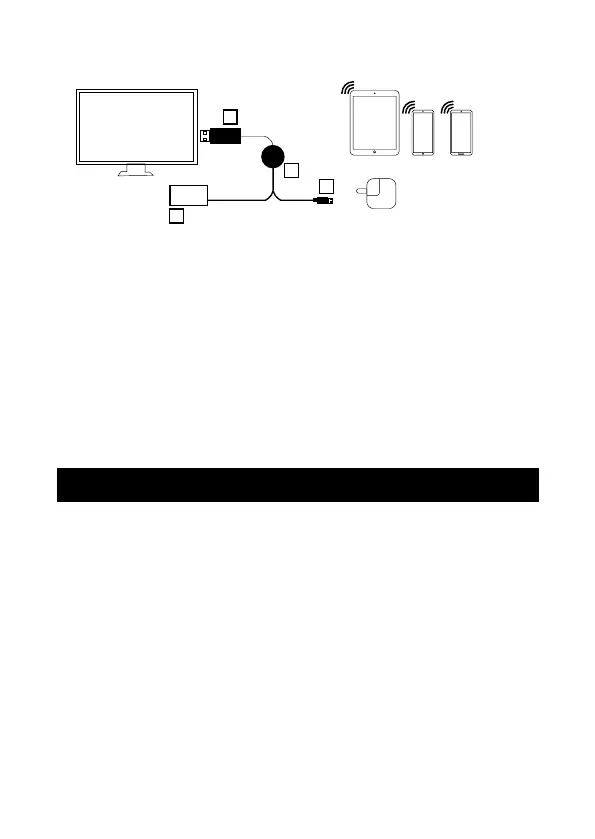
Connecting the Allcast Wireless Receiver to your TV / Screen:
• Plug the HDMI Connector into the HDMI Input on your TV / Screen.
• Select the appropriate input (HDMI Input) on your TV / Screen.
• Connect the USB Power Cable to a USB Power Source such as a USB Wall Charger,
Power bank or USB Port on your TV.
• Connect the Micro USB plug into the socket on the side of the Allcast.
• The Allcast will automatically power on and display instructions for wireless
connection on your TV / Screen.
• Optionally place the Wireless Receiver in front of the TV/ Screen for improved
WiFi reception.
iOS Devices (Airplay / Mirroring):
NOTE: Due to security restrictions on presenting certain copyrighted content, not all
media is available for casting on Apple devices.
• Open the Wi-Fi Menu on your iOS Devices.
• Select “Allcast-xxxxxxxx” from the list of available networks.
• Enter the default password “12345678”to connect
• Open the “Control Center” by either swiping up (iPhone 8 or earlier) or swiping down
from the upper-right corner (iPhone X or later)
• Tap “Screen Mirroring” (on an iPad, you’ll tap “Airplay”)
• Select “Allcast-xxxxxxxx” from the drop-down options (on an iPad, you’ll have to
toggle “Mirroring” on after this step)
INSTRUCTION FOR USE
SCREEN SHARING FROM YOUR PHONE / TABLET
4
1
5
8
7
HDMI TV
USB CONNECTOR
POWER SUPPLY
POWER SUPPLY
PHONE / TABLET
PAD
PHONE
POD
ANDROID
PHONE


 To Next Page