

EasyManua.ls Logo

Vonage Yealink T57 - User Manual

Vonage Yealink T57
2 pages
Print Icon
To Next Page IconTo Next Page
Loading...
UserGuide
Yealink T57
UG_YEALINK_0321 | ©2022
1
*67
- Block Caller ID (for single call)
*82
- Unblock Caller ID (for single call)
*90
- Extension Login (Call Queue)
*91
- Extension Logout (Call Queue)
*99/*100
- Access Extension Voicemail Box (must be dialed from
extension user is trying to access)
** + Extension Number | Blind transfer a call straight into an
extension’s voicemail
*101
- Access Virtual Mailbox (dial this code when listening to any
message on your Vonage Business Solutions system to access any
extension’s voicemail box)
*102
- Internal Dial by Last Name Directory
*103
– Park a call
*104
– Pick up a parked call
911
- Emergency Services (availability based on location)
411
- Directory Assistance ($1.50 per-call)
8 + Extension Number
| Two-Way Paging
Voicemail
Entering your Mailbox for the first time
To set up your mailbox for the first time, follow these steps:
1.
Press *99 or *100 and then the “Dial” button.
2.
Press 1234 (default password).
3.
Press 1 for “New Messages”. Press 2 for “Saved Messages”. For
“Mailbox Options” press 4.
After entering your mailbox options (call *99 or *100 from your phone
and choose option 4):
Listening to Messages
1.
Press *99 or *100 then the “Dial” button.
2.
Enter your password followed by the # (pound) key.
3.
Press 1 for “New Messages”. Press 2 for “Saved Messages”.
Options while listening to voicemail:
Unavailable Greeting (greeting that plays if you are on a call, away from
your desk, or unable to answer the call)
1.
Press 1 to record your unavailable greeting.
2.
After the tone record your desired unavailable greeting and press
the # (pound) key when finished.
3.
After playback, press 1 to save or 2 to rerecord the greeting.
Busy Greeting
(greeting callers hear if your phone is on Do Not
Making a Phone Call
Basic Functions
Disturb, not connected to the internet, or when all line appearances
are busy)
1.
Press 2 to record your busy message.
2.
After the tone record your desired busy greeting and press the #
(pound) key when finished.
3.
After playback, press 1 to save or 2 to rerecord the greeting.
Name Greeting
(used for company directory)
1.
Press 3 to record your name.
2.
After the tone record your desired name greeting and press the #
(pound) key when finished.
3.
After playback, press 1 to save or 2 to rerecord the greeting.
Record Temporary Greeting
(Vacation) (overrides all greetings)
1.
Press 4 to record your temporary greeting.
2.
After the tone record your desired temporary greeting and press
the # (pound) key when finished.
3.
After playback, press 1 to save or 2 to rerecord the greeting.
To Remove Temporary Greeting
1.
Press 4 to access the temporary greeting.
2.
If you have a temporary greeting set, press 2 to delete the
recording.
1.
For local calls and long distance: dial the area code and number
(i.e. 404-555-1212).
2.
For international calls: dial 011 + country code + number (i.e.
011-xx-xxx-xxxxx).
Using the Handset
1.
Pick up the handset, dial desired number, then press the #
(pound) button.
2.
Alternatively, dial the desired number, then pick up the
handset and the phone will begin dialing immediately.
Using Speakerphone
1. Press the Speakerphone button (on the lower right side of the phone), dial
the desired number (or extension number), and press the # (pound)
button.
Using a Headset
1.
Plug an approved headset into the headset port on the left side of
the phone. This port is labeled with a picture of a headset.
2.
To set the phone to use the headset to place and receive calls,
press the button labeled headset on the front of the phone This
button will turn green when activated. Once activated you can
select one of the 10 line keys and dial the desired number.
Voicemail Greetings
5
Repeats voicemail from the beginning
6
Go to next message
7
Deletes voicemail
8
Forward voicemail to another extension
9
Saves voicemail
*
Skips call information
#
Back to voicemail menu
Question and Answer IconNeed help?

Do you have a question about the Vonage Yealink T57 and is the answer not in the manual?

Summary

Voicemail System

First-Time Voicemail Setup

Steps to initially set up your voicemail box, including password and accessing messages.

Managing Voicemail Greetings

How to record, save, or remove unavailable, busy, name, and temporary greetings.

Navigating Voicemail Messages

Options for listening to, repeating, saving, deleting, or forwarding voicemail messages.

Making Phone Calls

Call Placement Methods

Instructions for making calls using the handset, speakerphone, or headset.

Call Handling and Features

Switching Audio Modes During Call

How to switch between handset, headset, and speakerphone during an active call.

Dialing Extensions

Procedure for dialing a 2 to 6 digit extension number.

Call Hold and Park Functions

Steps for placing calls on hold and parking/retrieving calls.

Call Transfer Methods

Guidance on performing attended and blind call transfers.

Conference Calling

How to set up and manage conference calls with multiple parties.

System Management and Access

Call History Navigation

How to access and scroll through call history records.

Hoteling Functions

Instructions for signing into and out of hoteling features.

Cell Phone Integration

Rerouting calls to a cell phone or another office extension.

Online Account Management

Accessing the online portal for account settings and voicemail-to-email.

Overview

The Yealink T57 is a business IP phone designed for use with Vonage Business Solutions, offering a comprehensive suite of features for communication and call management. This device serves as a central hub for voice communication, integrating various functionalities to enhance user productivity and streamline call handling.

Function Description:

The Yealink T57 primarily functions as a voice communication device, enabling users to make and receive calls, manage voicemail, and participate in conference calls. It supports both local and international dialing, as well as internal extension calls. Key features include:

  • Call Management: Users can place calls using a handset, speakerphone, or headset. The phone supports call hold, attended transfer (talking to the recipient before transferring), blind transfer (transferring without speaking to the recipient), and conference calling. It also includes call park functionality, allowing users to park a call and retrieve it from any other phone by dialing a specific code.
  • Voicemail System: The device provides a robust voicemail system. Users can set up their mailbox, listen to new and saved messages, and manage various greetings including unavailable, busy, name, and temporary (vacation) greetings. Options while listening to voicemail include repeating messages, skipping to the next, deleting, forwarding to another extension, and saving.
  • Call History: The phone keeps a detailed call history, allowing users to review inbound, outbound, missed, and forwarded calls. This feature is accessible via the up arrow key, with navigation through different call types using the right and left arrow keys.
  • Hoteling: The T57 supports hoteling, enabling users to sign in and out of a phone to access their personal profile, including extension number and voicemail PIN. This is particularly useful in shared office environments.
  • Cell Phone Integration: The device offers integration with cell phones, allowing users to reroute calls from their extension to their mobile phone and then transfer them back to an office extension or another external number from their cell phone.
  • Online Management: The phone integrates with the Vonage Business Solutions online portal, where users can manage their account, configure voicemail-to-email settings, and access detailed call log reports. This web-based interface provides administrative control over various phone features.

Important Technical Specifications:

While specific hardware specifications like screen size, processor, or memory are not detailed in the provided text, the manual implies a modern IP phone with capabilities for:

  • Network Connectivity: As an IP phone, it requires network connectivity, likely Ethernet, to function with the Vonage Business Solutions platform.
  • Audio Quality: The presence of handset, speakerphone, and headset options suggests support for various audio modes, aiming for clear voice communication.
  • User Interface: The mention of soft keys, physical buttons (like speakerphone, headset, hold, transfer), and arrow keys indicates a user-friendly interface for navigation and feature access.
  • Security: The use of passwords for voicemail access and PINs for hoteling implies built-in security measures.
  • Emergency Services: Direct dialing for 911 is supported, highlighting a critical safety feature.
  • Directory Services: Access to internal dial-by-last-name directory and 411 directory assistance is available.

Usage Features:

The Yealink T57 is designed for ease of use with several intuitive features:

  • Multiple Call Modes: Users can seamlessly switch between handset, speakerphone, and headset during a call, offering flexibility based on their preference or environment.
  • Quick Access Codes: Numerous star (*) and pound (#) codes are provided for quick access to features like blocking/unblocking caller ID, logging in/out of call queues, accessing voicemail, transferring calls, parking calls, and hoteling.
  • Soft Keys: Context-sensitive soft keys located at the bottom of the screen provide dynamic options for call management, such as "Hold," "Resume," "Transfer," and "Conference."
  • Visual Indicators: The manual mentions a red and blinking light for calls on hold, providing a clear visual cue for call status. The headset button turning green when activated also serves as a visual indicator.
  • Voicemail Customization: Extensive options for customizing voicemail greetings allow users to personalize their voicemail experience for different scenarios (unavailable, busy, name, temporary).
  • Online Reporting: The ability to generate call log reports online with date ranges and search filters helps users track and analyze their communication patterns.
  • Paging: Support for two-way paging (8 + Extension Number) allows for quick announcements within the office.

Maintenance Features:

While the manual does not explicitly detail hardware maintenance, it outlines several features related to system and account maintenance:

  • Voicemail-to-Email: This feature allows users to receive voicemail messages as email attachments, ensuring that important messages are not missed and can be archived digitally. This reduces the need to constantly check the phone for new messages.
  • Online Account Management: The Vonage Business Solutions online portal (app.vonage.com) serves as a central point for administrative tasks, including managing voicemail PINs, greetings, and email addresses for voicemail delivery. This allows for remote configuration and troubleshooting without direct interaction with the physical phone.
  • Temporary Greeting Management: The ability to record and delete temporary greetings (e.g., for vacations) simplifies the process of updating voicemail messages for short-term absences, ensuring callers receive accurate information.
  • System Re-registration: During hoteling sign-in, the phone downloads the user's profile and re-registers within 30-60 seconds, indicating an automated system maintenance process to ensure the phone is correctly configured for the signed-in user.

Overall, the Yealink T57 is presented as a robust and feature-rich IP phone, designed to integrate seamlessly with Vonage Business Solutions, providing a comprehensive communication tool for business users.
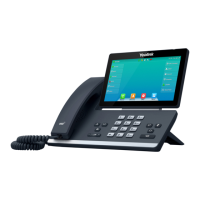
Vonage Yealink T57 Specifications

General IconGeneral
BrandVonage
ModelYealink T57
CategoryIP Phone
LanguageEnglish