The VONSET TALKING CHESS MASTER 3 (M820) is an electronic chess computer designed for players aged 6 and above, offering a comprehensive and interactive chess experience. This device provides a platform for playing chess against a computer opponent, with various features to assist and teach players of different skill levels.
Function Description:
The primary function of the M820 is to serve as a talking chess computer, allowing users to play chess against an integrated AI. It features a sensor board that detects piece movements, a display for showing game information, and a set of function keys for controlling various aspects of the game. The "TALKING CHESS MASTER" aspect implies that the device provides audio feedback, likely announcing moves, warnings, and game status.
Key Features and Usage:
- Chess Pieces and Board: The device comes with a full set of chess pieces, including King, Queen, Rook, Bishop, Knight, and Pawn. The manual provides a visual representation of these pieces along with their names in multiple languages (English, French, German, Dutch, Spanish, Italian, Portuguese), indicating a multilingual interface or support. The board itself is a sensor board, meaning it registers the placement and movement of pieces.
- First Use and Setup:
- Batteries: The M820 requires 4*5AA batteries. Users are advised not to mix old and new batteries and to ensure correct polarity during insertion. If the device fails to turn on, replacing the batteries is recommended.
- Reset to Factory Setting: In case of malfunction due to electrostatic discharge or other electrical disturbances, or after battery insertion, a "RESET" hole on the back of the computer allows users to perform a hard reset by pressing a thin lever for about 5 seconds. This clears the memory and restores normal operation.
- Warning: The chess pieces are small and may be swallowed, making the device unsuitable for children under 6 years old.
- Game Start and Movement:
- Starting a New Game: To begin a new game, the "New Game" key must be pressed twice. The white pieces are always set up at the front, near the function keys and display.
- Moving Pieces: Players move pieces by touching or pressing the sensor board at the start and destination squares.
- In-Game Control: The device prevents starting a new game or turning off the device until the opponent (computer) has finished its move. If an unfinished game is closed, the M820 will resume it upon the next power-on. To start a new game from a resumed state, the "New Game" key must be pressed twice.
- Teaching and Assistance Modes:
- "WHY?" Key: In teaching mode, if a player makes a dangerous move, the device will ask "ARE YOU SURE?". Pressing "WHY?" will provide an explanation. In a regular game, if a move is invalid or wrong, pressing "WHY?" will explain the reason.
- "WHERE?" Key: If a player is unsure how to move a piece, pressing "WHERE?" once and then pressing the piece will prompt the device to suggest the first move. Pressing the piece again will suggest a second move, and so on, in sequence.
- "TEACHING" Key: This key allows users to enter different teaching modes:
- Press once: Enter teaching mode 1.
- Press again: Enter teaching mode 2.
- Press a third time: Exit teaching mode.
- Sound and Volume Control:
- "SOUND" Key: Toggles the sound on or off.
- "VOLUME" Key: Adjusts the sound volume.
- Game Customization and Settings:
- "SET-UP POSITION" Key: Allows users to set up a custom chess game, row chess game, or famous chess game positions.
- "WHITE/BLACK" Key: When setting up a game, this key allows switching between playing as white or black pieces.
- "VERIFY POSITION" Key: This feature helps confirm the position of pieces, especially if they have been shuffled or rearranged. When pressed, the screen displays "U". Pressing a square on the chessboard will show "0" if there's no piece, or a number (1-6) if a piece is present. The numbers correspond to: 1 (pawn), 2 (knight), 3 (bishop), 4 (rook), 5 (queen), and 6 (king). Transparent squares (□) in the upper left corner represent white pieces, while black squares (■) represent black pieces.
- Game Control and Levels:
- "TAKE BACK" Key: Allows players to undo their last move.
- "MOVE" Key:
- Setting Game Levels: First press "LEVEL", then press "MOVE" to increase the level by 10 each time.
- During Game (White's Turn): After the computer (Black) moves, if the player (White) doesn't know what to move, pressing "MOVE" will switch between Black and White, and the device will suggest White's move.
- During Game (Black's Turn): Pressing "MOVE" during Black's turn can urge the computer to make its move.
- "LEVEL" Key: Adjusts the game level by +1 with each press. The default starting level is 10.
- Playing Against the Computer (M820):
- Turn on the device using the ON/OFF key. A transparent square (□) indicates White's turn to move first.
- Press "NEW GAME" twice to start.
- Adjust the game level using the "LEVEL" key (default is 10). Press "LEVEL" once to enter adjustment mode, then press "LEVEL" for +1 level or "MOVE" for +10 levels.
- Begin moving white pieces.
- Valid moves are confirmed with a "beep, beep" sound. Invalid or incorrect moves trigger a voice alert, and pressing "WHY?" provides an explanation.
- When it's the device's turn, a black square (■) appears on the screen. The display will show two positions: the blinking starting point and the destination.
- The device announces game end conditions:
+: Check10: Checkmate (White wins)01: Checkmate (Black wins)==: Stalemate50=: Draw by 50-move rule3=: Draw by repetition
Maintenance Features:
- Battery Replacement: The manual explicitly states to replace batteries when the device cannot be turned on, ensuring continuous operation.
- Reset Functionality: The "RESET" hole provides a simple and effective way to resolve software glitches or electrical disturbances, restoring the device to a known working state without complex troubleshooting.
- Customer Support: The manual encourages users to contact customer service for missing parts or any questions, indicating a commitment to product support and user satisfaction.
Technical Specifications (Inferred):
- Power Source: 4*5AA batteries.
- Display: Likely an LCD or similar segment display for showing game information, piece types, and square coordinates.
- Input Method: Sensor board for piece detection, dedicated function keys for control.
- Output Method: Audio (talking feature, beeps), visual (display).
- AI Levels: Adjustable game levels, starting from a default of 10, with increments of 1 or 10.
- Language Support: Multilingual piece names suggest potential for multilingual voice prompts or display text.
The VONSET TALKING CHESS MASTER 3 M820 is designed to be user-friendly for learning and playing chess, offering a blend of interactive guidance, customizable game settings, and robust error handling to enhance the overall user experience.

 Need help?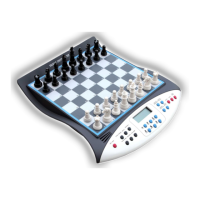

 To Next Page
 General