English - 6 -
recording time may change in practice depending on
the broadcast. The reserved and free storage space
values will change according to this setting. Make
sure that you have enough free space otherwise
instant recording may not be possible.
Auto discard: You can set the Discard type as
None, Oldest, Longest or Shortest. If it is not
set to None, you can set the Unplayed option as
Included or Excluded. These options determine
the preferences for deleting the recordings in order
to obtain more storage space for ongoing records.
Hard disk information: You can view detailed
information about the USB storage device connected
to your TV. Highlight and press OK to see and press
Back/Return to close.
Format Disk: If you want to delete all files on the
connected USB storage device and convert the disk
format to FAT32, you can use this option. Press OK
button while the Format Disk option is highlighted.
A menu will appear on the screen, requiring you
to enter the PIN(*). After you enter the PIN, a
confirmation message will be displayed. Select Yes
and press OK to start formatting the USB storage
device. Select No and press OK to cancel.
(*) Default PIN could have been set to 0000 or 1234. If you
have defined the PIN(is requested depending on the country
selection) during the First Time Installation use the PIN
that you have defined.
3. Settings
You can manage the settings of your TV using the op
-
tions of this menu. Refer to Settings Menu Contents
section for more information.
4. Apps
When your TV is connected to the Internet related
contents will also be available, including Apps related
contents. Using the Apps menu you can access and
manage your applications. You can add new apps from
the market or delete the existing ones. Refer to Apps
section for more information.
Sources
You can manage your input source references using
the options of this menu. To change the current source
highlight one of the options and press OK.
Source Settings
Regular, Enhanced and
Regular
and Enhanced
of the selected HDMI source. To be able to watch 4K or
Enhanced
Regular
.
Inserting the Batteries into the Remote
Remove the back cover to reveal the battery compart
-
ment. You need to do the followings in order to do that:
Place the tip of a pen or some other pointed object in
the hole above the cover and press it down.
Then press firmly on the cover and slide in the
direction of the arrow.
Insert two size AAA batteries. Make sure the (+) and
(-) signs match (observe correct polarity). Do not mix
old and new batteries. Replace only with same or
equivalent type. Place the cover back on.
A message will be displayed on the screen when the
batteries are low and must be replaced. Note that when
the batteries are low, the performance of the remote
control may be impaired.
Batteries should not be exposed to excessive heat
such as sunshine, fire or the like.
Power Connection
IMPORTANT: The TV set is designed to operate on a
supply. After unpacking, allow the
TV set to reach the ambient room temperature before
you connect the set to the mains. Plug the power cable
to the mains socket outlet.
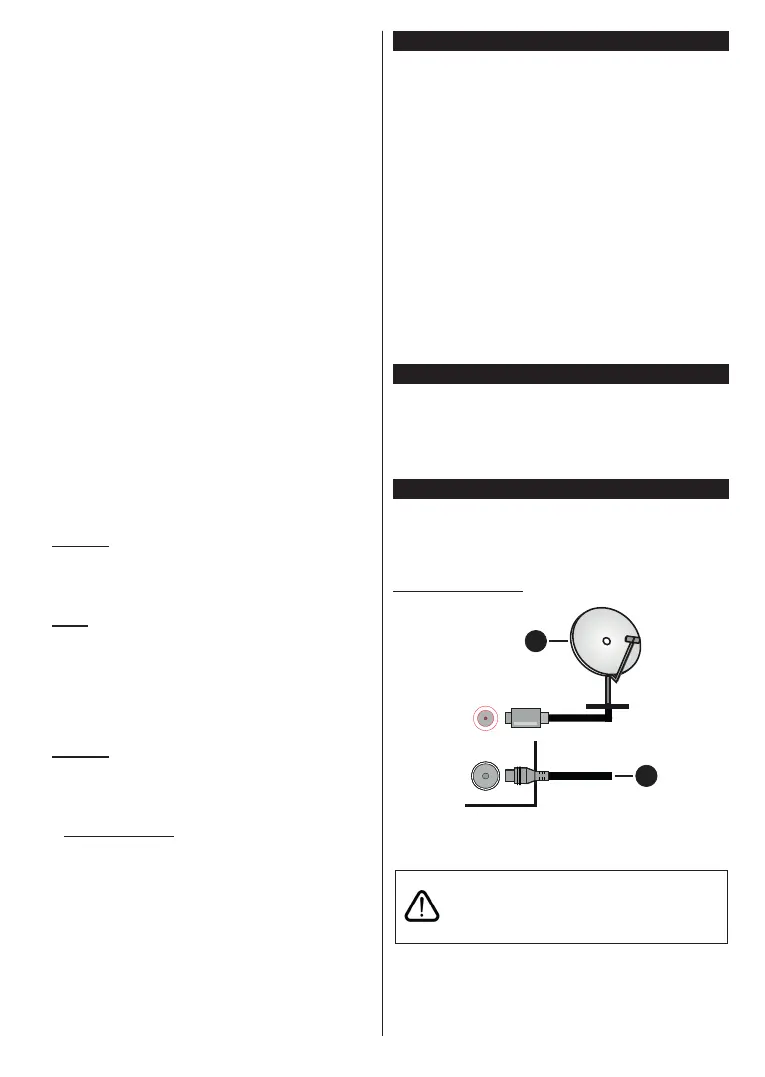
Antenna Connection
Connect the aerial or cable TV plug to the AERIAL
INPUT (ANT-TV) socket or satellite plug to the
SATELLITE INPUT (ANT SAT) socket located on the
rear side of the TV.
Rear side of the TV
1
2
ANT SAT
ANT-TV
1. Satellite
2. Aerial or cable
If you want to connect a device to the TV, make
sure that both the TV and the device are turned off
before making any connection. After the connection
is done, you can turn on the units and use them.


 To Next Page