EasyManua.ls Logo

VR Entertainment VR Real Feel Alien Blasters - User Manual

VR Entertainment VR Real Feel Alien Blasters
3 pages
Print Icon
To Next Page IconTo Next Page
Loading...
2 Install Batteries
Install 3 x AAA batteries (not included)
and replace the battery door.
Unscrew the battery
door on the blaster.
USES 3 x 1.5V “AAA” BATTERIES
(NOT INCLUDED)
ALKALINE
BATTERIES
RECOMMENDED.
BATTERY WARNINGS:
RECHARGEABLE BATTERIES NOT RECOMMENDED.
DO NOT MIX OLD AND NEW BATTERIES.
DO NOT MIX ALKALINE, STANDARD (CARBON-ZINC), OR
RECHARGEABLE BATTERIES.
BATTERIES ARE TO BE INSERTED WITH THE CORRECT POLARITY.
BATTERY DOOR
1
Download The Free App
Search on the Apple App Store or Google Play for VR Real Feel™ Alien Blasters.
System requirement: Android 4.4 or above iOS 9.3* or above
* The minimum OS requirement may change from time to time - always check www.vr-entertain.com for the latest OS requirements.
3
Setting Up Your Smartphone
Turn OFF your WiFi and Cellular data.
This will keep you from being disturbed while playing.
You can also set your phone to “airplane mode”
but be sure your Bluetooth
®
connectivity is still enabled.
IMPORTANT:
must be working for you to play with VR Real Feel™ Alien Blasters.
4
Launch the VR REAL FEEL
App
Turn the ON/OFF switch on the right side of the blaster to ON.
Click & launch the VR Real Feel™ app on your device.
LED on the blaster should be lit.
This tells you that the Bluetooth
®
connection was successful.
NOTE:
•You must have the blaster connected by Bluetooth
®
technology for the app to open.
Bluetooth
®
4.0(BLE) connectivity
FPO
NOTE: The LED on the
right side of the blaster will
flash to tell you that the
batteries are working.
OFF ON
Press SCAN in the app to connect your blaster by Bluetooth® technology.
The game will start automatically when the blaster is successfully connected.
3D REALITY SIMULATOR
Follow these instructions and you’ll be playing in just few minutes
QUICK START GUIDE
Question and Answer IconNeed help?

Do you have a question about the VR Entertainment VR Real Feel Alien Blasters and is the answer not in the manual?

Summary

Download The Free App

App Store and Google Play Download

Download the VR Real Feel™ Alien Blasters app from Google Play or Apple App Store.

Install Batteries

Battery Installation and Warnings

Install 3 AAA batteries, noting recommendations and warnings for proper use.

Smartphone Setup for VR

Disable WiFi;Cellular & Enable Bluetooth

Turn off WiFi/Cellular and ensure Bluetooth 4.0(BLE) is enabled for connectivity.

Launch VR App and Connect Blaster

Start App and Power On Blaster

Launch the VR Real Feel™ app and turn on the blaster to initiate connection.

Insert and Secure Phone in Headset

Opening Headset and Spreading Frame

Open the headset and spread the self-adjusting frame to securely hold the phone.

Phone Alignment and Headset Closure

Center Phone and Lock Headset

Align phone with the center line marker and ensure headset buttons are locked.

Wearing the VR Headset

Adjusting Headset Straps for Comfort

Place headset on head and adjust straps for a snug, comfortable fit.

Game Operation Controls

Blaster Controls and Actions

Learn to use the blaster's trigger, buttons, and reload slide to interact with the game.

Tips and Troubleshooting

Play Area and Device Warmth

Ensure a clear play area and note normal phone warmth during gameplay.

Troubleshooting Connectivity and Audio

Resolve issues with blaster LED, Bluetooth connection, and audio via earbuds.

Overview

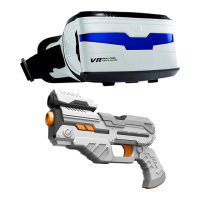
The device described in the manual is the VR Real Feel™ Alien Blasters, a 3D reality simulator that combines a physical blaster with a smartphone app for an immersive gaming experience.

Function Description

The VR Real Feel™ Alien Blasters system allows users to play an alien blasting game by integrating their smartphone into a VR headset and using a physical blaster as a controller. The core functionality revolves around:

  • Immersive Gaming: Users wear a VR headset that holds their smartphone, providing a stereoscopic view of the game world.
  • Physical Blaster Control: A dedicated blaster acts as the primary input device, allowing users to aim, shoot (Trigger / Confirm Button), reload (Reload Slide), throw grenades (Grenade Button / Cancel Button), and navigate menus (Left Selection Button, Right Selection Button).
  • Bluetooth® Connectivity: The blaster connects wirelessly to the smartphone via Bluetooth® 4.0 (BLE) to transmit game commands.
  • App-Based Experience: The game itself is an app downloaded from the Apple App Store or Google Play, which renders the 3D graphics and processes user input from the blaster.

Important Technical Specifications

  • Smartphone Compatibility:
    • Android: 4.4 or above
    • iOS: 9.3 or above (minimum OS requirement may change)
  • Connectivity: Bluetooth® 4.0 (BLE) is essential for blaster-to-smartphone communication.
  • Blaster Power: Requires 3 x 1.5V "AAA" ALKALINE BATTERIES (not included).
  • Radio Frequency: 2.402-2.480 GHz
  • Power Output: 0.210mW
  • Battery Warnings:
    • Alkaline batteries are recommended.
    • Rechargeable batteries are not recommended. If used, they must be charged under adult supervision and removed from the toy before recharging.
    • Do not mix old and new batteries.
    • Do not mix alkaline, standard (carbon-zinc), or rechargeable (nickel-cadmium) batteries.
    • Batteries must be inserted with the correct polarity.
    • Exhausted batteries must be removed.
    • Supply terminals are not to be short-circuited.
    • Remove batteries from the product before extended storage.
    • Do not dispose of the product in fire; batteries may explode or leak.
  • Safety: Not suitable for children under 36 months due to small parts (choking hazard).

Usage Features

Setup and Installation:

  1. App Download: Users must download the "VR Real Feel™ Alien Blasters" app from Google Play or the App Store.
  2. Battery Installation: 3 x AAA alkaline batteries are installed in the blaster by unscrewing the battery door. The LED on the blaster flashes to indicate working batteries.
  3. Smartphone Preparation:
    • Turn OFF WiFi and Cellular data to prevent interruptions.
    • Optionally, set the phone to "airplane mode" while ensuring Bluetooth® is still enabled.
  4. Smartphone Insertion into Headset:
    • Press A and B buttons on the headset to open the front.
    • Spread the self-adjusting frame to insert the smartphone securely.
    • Align the white line on the app screen with the marker on the headset frame for proper centering.
    • Close the headset carefully, ensuring buttons are locked.
    • For some phone models where frame clips might press control buttons, attach included foam pads to minimize pressure.
  5. Headset Adjustment: Place the headset on the head, center the strap, and adjust for a snug and comfortable fit. Shorten the center strap if too much weight is on the nose.
  6. Blaster Activation: Turn the ON/OFF switch on the right side of the blaster to ON.
  7. Bluetooth® Connection: Press "SCAN" in the app to connect the blaster via Bluetooth®. The LED on the blaster will light up solid once connected, and the game will start automatically.

Gameplay:

  • Users hold the blaster and follow in-app instructions.
  • Select a stage and press the Trigger button to start.
  • Controls:
    • Trigger / Confirm Button: Shoot, confirm selections.
    • Reload Slide: Pull back to reload.
    • Grenade Button / Cancel Button: Throw grenades, cancel actions.
    • Left Selection Button / Right Selection Button: Navigate menus.
    • Pause Game: Press both selection buttons together.

Troubleshooting and Tips:

  • Play Area: Ensure the play area is clear of furniture, objects, and people to prevent accidents.
  • Battery Life: The game's high-definition graphics may shorten phone battery life; ensure the phone is well-charged.
  • Device Warmth: It's normal for the phone to get warm. If it gets too hot, stop the app and let the device cool down.
  • Blaster LED Issues:
    • If the LED doesn't flash when turned ON, replace blaster batteries.
    • If the LED doesn't light after pressing SCAN, check Bluetooth® settings, ensure Bluetooth® 4.0(BLE) is enabled, and restart the app/blaster.
  • Audio: Earbuds (not included) can be plugged into the headset's side slot for silent play. Bluetooth® headphones are not supported as mobile devices cannot connect to both Bluetooth® earphones and the blaster simultaneously.
  • Focus Issues: If the VR image is out of focus, re-check smartphone insertion and centering (steps 5-7 of the guide).

Maintenance Features

  • Battery Replacement: Only adults should replace batteries in the blaster. Follow battery warnings regarding type, polarity, and mixing.
  • Storage: Remove batteries from the product before extended storage.
  • Cleaning: The manual does not explicitly mention cleaning instructions, but general electronic device care would apply (e.g., wipe with a dry cloth).
  • Software Updates: The minimum OS requirement for the app may change, so users should check www.vr-entertain.com for the latest requirements.
  • Foam Pad Application: Place the 3 self-adhesive foam pads on the inside area of the frame clips of the adjustable smartphone holder to prevent accidental button presses.
  • Information Retention: Users are advised to retain the manual for future reference.

VR Entertainment VR Real Feel Alien Blasters Specifications

General IconGeneral
BrandVR Entertainment
ModelVR Real Feel Alien Blasters
CategoryVideo Game Controller
LanguageEnglish