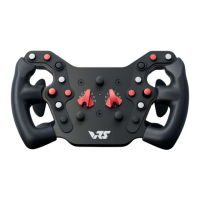
When disconnecting the USB (with a charged battery), a LED will
blink blue for 30 seconds. This light indicates the wheel is in
BluetoothⓇ pairing mode, and is visible to other BluetoothⓇ
devices. If the LED stops blinking, pressing a button on the wheel
will re-initiate this
If your device does not appear in your Windows 11 devices display,
you may need to navigate to "More devices and printer settings"
instead, and choose "Add a device" from there
*If your PC lacks native BluetoothⓇ hardware, we recommend
purchasing a dongle separately.
Connecting to Bluetooth®
VRS
®
DirectForce
®
Pro Formula Wheel
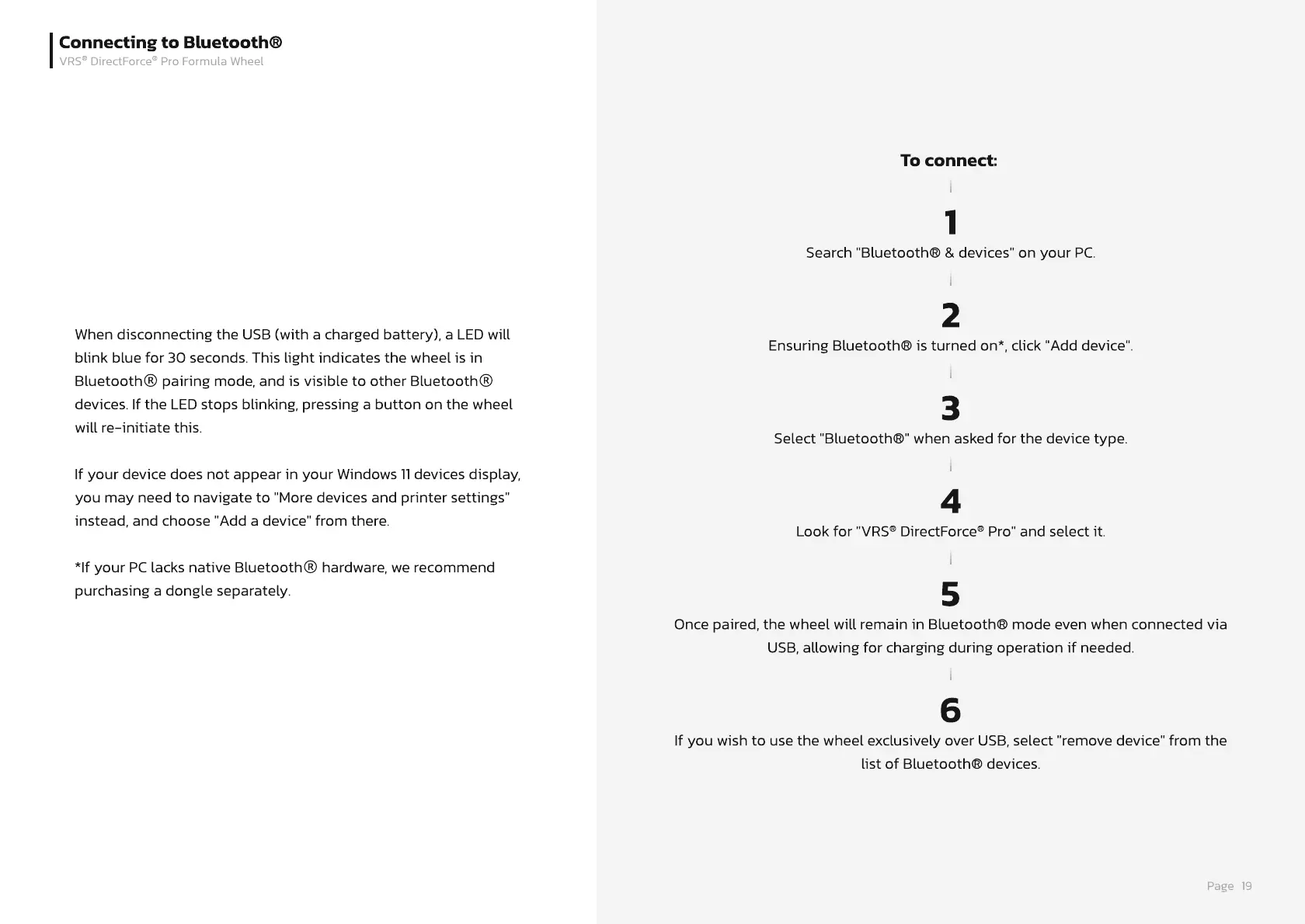
To connect:
1
Search "Bluetooth® & devices" on your PC.
2
Ensuring Bluetooth® is turned on*, click "Add device".
3
Select "Bluetooth®" when asked for the device type.
4
Look for "VRS
®
DirectForce
®
Pro" and select it.
5
Once paired, the wheel will remain in Bluetooth® mode even when connected via
USB, allowing for charging during operation if needed.
6
If you wish to use the wheel exclusively over USB, select "remove device" from the
list of Bluetooth® devices.
Page
19


 To Next Page
 Loading...