EasyManua.ls Logo

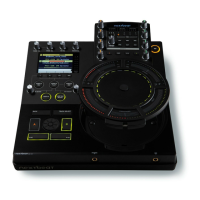
WACOM nextbeat X-1000 - User Manual

WACOM nextbeat X-1000
44 pages
Print Icon
To Next Page IconTo Next Page
Loading...
User's Guide
X-1000

Table of Contents

Questions and Answers

Summary

1 Introduction

1.1 Check the package contents carefully.

Verify all items are present in the product package to ensure a complete setup.

1.2 Safety Precautions

Essential safety guidelines and warnings for using the nextbeat X-1000 to prevent injury or damage.

1.3 Notes on Using This Product

Key information and disclaimers for optimal and correct usage of the nextbeat X-1000.

1.4 Features of nextbeat X-1000

Detailed explanation of the unique features and capabilities of the nextbeat X-1000 DJ system.

1.5 Supported Music File Formats

List of compatible audio file formats, sampling rates, bit depths, and extensions for music playback.

1.6 Component Names and Functions

Identification and explanation of the various parts and controls of the nextbeat X-1000 base unit.

1.6.1 Control Panel

Detailed breakdown of the base unit's control panel, its buttons, knobs, and their functions.

1.6.2 Front Input;Output sockets

Description of the front-facing connection ports for headphones and microphones.

1.6.3 Rear Input;Output sockets

Description of the rear-facing connection ports for power, audio output, and data.

1.6.4 Display screen

Explanation of the nextbeat X-1000's display screen layouts and information.

1.7 Starting Up & Shutting Down

Procedures for safely powering the nextbeat X-1000 on and off, including preparation.

2 Before You Go Live

2.1 Transferring Tracks to CF Cards

Guide to downloading music files from a computer to the CF card for playback.

3 Basic Operation

3.1 Switching Channels

How to select and switch between the two available channels (A and B) for operation.

3.1.1 Channel Switching and the LEDs

Details on how channel switching affects button colors and LED indicators.

3.1.2 Adjusting the Headphone Sound

Instructions for balancing and adjusting the volume of the headphone output.

3.2 Track Selection

Process for selecting and uploading music tracks from the CF card for playback.

3.3 Play;Pause

How to start, pause, and resume playback of selected tracks.

3.3.1 Playback (normal playback)

Details on initiating and controlling normal playback of a selected track.

3.3.2 Pause

How to pause a track and use the centre pad for time search functionality.

3.4 Fast-forward;Rewind

Techniques for fast-forwarding and rewinding tracks using the centre pad.

3.5 Setting Cue Points;Cued Playback

How to set cue points for quick track skipping and perform cued playback.

3.5.1 Setting cue points

Step-by-step guide to setting specific cue points within a track.

3.5.2 Cued playback

How to initiate playback from a previously set cue point.

3.6 Adjusting the Playback Speed

Methods for controlling track playback speed using pitch faders and the centre pad.

3.6.1 Adjusting the speed with the pitch faders

Using pitch faders to fine-tune track playback speed with precise increments.

3.6.2 Adjusting the speed with the centre pad

Using the centre pad for dynamic control over track playback speed.

3.6.3 Master Tempo function

Maintaining original pitch while changing playback speed for seamless transitions.

3.7 Adjusting the Trim;EQ

How to adjust input gain (trim) and equalization (EQ) for each channel.

3.7.1 Adjusting the trim (gain)

Using trim knobs to set channel input levels and optimize signal strength.

3.7.2 Adjusting the EQ

Modifying high, mid, and low frequencies for desired sound coloration.

3.8 Adjusting the Volume

How to control channel volumes, microphone volume, and master output volume.

3.8.1 Adjusting the volume for channel A;B

Using volume faders to set the sound level for individual channels.

3.8.2 Other volume adjustments

Adjusting microphone and master output volumes for overall sound control.

3.9 Cross Fader Adjustment

How to adjust the cross fader for smooth transitions between channels.

3.10 BPM Display

Understanding the BPM display and how to measure track tempo.

3.10.1 Auto BPM

Automatically measuring track BPM during playback.

3.10.2 Manual BPM (Auto BPM: OFF)

Manually measuring track BPM by tapping a button.

3.10.3 BPM matching

Automatically matching the BPM of one channel to another for beat-synced mixing.

3.11 Microphone Input

Connecting and using a microphone with the nextbeat.

4 Advanced Operation

4.1 Loop Function

How to create, set, and play loop segments from tracks.

4.1.1 Setting and playing from loop points

Guide to defining loop-in and loop-out points for seamless looping.

4.1.2 Playing segments

Splitting loop segments and playing them repeatedly.

4.2 Effects Functions

Detailed information on applying and controlling the six built-in effects.

4.2.1 Applying effects

Steps to select channels and apply desired effects using dedicated buttons.

4.2.2 Effects Parameter List

Overview of parameters for filters, delay, flanger, phaser, and reverb effects.

4.3 Sampler Functions

How to use the sampling functions to record, play, and layer sounds.

4.3.1 Sampling function

Recording sections of tracks into memory for later playback.

4.3.2 Sample playback function

Playing back recorded samples using the centre pad.

4.3.3 Phrase recording function

Creating layered phrases by recording samples onto existing loops.

5 Detaching and Using the Portable Unit

5.1 Detaching;Remounting the Unit

Procedure for separating and reattaching the portable unit from the base unit.

5.2 Attaching the Strap

Importance of using the dedicated strap for safe handheld operation.

5.3 Holding the Unit

Examples of how to hold the portable unit during use.

5.4 Signal Reception

Understanding the effective wireless communication range and potential obstacles.

5.5 Power Supply

How the portable unit is powered when detached from the base unit.

5.6 Starting Up & Shutting Down

Procedures for starting up and shutting down the portable unit, including auto power off.

5.7 Portable Unit

Using buttons and pads on the portable unit, noting similarities to base unit controls.

6 Appendix

6.1 Changing the Preferences

Procedure for accessing and modifying the nextbeat's basic settings and preferences.

6.1.1 Preference Settings

Details of adjustable preference settings like Pad Threshold, Cross Fader Curve, and LCD.

6.2 Troubleshooting

Table of common symptoms, probable causes, and recommended actions for resolving issues.

6.3 Updating the Firmware

Instructions for updating the nextbeat's firmware using a CF card.

6.4 Replacing the Batteries

Guide on how to replace the AA batteries in the portable unit.

6.4.1 Notes on Handling the Batteries

Important safety precautions and guidelines for handling batteries.

6.5 Transporting, Cleaning & Storage

Guidelines for safely transporting, cleaning, and storing the nextbeat.

6.5.1 Transporting the nextbeat

Proper procedures for securing and transporting the nextbeat unit.

6.5.2 Cleaning & Storage

Instructions for cleaning the device and recommendations for storage.

6.6 Specifications

Technical specifications of the nextbeat X-1000, including audio, connectivity, and dimensions.

LIMITED WARRANTY

Warranty Details and Limitations

Information on product warranty period, coverage, limitations, and customer responsibilities.

Summary

1 Introduction

1.1 Check the package contents carefully.

Verify all items are present in the product package to ensure a complete setup.

1.2 Safety Precautions

Essential safety guidelines and warnings for using the nextbeat X-1000 to prevent injury or damage.

1.3 Notes on Using This Product

Key information and disclaimers for optimal and correct usage of the nextbeat X-1000.

1.4 Features of nextbeat X-1000

Detailed explanation of the unique features and capabilities of the nextbeat X-1000 DJ system.

1.5 Supported Music File Formats

List of compatible audio file formats, sampling rates, bit depths, and extensions for music playback.

1.6 Component Names and Functions

Identification and explanation of the various parts and controls of the nextbeat X-1000 base unit.

1.6.1 Control Panel

Detailed breakdown of the base unit's control panel, its buttons, knobs, and their functions.

1.6.2 Front Input;Output sockets

Description of the front-facing connection ports for headphones and microphones.

1.6.3 Rear Input;Output sockets

Description of the rear-facing connection ports for power, audio output, and data.

1.6.4 Display screen

Explanation of the nextbeat X-1000's display screen layouts and information.

1.7 Starting Up & Shutting Down

Procedures for safely powering the nextbeat X-1000 on and off, including preparation.

2 Before You Go Live

2.1 Transferring Tracks to CF Cards

Guide to downloading music files from a computer to the CF card for playback.

3 Basic Operation

3.1 Switching Channels

How to select and switch between the two available channels (A and B) for operation.

3.1.1 Channel Switching and the LEDs

Details on how channel switching affects button colors and LED indicators.

3.1.2 Adjusting the Headphone Sound

Instructions for balancing and adjusting the volume of the headphone output.

3.2 Track Selection

Process for selecting and uploading music tracks from the CF card for playback.

3.3 Play;Pause

How to start, pause, and resume playback of selected tracks.

3.3.1 Playback (normal playback)

Details on initiating and controlling normal playback of a selected track.

3.3.2 Pause

How to pause a track and use the centre pad for time search functionality.

3.4 Fast-forward;Rewind

Techniques for fast-forwarding and rewinding tracks using the centre pad.

3.5 Setting Cue Points;Cued Playback

How to set cue points for quick track skipping and perform cued playback.

3.5.1 Setting cue points

Step-by-step guide to setting specific cue points within a track.

3.5.2 Cued playback

How to initiate playback from a previously set cue point.

3.6 Adjusting the Playback Speed

Methods for controlling track playback speed using pitch faders and the centre pad.

3.6.1 Adjusting the speed with the pitch faders

Using pitch faders to fine-tune track playback speed with precise increments.

3.6.2 Adjusting the speed with the centre pad

Using the centre pad for dynamic control over track playback speed.

3.6.3 Master Tempo function

Maintaining original pitch while changing playback speed for seamless transitions.

3.7 Adjusting the Trim;EQ

How to adjust input gain (trim) and equalization (EQ) for each channel.

3.7.1 Adjusting the trim (gain)

Using trim knobs to set channel input levels and optimize signal strength.

3.7.2 Adjusting the EQ

Modifying high, mid, and low frequencies for desired sound coloration.

3.8 Adjusting the Volume

How to control channel volumes, microphone volume, and master output volume.

3.8.1 Adjusting the volume for channel A;B

Using volume faders to set the sound level for individual channels.

3.8.2 Other volume adjustments

Adjusting microphone and master output volumes for overall sound control.

3.9 Cross Fader Adjustment

How to adjust the cross fader for smooth transitions between channels.

3.10 BPM Display

Understanding the BPM display and how to measure track tempo.

3.10.1 Auto BPM

Automatically measuring track BPM during playback.

3.10.2 Manual BPM (Auto BPM: OFF)

Manually measuring track BPM by tapping a button.

3.10.3 BPM matching

Automatically matching the BPM of one channel to another for beat-synced mixing.

3.11 Microphone Input

Connecting and using a microphone with the nextbeat.

4 Advanced Operation

4.1 Loop Function

How to create, set, and play loop segments from tracks.

4.1.1 Setting and playing from loop points

Guide to defining loop-in and loop-out points for seamless looping.

4.1.2 Playing segments

Splitting loop segments and playing them repeatedly.

4.2 Effects Functions

Detailed information on applying and controlling the six built-in effects.

4.2.1 Applying effects

Steps to select channels and apply desired effects using dedicated buttons.

4.2.2 Effects Parameter List

Overview of parameters for filters, delay, flanger, phaser, and reverb effects.

4.3 Sampler Functions

How to use the sampling functions to record, play, and layer sounds.

4.3.1 Sampling function

Recording sections of tracks into memory for later playback.

4.3.2 Sample playback function

Playing back recorded samples using the centre pad.

4.3.3 Phrase recording function

Creating layered phrases by recording samples onto existing loops.

5 Detaching and Using the Portable Unit

5.1 Detaching;Remounting the Unit

Procedure for separating and reattaching the portable unit from the base unit.

5.2 Attaching the Strap

Importance of using the dedicated strap for safe handheld operation.

5.3 Holding the Unit

Examples of how to hold the portable unit during use.

5.4 Signal Reception

Understanding the effective wireless communication range and potential obstacles.

5.5 Power Supply

How the portable unit is powered when detached from the base unit.

5.6 Starting Up & Shutting Down

Procedures for starting up and shutting down the portable unit, including auto power off.

5.7 Portable Unit

Using buttons and pads on the portable unit, noting similarities to base unit controls.

6 Appendix

6.1 Changing the Preferences

Procedure for accessing and modifying the nextbeat's basic settings and preferences.

6.1.1 Preference Settings

Details of adjustable preference settings like Pad Threshold, Cross Fader Curve, and LCD.

6.2 Troubleshooting

Table of common symptoms, probable causes, and recommended actions for resolving issues.

6.3 Updating the Firmware

Instructions for updating the nextbeat's firmware using a CF card.

6.4 Replacing the Batteries

Guide on how to replace the AA batteries in the portable unit.

6.4.1 Notes on Handling the Batteries

Important safety precautions and guidelines for handling batteries.

6.5 Transporting, Cleaning & Storage

Guidelines for safely transporting, cleaning, and storing the nextbeat.

6.5.1 Transporting the nextbeat

Proper procedures for securing and transporting the nextbeat unit.

6.5.2 Cleaning & Storage

Instructions for cleaning the device and recommendations for storage.

6.6 Specifications

Technical specifications of the nextbeat X-1000, including audio, connectivity, and dimensions.

LIMITED WARRANTY

Warranty Details and Limitations

Information on product warranty period, coverage, limitations, and customer responsibilities.

WACOM nextbeat X-1000 Specifications

General IconGeneral
BrandWACOM
Modelnextbeat X-1000
CategoryDJ Equipment
LanguageEnglish