
 Need help?
Do you have a question about the WACOM PTH-660-N and is the answer not in the manual?
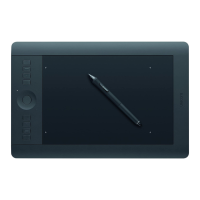
Manually reset the temporary memory on the Wacom Intuos Pro by using the reset button.
Ensure you are using the correct driver version for your specific Wacom tablet model.
Ensure the current driver is installed and your tablet is correctly connected.
Utilize the diagnostics panel to detect hardware issues and check pressure status.
Install the Windows 10 April Update to resolve scrolling issues caused by recent updates.
Disable Windows Ink in Wacom Tablet Properties to resolve certain scrolling/panning issues.
This document provides a comprehensive FAQ for Wacom tablets, addressing common issues related to Bluetooth connectivity, pen pressure, and driver functionality. It offers detailed troubleshooting steps and explanations to help users resolve problems and optimize their tablet's performance.
Wacom tablets are input devices designed for digital art, graphic design, and other creative tasks, offering precise pen input and pressure sensitivity. They connect to computers via USB or Bluetooth, allowing users to interact with software applications using a specialized pen. The tablets are designed to provide a natural and intuitive drawing experience, mimicking traditional pen-on-paper interaction.
Wacom tablets, particularly models like the Intuos Pro (PTH-660x, PTH860x) and Intuos (CTL-4100x, CTL-6100x), utilize Bluetooth for wireless connection to a computer. This offers flexibility and reduces cable clutter. However, Bluetooth connections can be slower than USB and may experience lag or connection issues due to interference or environmental factors.
To optimize Bluetooth performance:
Pen pressure is a key feature of Wacom tablets, allowing for varying line thickness and opacity based on how hard the pen is pressed. If pen pressure is not working, it could be due to application settings, driver issues, or hardware defects.
Troubleshooting pen pressure:
Users may encounter error messages such as "A supported tablet is not found on the system" or "The tablet driver is not responding." These indicate issues with the tablet's connection or the driver's communication with the operating system.
Troubleshooting driver issues:
Microsoft Windows updates (KB4093112 & KB4089848) have introduced changes to Windows Ink settings, affecting pen and touch devices. This can cause issues like scrolling instead of drawing in Photoshop or selection problems in Outlook/web browsers.
If Bluetooth connectivity issues persist, resetting the tablet's temporary memory can help. This process does not affect drawing files saved to the tablet memory.
Regularly checking for and installing the latest driver and firmware updates through the Wacom Desktop Center is crucial for optimal performance and compatibility with operating system changes.
Keeping your computer's operating system (Windows or macOS) updated is important, as Wacom drivers are designed to work with the latest OS versions, and OS updates often include fixes for device compatibility.
While not explicitly detailed, maintaining a clean workspace and ensuring the tablet is free from dust and debris can contribute to its longevity and consistent performance. Minimizing environmental interference (e.g., from other electronic devices) is also key for stable Bluetooth connections.
 General
| Product Type | Graphics Tablet |
|---|---|
| Model Number | PTH-660-N |
| Color | Black |
| Multi-Touch | Yes |
| Pen | Pro Pen 2 |
| Pen Pressure Levels | 8192 |
| Tilt Recognition | Yes |
| Resolution | 5080 LPI |
| System Requirements | Windows 7 or later, macOS 10.12 or later |
| Touch Ring | Yes |
| Dimensions | 13.2 x 8.5 x 0.4 inches |
| Compatibility | Windows, macOS |
| ExpressKeys | 8 |
| Connectivity | USB |
| Report Rate | 200 RPS |
| Included Accessories | USB cable, Quick Start Guide |








 To Next Page