6
POWERING UP
You can now power up the thermostat and begin the programming process. An easy to follow
menu will guide you through the rest.
ERROR MESSAGES
Your thermostat can give you two error indications:
1. “er1”: This will occur if no oor sensor is detected
2. “er2”: This will occur if the oor sensor has a short circuit
CONNECT TO my.butech.net
Once your thermostat is powered up, you need to create your account. Navigate your web
browser to my.butech.net. Enter your email address and create a password for your account. You
will be sent a conrmation email when your account is set up. Make sure you check your spam
folder as well as your inbox.
When you’ve received your account activation email, you can connect your thermostat to the
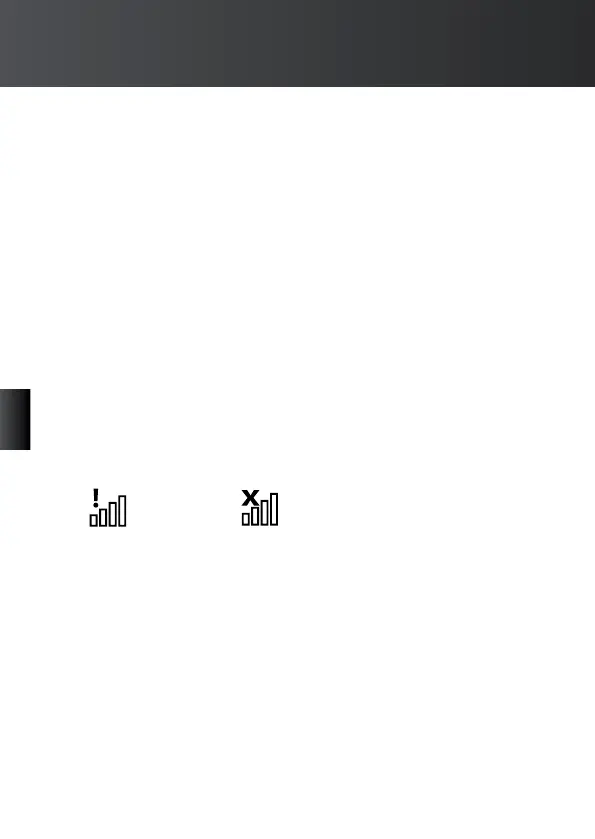
account. Ensure your thermostat is connected to the internet. If you see an error icon on the
homescreen like below, then your thermostat is not connected to the internet. If you can’t
connect to the internet, you can skip this stage and connect any time in the future.
When your thermostat is connected to the internet, just enter the unique code displayed on the
connection screen into your account. Your thermostat will then be connected.
If you see these icons, call for assistance.
No WiFi ConnectionNot connected to Server
EN
8GM Smart Controller



 To Next Page