2 3
Activate Your Firebox
1. Go to www.watchguard.com/activate
2. Log in to your WatchGuard account, or create a new account*.
*If you create a new account, return to www.watchguard.com/activate after you nish the
account creation process.
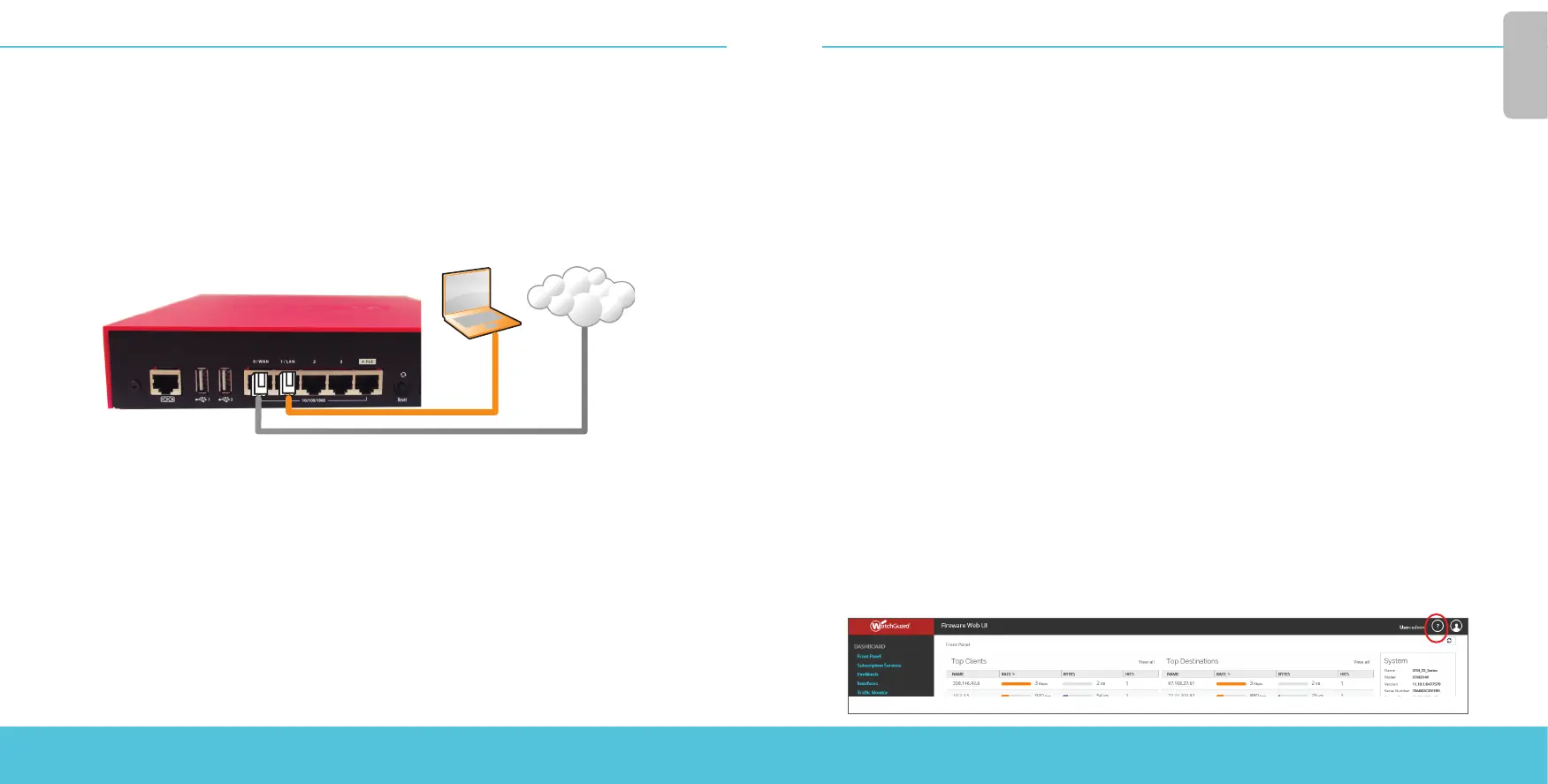
Connect Your Firebox and Power it On
Make sure your computer is congured to use DHCP. When you connect to the Firebox,
it will assign an IP address on the 10.0.1.0/24 network.
Connect to the Web UI
1. Go to https://10.0.1.1:8080
You can safely ignore certicate warnings, because the Firebox uses a
self-signed certicate.
2. Log in with the user name admin and the passphrase readwrite.
3. Follow the directions in the Web Setup Wizard to create a new conguration for your Firebox or
restore a backup image. Click More Information if you have questions.
4. When the Wizard completes, log in to the Web UI with the admin user account and the
Admin passphrase you set during the Wizard.
5. Install the Firebox in your network.
After you run the Web Setup Wizard your Firebox has a basic conguration:
• Allows outbound FTP, Ping, DNS, TCP, and UDP connections
• Blocks all unrequested trac from the external network
• Inspects outgoing FTP, HTTP, and HTTPS trac
• Uses licensed security services to protect the trusted and optional networks
Next Steps
Congratulations! You have nished basic setup of your Firebox. You can use the Web UI to view and
edit your conguration and to manage and monitor your Firebox. Or, you can download and install
WatchGuard System Manager (WSM) and use Policy Manager and the WSM suite of management
and monitoring tools. Here are some recommendations to help you get started:
Verify your Internet connectivity
• With your Firebox installed in your network, make sure that your users can successfully
browse the Internet.
Get the latest software
To upgrade the Firebox OS:
1. Log in to Fireware Web UI.
2. Select System > Upgrade OS.
To get the latest version of WSM, WatchGuard Dimension, VPN clients,
and other software for your Firebox:
1. Go to www.watchguard.com/support and click Download Software.
2. Find the software downloads page for the Firebox T35 and select the
software you want to install.
Explore the Features and Functions of Your Firebox
Browse the Web UI or the tools in WatchGuard System Manager and click Help on any page or dialog
box to learn more about the management, monitoring, and security features of your Firebox.
English
English
Computer
Internet




 To Next Page