4 5
About the Firebox Status Lights
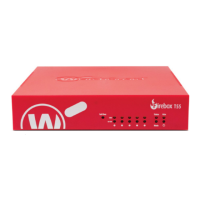
Fail Over – Lights when there is a WAN failover from the primary external interface to the backup
interface.
WAP - (Wireless models only) Lights when the device is activated as a wireless access point or as a
wireless client.
Network interface status indicators – The Firebox T35 has ve network interfaces. There are two
status indicators for each interface.
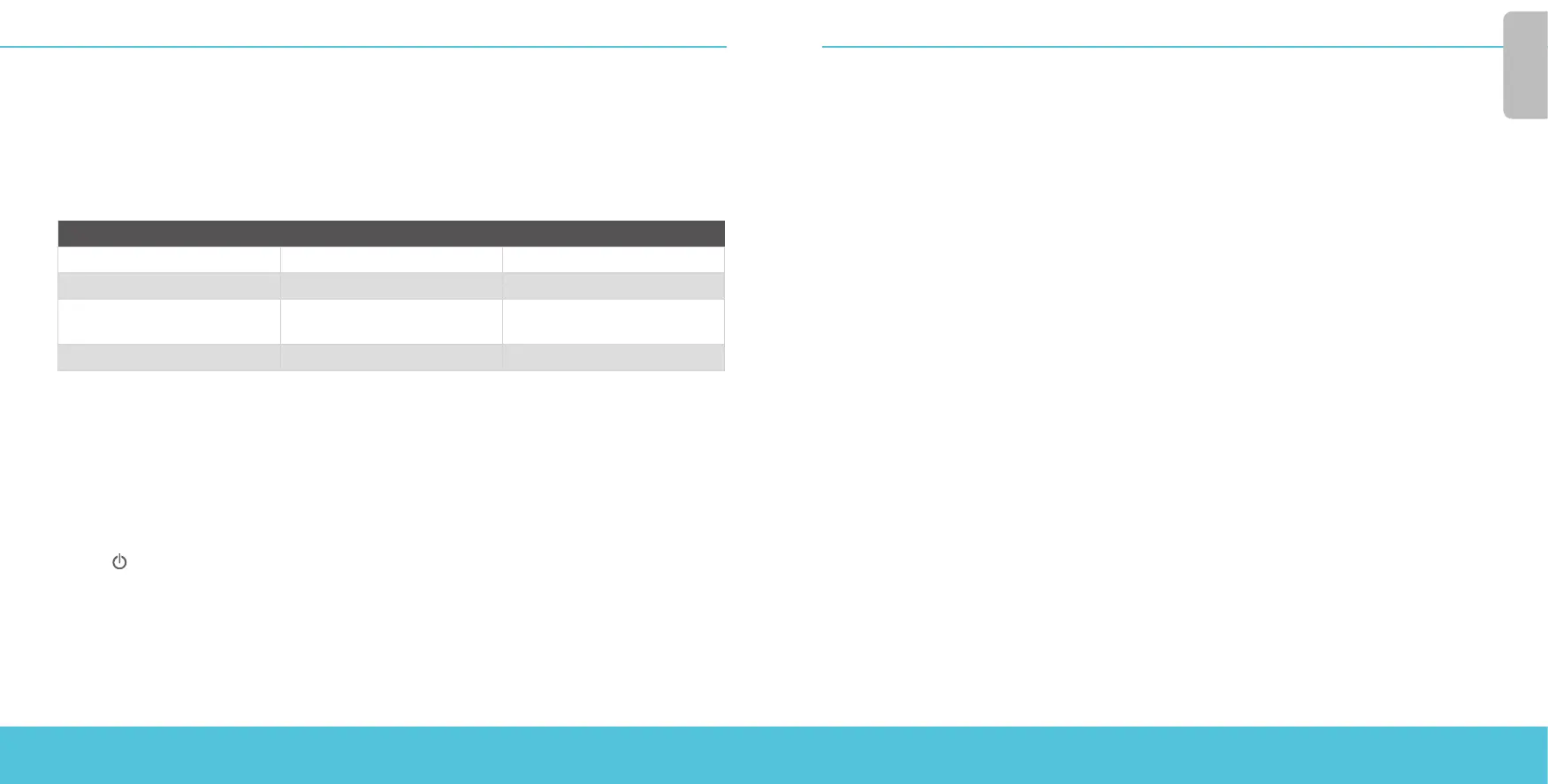
Indicator Indicator color Interface Status
1000 Yellow Link speed: 1000 Mbps
Blinks* Data sent and received
10/100 Green Link speed: 10 Mbps or
100 Mbps
Blinks* Data sent and received
* Blink speed increases as the data ow increases
Status – Shows when there is a management connection to the device. The Status indicator is lit for
30 seconds after you connect to the device with the Fireware Web UI or the command line interface.
It is also lit when the device is polled by WatchGuard System Manager.
Mode – Shows the status of the external network connection. If the device can connect to the
external network and send trac, the indicator is green. The indicator ashes if the device cannot
connect to the external network and send trac.
Attn – Lights when you start the device with the Reset button pressed.
Power ( ) – The power indicator is lit when the device is on.
Install Your Firebox
For instructions to install your Firebox in a network rack, see the Firebox T35 Hardware Guide.
Reset the Firebox to Factory-Default Settings
If you ever need to, you can restore your Firebox to its factory-default settings. For example, if you do
not know the administrator account passphrase or you want to start over with a new conguration,
you can reset your Firebox. Make sure you back up your Firebox conguration before you reset your
Firebox in case you want to restore it in the future.
For information about how to reset your Firebox, see the Firebox T35 Hardware Guide,
available at: www.watchguard.com/help/documentation/hardware.asp
English




 To Next Page