6 7
Next Steps
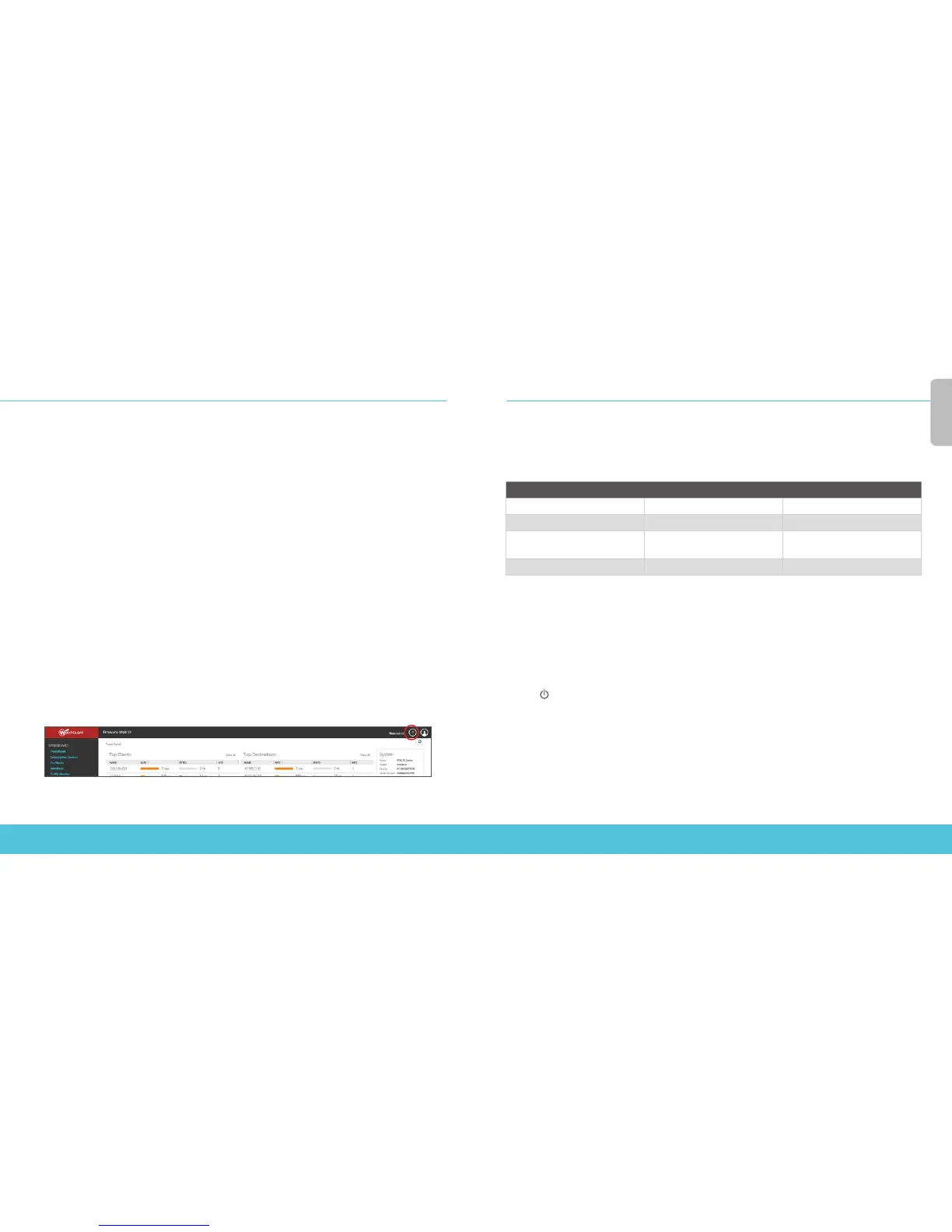
Congratulations! You have nished basic setup of your Firebox. You can use the Web UI to view and
edit your conguration and to manage and monitor your Firebox. Or, you can download and install
WatchGuard System Manager (WSM) and use Policy Manager and the WSM suite of management
and monitoring tools. Here are some recommendations to help you get started:
Verify your Internet connectivity
• With your Firebox installed in your network, make sure that your users can successfully
browse the Internet.
Get the latest software
To upgrade the Firebox OS:
1. Log in to Fireware Web UI.
2. Select System > Upgrade OS.
To get the latest version of WSM, WatchGuard Dimension, VPN clients,
and other software for your Firebox:
1. Go to www.watchguard.com/support and click Download Software.
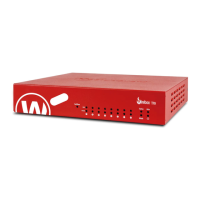
2. Find the software downloads page for the Firebox T70 and select the
software you want to install.
Explore the Features and Functions of Your Firebox
Browse the Web UI or the tools in WatchGuard System Manager and click Help on any page or dialog
box to learn more about the management, monitoring, and security features of your Firebox.
About the Firebox Status Lights
Fail Over – Lights when there is a WAN failover from the primary external interface to the
backup interface.
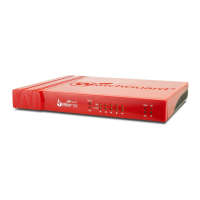
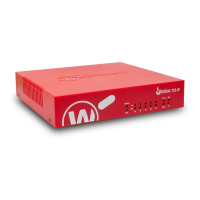
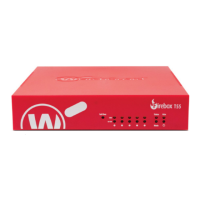
Network interface status indicators – The Firebox T70 has eight interfaces. There are two status
indicators for each interface.
Indicator Indicator color Interface Status
1000 Yellow Link speed: 1000 Mbps
Blinks* Data sent and received
10/100 Green Link speed: 10 Mbps or
100 Mbps
Blinks* Data sent and received
* Blink speed increases as the data ow increases
Status – Shows when there is a management connection to the device. The Status indicator is lit for
30 seconds after you connect to the device with the Fireware Web UI or the command line interface.
It is also lit when the device is polled by WatchGuard System Manager.
Mode – Shows the status of the external network connection. If the device can connect to the
external network and send trac, the indicator is green. The indicator ashes if the device cannot
connect to the external network and send trac.
Attn – Lights when you start the device with the Reset button pressed.
Power ( ) – The power indicator is lit when the device is on.
About PoE Interfaces
Interfaces 6 and 7 are PoE (Power over Ethernet) interfaces, compliant with the IEEE 802.3at standard.
English




 To Next Page