

EasyManua.ls Logo

Wemo Insight Smart Plug - User Manual

Wemo Insight Smart Plug
15 pages
Print Icon
To Next Page IconTo Next Page
Loading...
Setting up the Wemo Switch:
Setting up the Wemo® Insight, Wemo® Switch and Wemo® Switch + Motion
This article will help you set up the following Wemo® devices:
Wemo® Insight Smart Plug, F7C029
Wemo® Switch Smart Plug, F7C027
Wemo® Switch + Motion, F5Z0340
Setting up Wemo is incredibly simple. All you need is:
Your Wemo device
An appliance you'd like to control
Android™ 4.4 device or higher
iOS 9.0 device or higher
Wi-Fi settings
QUICK TIP: If you don't know your Wi-Fi settings, you can find the Wi-Fi name and password
by checking the router settings on the web-based setup page. To learn how, click here.
WARNING: The Wemo Insight's plugs and voltage requirements vary per region or country. Make
sure to check your Wemo Insight’s voltage specification before plugging it in to a power
outlet. Depending on its model number, the voltage specification can be found on a sticker at the
back or bottom of the device. Also, make sure that your router’s Wi-Fi has a frequency of 2.4 GHz.
Step 1: On your mobile device, download and install the latest App from
the App Store® or Google Play™ store.
Step 2: Once installed, open Settings and enable Wi-Fi.
Step 3: Locate and connect to the Wemo with the same Wemo ID found at the back of
the Wemo unit you are trying to install. The Wemo ID is the word WeMo followed by
the Wemo model, then three alphanumeric characters. For example,
WeMo.Insight.xxx. Also, the Wemo device is not secured thus, it will not ask for a
password when you try to connect to it upon installation.
QUICK TIP: If your Wemo device does not show up in the Wi-Fi search, try the
following:
Question and Answer IconNeed help?

Do you have a question about the Wemo Insight Smart Plug and is the answer not in the manual?

Summary

Setting Up Your Wemo Device

Wemo Device Requirements

Lists necessary items like smartphones, Wi-Fi, and the Wemo device itself for setup.

Wemo Setup Process

Step-by-step guide from downloading the app to connecting to Wi-Fi and configuring the device.

Wemo Insight Configuration

Power Monitoring Settings

Details on how to track electricity usage and configure sensor input for Wemo Insight.

Voice Control with Amazon Echo

Linking Wemo to Amazon Echo

Instructions on connecting your Wemo devices to an Amazon Echo account.

Wemo Voice Commands

Common voice commands usable with Wemo devices via Amazon Echo.

Updating Wemo Firmware

Firmware Update Procedure

Guide on how to update the firmware of your Wemo devices through the app.

Troubleshooting Common Wemo Issues

Multiple WAP Environments

Explains issues arising from multiple WAP environments and how to resolve them.

Wi-Fi Connectivity Problems

Addresses intermittent connections, remote access failures, and devices not connecting to Wi-Fi.

Remote Access Enablement Issues

Lists reasons why remote access might fail to enable and troubleshooting steps.

Wemo Device Settings Loss

Explains why a Wemo device might lose its settings and how to recover.

Duplicate Device Entries

Provides steps to resolve issues where duplicate devices appear in the Wemo App.

Overview

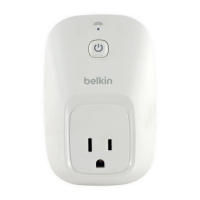
The Wemo® device is a smart plug designed to control appliances remotely and monitor power usage. It comes in several models, including the Wemo® Insight Smart Plug (F7C029), Wemo® Switch Smart Plug (F7C027), and Wemo® Switch + Motion (F5Z0340).

Function Description:

The primary function of the Wemo device is to turn connected appliances ON or OFF remotely via a mobile application. For models like the Wemo® Insight Smart Plug, it also offers power monitoring capabilities, allowing users to track electricity consumption and duration of usage. The Wemo® Switch + Motion model includes a motion sensor, enabling automated control based on detected movement. The device integrates with Wi-Fi networks, allowing control from anywhere with an internet connection. It also supports voice control through platforms like Amazon Echo™, enabling users to manage appliances using voice commands.
Important Technical Specifications:

  • Compatibility: Requires Android™ 4.4 or higher or iOS 9.0 or higher.
  • Network: Operates on a 2.4 GHz Wi-Fi frequency.
  • Security: Supports WPA™, WPA2™, and WEP security types for Wi-Fi connections. Passwords for Wi-Fi should be eight to 63 characters long, comprising numbers, letters, and special characters.
  • Voltage: Wemo Insight's voltage requirements vary by region/country. Users must check the voltage specification on the device's sticker (back or bottom) before plugging it into a power outlet.
  • Motion Sensor (Wemo Motion): Consists of two parts: a sensor and a plug, which must be securely connected.

Usage Features:

  • Remote Control: Users can turn appliances ON/OFF from their mobile device using the Wemo App.
  • Power Monitoring (Wemo Insight): Tracks average electricity spent and usage duration. It can also calculate operating costs based on user-input currency. This feature includes "Usage Alerts."
  • Motion-Activated Control (Wemo Motion): Allows appliances to be controlled based on motion detection.
  • Scheduling Rules: Users can create "Schedule Rules" to automate turning appliances ON/OFF at specific times. These rules are stored on the Wemo device itself.
  • Voice Control: Compatible with Amazon Echo™ devices, enabling control via Alexa voice commands. Users can turn individual Wemo devices or groups of devices ON/OFF.
  • Customization: Users can customize device names, add pictures for easy identification within the Wemo App, and group multiple devices for simultaneous control.
  • Remote Access: Once set up, the device can be controlled remotely from anywhere with an internet connection. This feature can be enabled or disabled within the app.
  • Easy Setup: The setup process involves downloading the Wemo App, enabling Wi-Fi on the mobile device, connecting to the Wemo device's temporary Wi-Fi network (Wemo ID), entering the router's Wi-Fi password, and then configuring device settings.

Maintenance Features:

  • Firmware Updates: The Wemo device's firmware can be updated through the Wemo App. The device checks the Wemo Firmware Server daily for new releases and prompts users to install updates. Updates ensure smooth operation and provide the latest features. During an update, the device's lights will blink.
  • Troubleshooting: The manual provides solutions for common issues such as:
    • Device not showing up: Ensure the mobile device and Wemo are within router range, Wemo is plugged in, and try rebooting the Wemo or resetting it. For Android devices, disabling "Smart Network Switch" or "Auto-switch to mobile network" is recommended during setup.
    • Multiple WAP environment: Ensure the mobile device is connected to the same Wi-Fi as the Wemo devices.
    • Intermittent Wi-Fi connection: Test the Wemo device near the router, ensure no interference, and check router specifications for device limits.
    • Remote Access failed: Verify Remote Access is enabled in the app, ensure a strong internet connection, and restart the mobile device. Issues may arise with Apple® routers.
    • Device turns ON by itself: This may indicate a hidden rule; restoring the device to factory defaults can resolve this.
    • Schedule Rule not saving: Check existing rules and device settings.
    • Duplicate devices: Disable and re-enable the Remote Access feature in the Wemo App.
    • Device "Loses" settings: After firmware updates, power cycle the device (unplug for 20 seconds). For blinking orange/blue status lights, move the device closer to the router or set the router to a static channel (Auto recommended). If the Wi-Fi name is hidden, broadcasting it usually resolves the issue.
    • Device not connecting to router's Wi-Fi: Check router type (supports WPA™, WPA2™, WEP), change Wi-Fi channel (Auto recommended), ensure Wi-Fi is broadcasting at 2.4 GHz (Wireless-B, -G, or -N standards), and verify the Wi-Fi password.
  • Factory Reset: For persistent issues or to remove hidden rules, restoring the Wemo device to factory defaults is an option. This will erase custom names, pictures, and stored rules, requiring re-setup.
  • App Reinstallation: If problems persist, uninstalling and reinstalling the Wemo App is suggested.

Wemo Insight Smart Plug Specifications

General IconGeneral
BrandWemo
ModelInsight Smart Plug
CategorySwitch
LanguageEnglish