EasyManua.ls Logo

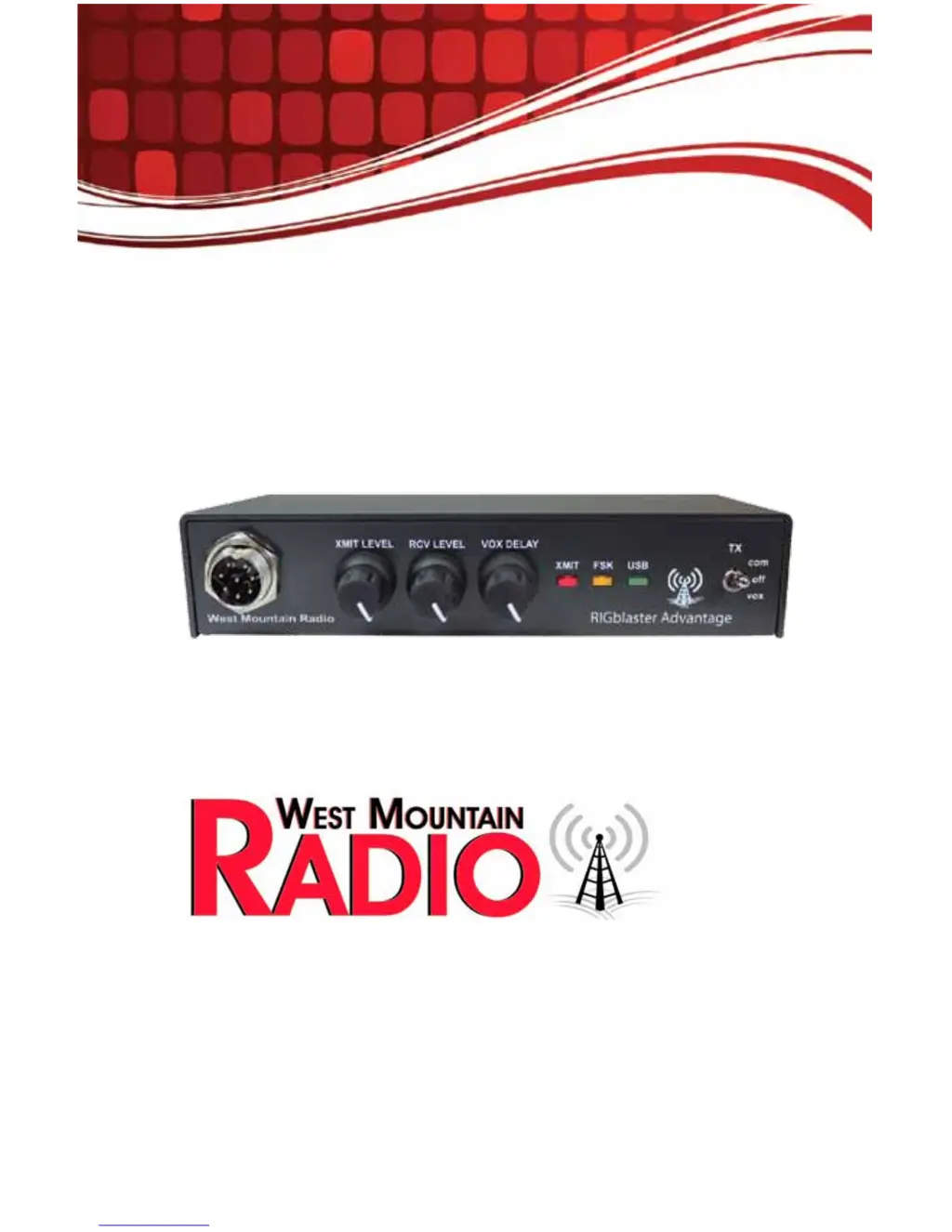
West Mountain Radio RIGblaster Advantage - User Manual

West Mountain Radio RIGblaster Advantage
72 pages
Print Icon
To Next Page IconTo Next Page
Loading...
www.westmountainradio.com
1020 Spring City Drive
Waukesha, WI 53186
262-522-6503
sales@westmountainradio.com
©2015 West Mountain Radio, All rights reserved. All trademarks are
the property of their respective owners.
RIGblaster
Advantage

Other manuals for West Mountain Radio RIGblaster Advantage

Questions and Answers

  • J
    Jason FrancoAug 14, 2025
    What to do if the West Mountain Radio Recording Equipment transmits, but shows no power level?
    • D
      Dr. Matthew SextonAug 14, 2025
      If your West Mountain Radio Recording Equipment transmits but doesn't show a power level, here's what you can check: 1. Ensure the correct ISC (or jumper wiring) is installed for the transceiver you're using. 2. Verify that the Windows mixer (RIGblaster Audio) is properly set and not muted. 3. Slowly rotate the XMIT LEVEL control clockwise while transmitting to see if the power output increases. 4. Check that the transceiver’s MIC GAN and RF POWER controls are not set too low. 5. Confirm that the digital mode program is using the RIGblaster Advantage Audio device and not the default sound-card.
  • M
    mackenzie90Aug 17, 2025
    How to fix a waterfall not showing on West Mountain Radio Recording Equipment?
    • V
      vjonesAug 18, 2025
      If the waterfall display isn't showing on your West Mountain Radio Recording Equipment, consider these potential solutions: 1. Ensure the audio cable is securely connected from the radio to the RIG-blaster Advantage. 2. Check that the recording level mixer for the Advantage is not muted and is set appropriately in Windows. 3. Adjust the RCVE LEVEL control until the waterfall starts displaying normally. 4. Confirm that the digital mode program is using the RIGblaster Advantage Audio device and not the default sound-card.
  • O
    oclarkAug 21, 2025
    Why is the transmitted audio distorted on my West Mountain Radio Recording Equipment?
    • H
      Hailey FergusonAug 21, 2025
      Distorted transmitted audio from your West Mountain Radio Recording Equipment can be caused by several factors: 1. The XMIT LEVEL control might be set too high. Rotate it counter-clockwise until the audio output is clean. Aim for minimal or no ALC action on your transceiver's ALC meter. 2. Windows mixer slider might be set too high. Reduce the Windows volume sliders until the audio is in the normal range. Aim for minimal or no ALC action on your transceiver's ALC meter. 3. RFI (Radio Frequency Interference) might be the issue. Try repositioning the RIGblaster Advantage away from your radio and tuner, and ensure the equipment is properly grounded.
  • D
    David SmithAug 25, 2025
    What to do if Radio Control (CAT) is not working on West Mountain Radio Recording Equipment?
    • H
      Haley StewartAug 26, 2025
      If the Radio Control (CAT) function isn't working on your West Mountain Radio Recording Equipment, try these steps: 1. Make sure the optional CAT cable is properly connected. 2. Ensure that the RIGblaster Advantage COM port is selected in your software, and that the serial settings (baud rate, etc.) match those of your transceiver. Note that some Yaesu radios have a multi-function port that needs to be enabled for CAT operation.
  • W
    walterdayAug 28, 2025
    How to troubleshoot a West Mountain Radio Recording Equipment that will not transmit?
    • A
      Alexander JacksonAug 28, 2025
      If your West Mountain Radio Recording Equipment isn't transmitting, consider the following: 1. Verify that the correct ISC (or jumper wiring) is installed for the transceiver you are using. 2. Make sure the digital-mode software is configured for RTS=PTT and DTR=CW. Note that RTS/DTR should never be set to permanently “high” or “on.”
  • K
    Kelly SimsAug 31, 2025
    Why is the power light not showing on my West Mountain Radio Recording Equipment?
    • J
      jwilliamsAug 31, 2025
      If the green LED power light isn't showing on your West Mountain Radio Recording Equipment, check the following: 1. Make sure the USB cable is securely connected. 2. Check the Windows device manager for any RIGblaster Advantage COM port conflicts. If there are conflicts, reinstall the drivers or change the COM port as needed.
  • J
    Jeanne GillespieSep 3, 2025
    What to do if CW keying is not working on West Mountain Radio Recording Equipment?
    • L
      laura03Sep 3, 2025
      If CW keying isn't working with your West Mountain Radio Recording Equipment, check these items: 1. Ensure the optional CW keying cable is connected to the transceiver’s CW input jack. 2. Serial port CW keying will only function when the transceiver is in CW mode. 3. Confirm that your digital-mode software is set for RTS=PTT and DTR=CW. Remember, RTS/DTR should never be set to permanently “high” or “on.”
  • A
    alex56Sep 6, 2025
    What causes West Mountain Radio Recording Equipment to stay in transmit after PTT is released?
    • D
      Deborah TorresSep 6, 2025
      If your West Mountain Radio Recording Equipment remains in transmit mode after releasing the PTT (Push-To-Talk) button, it's likely due to RFI (Radio Frequency Interference). Try repositioning the RIGblaster Advantage away from your radio and tuner, and ensure that all equipment is properly grounded.
  • J
    Justin OneillSep 10, 2025
    Why is FSK RTTY not working when my West Mountain Radio Recording Equipment transmits?
    • J
      juliagravesSep 10, 2025
      If your West Mountain Radio Recording Equipment transmits but FSK RTTY is not working, consider the following: 1. Ensure the optional FSK cable is connected to the transceiver’s ACC/FSK jack. 2. Only radios with a dedicated RTTY mode can support FSK RTTY. 3. Ensure the software is set for RTS=PTT and DTR=FSK SHIFT.

Summary

RIGblaster Advantage Introduction

About The RIGblaster Advantage

Overview of the RIGblaster Advantage features designed for digital mode operators.

Digital-Mode Operating Introduction

Guide to understanding and operating various digital modes with the RIGblaster Advantage.

Package Contents and Initial Setup

Choosing The Correct ISC

Guidance on selecting the correct Instant Setup Connector (ISC) for your transceiver.

Controls, Connections, and Settings

Software Driver Installation

Instructions for installing drivers on Windows, Linux, and Macintosh systems.

How To Renumber The RIGblaster Advantage COM port

Procedure for changing the RIGblaster Advantage COM port number.

Transceiver Connections

Steps for making essential physical connections between the RIGblaster and transceiver.

RIGblaster Settings: Audio Levels

Guidance on setting transmit and receive audio levels for optimal performance.

PTT (Keying Your Radio)

Explanation of the PTT switch positions and their functions for radio transmission.

Morse (CW) Operation

Instructions for operating Morse Code (CW) using the RIGblaster Advantage.

RTTY (FSK) Operation

Guide to configuring and operating RTTY using FSK shift with the RIGblaster.

CAT Operation

Details on using the CAT interface for radio control via the RIGblaster Advantage.

Transceiver Settings: Operating Mode

Recommends transceiver settings for optimal digital mode operation.

Transceiver Settings: Receive

Guidance on optimizing transceiver settings for receiving digital signals.

Transceiver Settings: Transmit

Best practices for setting transceiver controls for transmitting digital modes.

Software Configuration and Usage

Fldigi Suite Configuration

Configuring Fldigi for digital modes, PTT, and rig control.

Airlink Express Configuration

Setting up Airlink Express for sound-device and PTT/CAT communication.

MMTTY Configuration

Configuration steps for MMTTY to operate RTTY modes with the RIGblaster.

MRP40 Configuration

Setting up MRP40 for Morse Code (CW) operation using the RIGblaster.

JT65-HF Configuration

Configuring JT65-HF software for weak signal digital mode operation.

Winlink 2000 With RMS Express (WinMOR) Configuration

Configuring RMS Express for Winlink 2000 email system using the RIGblaster.

UZ7 HO Sound Modem Configuration

Setting up UZ7HO Sound Modem for packet radio and EasyTerm program.

MMSSTV Configuration

Configuring MMSSTV software for Slow Scan Television (SSTV) operation.

EasyPal Configuration

Setting up EasyPal software for digital SSTV transmission and reception.

FreeDV Configuration

Configuring FreeDV software for digital voice communication.

Ham Radio Deluxe & DM-780 Configuration

Setting up Ham Radio Deluxe and DM-780 for rig control and digital modes.

Wiring Diagrams and Special Features

Icom CI-V Rig Control Cable Schematic

Wiring diagram for creating an Icom CI-V rig control cable.

ISC & Jumper Wiring Patterns

Wiring diagrams for various transceiver microphone jack types using ISCs.

Using RIGblaster As Microphone Patch Box

Instructions for using the RIGblaster as a patch box for different microphones.

COM Port Splitter and P2 Jumper

Information on the COM Port Splitter application and P2 jumper function.

Digital-Modes, Software And Frequencies

Reference list of digital modes, software, and suggested operating frequencies.

Radio Hook-Up Diagrams

Visual diagrams showing typical RIGblaster Advantage station hook-ups.

Troubleshooting and Warranty

No Power Light (Green LED)

Steps to resolve issues when the power indicator light is off.

Radio Transmission Issues

Diagnosing and fixing problems with radio transmission and power output.

Radio Control and Waterfall Issues

Solutions for CAT control, waterfall display, and CW keying not working.

FSK RTTY and Audio Distortion Issues

Troubleshooting FSK RTTY and distorted transmitted audio.

RIGblaster Advantage Warranty

Details of the product warranty, limitations, and exclusions.

West Mountain Radio RIGblaster Advantage Specifications

General IconGeneral
ManufacturerWest Mountain Radio
ModelRIGblaster Advantage
ConnectivityUSB
Power SupplyUSB powered
Operating System CompatibilityWindows, Mac, Linux
TypeRadio Interface
Supported ModesSSB, CW, FM, AM
ConnectorsUSB, 3.5mm audio jacks
Power5V
IsolationOptical isolation
Audio InterfaceBuilt-in sound card
CompatibilityMost radios with appropriate cables