EasyManua.ls Logo

Westinghouse LD-3260 - User Manual

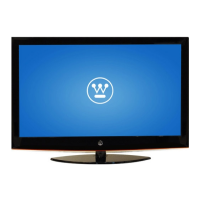
Westinghouse LD-3260
66 pages
Print Icon
To Next Page IconTo Next Page
Loading...
USER’S MANUAL
MANUEL DE L’UTILISATEUR
MANUAL DEL USUARIO
LD-3260

Questions and Answers

  • J
    John VegaAug 15, 2025
    What to do if my Westinghouse LD-3260 has no power?
    • D
      Diana CochranAug 15, 2025
      If your Westinghouse LED TV isn't powering on, first, check if the power indicator is illuminated blue. Then, ensure the power cord is securely connected to the AC-in jack and plugged into a working AC outlet. To verify the outlet is functional, try plugging in another electrical device.
  • S
    Shane GravesAug 18, 2025
    How to fix no sound on Westinghouse LED TV?
    • M
      Melissa MartinAug 18, 2025
      If there is no sound on your Westinghouse LED TV, first, ensure the audio input cable is properly connected to the correct terminal and the correct input mode is enabled. The volume may be muted, so press the Vol+ key to turn on the volume. You can also adjust the Bass, Treble, and Balance settings in the Audio menu. If you are using the TV speakers, make sure the TV Speakers option is set to On in the Audio menu. If you are using an external audio device, press and select Audio to ensure the TV Speakers option is set to Off in the Audio menu.
  • C
    campbellevelynAug 22, 2025
    What to do if Westinghouse LD-3260 LED TV remote control does not work?
    • M
      Maria BowenAug 22, 2025
      If your Westinghouse LED TV remote isn't working, make sure you are pressing only one button at a time. Check that the batteries are properly inserted and replace them with new ones if they are drained.
  • A
    amy17Aug 26, 2025
    How to troubleshoot no picture on Westinghouse LD-3260?
    • J
      Joshua ChapmanAug 26, 2025
      If your Westinghouse LED TV has no picture, ensure the video input cable is properly connected to the correct terminal and the correct input mode is enabled. Verify that the antenna is properly connected and the preferred channel is enabled in the channel list. You may also need to adjust the display settings.
  • C
    christopher92Aug 28, 2025
    How to improve poor image quality on Westinghouse LD-3260 LED TV?
    • D
      Dave HensleyAug 28, 2025
      To improve poor image quality on your Westinghouse LED TV, check your antenna connection and rotate the antenna, waiting up to ten seconds for a signal if necessary. Reduce signal splitters and excessively long cables, and replace poor antenna cables or connectors. Press to adjust the Aspect ratio. Adjust the Noise Reduction setting in the Picture menu. In HDMI mode, ensure the external device is compatible with the LED TV.
  • C
    Cristian HudsonSep 1, 2025
    How to fix a cut-off picture on Westinghouse LD-3260 LED TV?
    • G
      Gary EdwardsSep 1, 2025
      If the picture on your Westinghouse LED TV is cut off or appears in a sidebar screen, press to adjust the Aspect ratio.
  • A
    Angela GardnerSep 4, 2025
    How to reset a forgotten PIN on Westinghouse LD-3260 LED TV?
    • P
      Paul VargasSep 4, 2025
      To reset a forgotten PIN on your Westinghouse LED TV, use the Reset All option in the Settings menu to reset your password.
  • S
    shannon65Sep 7, 2025
    Why are colors wrong on my Westinghouse LD-3260?
    • M
      markweaverSep 7, 2025
      If the colors on your Westinghouse LED TV are wrong, abnormal, or missing, check the video cable to ensure it is securely connected. Loose or broken pins in the cable connector could cause an improper connection. Adjust the Hue, Saturation, and Color Temperature settings in the Picture menu. Connect the TV to another computer to check if the problem is with the computer screen.
  • C
    Cody FosterSep 12, 2025
    What to do if no picture or 'No Signal' appears when a VGA cable is connected to my Westinghouse LED TV?
    • P
      Paige BooneSep 12, 2025
      If you see no picture or a 'No Signal' message when a VGA cable is connected to your Westinghouse LED TV, ensure the VGA cable is properly connected to the LED TV’s VGA port. Decrease the video resolution setting on the computer and try again. You might also need to adjust the display settings.

Summary

Digital Television Transition Notice

Important Information and Safety Warnings

General Warnings and Cautions

Safety precautions for fire/shock, power supply, attachment, and outlet use.

Safety Symbols Explained

Explanation of lightning flash and exclamation symbols for user safety.

Notices and Power Cord Selection

Power Cord Selection Guidelines

Criteria for selecting power cords based on conductor size and current rating.

FCC Compliance Statement and Warning

FCC Compliance Statement

Equipment tested and compliant with FCC limits for Class B digital devices.

FCC Warning

Assuring FCC compliance by using specific power cords and cables.

Important Safety Instructions

General Safety Precautions

Read instructions, heed warnings, avoid water, clean with dry cloth.

Installation and Usage Safety

Do not block ventilation, avoid heat, protect cord, use specified accessories.

Servicing and Emergency Actions

Refer servicing to qualified personnel; unplug during storms.

Operational Safety Guidelines

Circuit Overload Prevention

Avoid overloading outlets, extension cords, or power strips.

Power Cord Protection

Route power cords to avoid damage and inspect periodically.

Ventilation Requirements

Ensure ventilation slots are not blocked to prevent overheating.

Warnings and Precautions for Operation

Environmental and Handling Precautions

Avoid sunlight, moisture, heat; handle with care; do not touch screen.

Fire and Damage Prevention

Do not place objects on TV, avoid flames, liquids, or heavy items.

Emergency Procedures

Turn off and contact service if smoke, unusual noise, or odor occurs.

Antenna Installation Safety

Outdoor Antenna Grounding

Ground antenna/cable system to prevent voltage surges and static charges.

Lightning and Power Line Safety

Unplug during storms; avoid antennas near power lines.

Cleaning the LED TV

Screen and Case Cleaning

Instructions for cleaning the LED TV screen and case.

Dolby-Digital Notice

SRS Trademark Information

Open Source License Information

Package Contents Overview

Control Panel Functions

TV Terminals and Connections

Remote Control Guide

Remote Control Operation

Installing Remote Control Batteries

Instructions and cautions for installing AAA batteries in the remote control.

Remote Control Transmission Range

Specifies the effective range and coverage angle for the remote control.

LED TV Base Installation

Caution: LED TV Base Weight

Warning about the TV unit's weight and need for assistance during installation.

Steps to Install LED TV Base

Step-by-step instructions for attaching the LED TV base securely.

Removing the LED TV Base

Antenna Connection Guide

Outdoor Antenna Connection

Diagram and explanation for connecting an outdoor antenna.

F-type Connector Note

Warning about finger-tightening F-type connectors to prevent damage.

Cable TV (CTV;DTV) Connection

Instructions for connecting cable TV using the coaxial connector.

External Device Connections

RF Switch Operation

How to use the RF switch for viewing unscrambled or scrambled channels.

Important Connection Precautions

Crucial steps before connecting external devices to prevent damage.

Common Device Connection Types

Overview of TV cable, Component, HDMI, and Audio output connections.

External Device Connection Diagram

Power Connection and Initial Setup

Connecting AC Power

Instructions for connecting the AC adapter to the TV and power outlet.

Initial TV Setup Wizard

Steps to turn on the TV and initiate the SetupWizard for configuration.

Westinghouse HDTV Setup

Select Language and Time Zone

How to select the preferred language and local time zone for the TV.

Setup Wizard and Channel Scan

Guide to using the Setup Wizard and scanning for antenna channels.

HDTV Setup: Cable;Satellite Box

Obtain Tuner Activation Code

How to obtain an activation code for the ATSC tuner.

Enter Activation Code

How to enter the activation code using the remote control.

Channel Scan Progress

Displays progress of channel scan after tuner activation.

HDTV Setup: Cable;Satellite Box (Continued)

Time Zone Selection

How to select the local time zone for the TV.

Setup Wizard for Channels

Guide to using the Setup Wizard for scanning channels or set-top boxes.

Channel Scan for Cable;Satellite

Steps to scan for cable/satellite ATSC channels.

HDTV Setup: Cable;Satellite Box Configuration

Cable;Satellite Box Selection

Selects whether a cable/satellite box is used for connection.

Cable;Satellite Box Input Type

Selects the connection type (Coaxial, HDMI, Component) for the box.

RF Connection Warning

Warning against using RF connection due to poor video quality.

Obtain Tuner Activation Code for Cable

How to obtain an activation code for the ATSC tuner for cable.

HDTV Setup: Not Through Cable;Satellite Box

Select Language and Time Zone

How to select the preferred language and local time zone for the TV.

HDTV Setup: Non-Cable;Satellite Configuration

Setup Wizard for Channels

Guide to using the Setup Wizard for scanning channels or set-top boxes.

Channel Scan for Cable;Satellite

Steps to scan for cable/satellite ATSC channels.

Cable;Satellite Box Selection

Selects whether a cable/satellite box is used for connection.

HDTV Setup: Non-Cable;Satellite Activation

Obtain Tuner Activation Code

How to obtain an activation code for the ATSC tuner.

Enter Activation Code

How to enter the activation code using the remote control.

Channel Scan Progress Indicator

Displays progress of channel scan after tuner activation.

Basic Operations

Turning Power On and Off

How to turn the TV on and off, and LED indicator status.

Adjusting Volume and Mute

How to adjust volume and use the mute function.

Basic Operations: Channels and Input

Changing TV Channels

Methods for changing TV channels using buttons or favorite keys.

Selecting Video Input Source

How to select different video input sources using remote control keys.

Basic Operations: Display and Backlight

Using the Input Key

Using the Input key to select video sources.

Adjusting Display Format

How to adjust the display format (Standard, Fill, Overscan, 1:1).

Adjusting LED Backlight

How to adjust the LED backlight for different viewing conditions.

Setup Menu Operations

Displaying and Navigating Setup Menus

How to display and navigate the TV's setup menu screens.

Setup Menus: Picture Settings

Picture Quality Settings

Sub-menus to configure display quality settings.

Adjusting Brightness

How to adjust the screen's luminance level.

Adjusting Contrast

How to adjust the ratio between brightness and darkness.

Setup Menus: Picture Adjustments

Adjusting Saturation

How to adjust the color intensity.

Selecting Video Presets

Selecting preset view options (Showroom, Movie, Game, Sports, Custom).

Setup Menus: Advanced Picture Settings

Adjusting Video Presets

How to select desired video preset options.

Adjusting Sharpness

How to adjust the sharpness or softness of the display.

Adjusting Color Temperature

How to adjust the white balance (Warm, Neutral, Cool).

Setup Menus: Color and Reset

Adjusting Color Temperature

How to select desired color temperature settings.

Adjusting Hue and Resetting Settings

Adjusting color balance and resetting display settings.

Setup Menus: Audio Settings

Audio Quality Settings

Sub-menus to configure audio quality settings for TV speakers.

Adjusting Bass

How to calibrate low-pitched sounds.

Adjusting Treble

How to calibrate high-pitched sounds.

Setup Menus: Audio Adjustments

Adjusting Balance

How to adjust sound balance between left and right speakers.

DRC Mode Selection

How to toggle Dynamic Range Compression (DRC) modes.

Setup Menus: Audio Presets and TruSurround

Selecting Audio Presets

Selecting preset audio options (Rock, POP, Classical, Flat, Custom).

TruSurround HD On;Off

How to toggle TruSurround HD audio enhancement on and off.

Setup Menus: Audio Reset

Adjusting TruSurround HD

How to turn TruSurround HD on or off.

Resetting Audio Settings

Resets all audio-related settings to default.

Setup Menus: View Mode Settings

View Mode for Aspect Ratio

How to select the display aspect ratio (Standard, Fill, Overscan, 1:1).

View Mode for VGA Input

Adjusting display settings specifically for VGA input.

Setup Menus: Aspect Ratio and Position

Aspect Ratio Selection

Selecting display aspect ratio (1:1 Mode, Standard, Fill).

Display Position and Tuning

Adjusting horizontal/vertical position and fine-tuning the display.

Auto Sync for Display

Synchronizing the display automatically.

Setup Menus: TV Program Management

TV Program Options

Managing channel list, sound, and scanning.

Skip List for Channels

Selecting channels to skip during channel scanning.

Setup Menus: Channel Editing

Channel Name Editing

Assigning names to channels.

Setup Menus: MTS and Auto Search

MTS Sound Options

Selecting multichannel television sound options (Mono, Stereo, SAP).

Auto Search for Channels

Automatically scanning for receivable channels via Cable or Air.

Setup Menus: Manual Channel Addition

Manually Adding Channels

Manually adding channels to the list.

Setup Menus: System Settings

Date and Time Adjustment

Adjusting the current date and time.

Auto Calibration and Time Zone

Enabling auto calibration and selecting the local time zone.

Setup Menus: Date, Time, and Captions

Adjusting Date and Time

Steps to adjust the date and time segments.

Adjusting Daylight Saving

Enabling/disabling daylight saving time.

Closed Captions Configuration

Configuring settings for closed captioning.

Setup Menus: Captions and Parental Control

Adjusting Closed Captions Settings

Adjusting caption options like font, color, and opacity.

Parental Control Setup

Blocking channels and changing the parental control password.

Setup Menus: Rating and Block Unrated

Adjusting Rating and Blocking Unrated

Setting rating visibility and blocking unrated programs.

TV Rating Customization

Customizing US TV rating programs.

Setup Menus: TV and Movie Ratings

Adjusting TV Rating

Selecting desired TV rating and blocking/unblocking programs.

MPAA Movie Rating Selection

Selecting allowable movie ratings.

Setup Menus: MPAA and Canadian Ratings

Adjusting MPAA Rating

Selecting desired MPAA rating and blocking/unblocking.

Canada English Rating Selection

Selecting Canadian English rating categories for programs.

Setup Menus: Canadian French Ratings

Adjusting Canada French Rating

Selecting Canadian French rating categories for programs.

Setup Menus: Channel and Password Management

Channel Blocking

Blocking specific channels from being viewed.

Changing Password

Changing the current password.

Setup Menus: OSD Settings

OSD Timeout Adjustment

Adjusting the duration the On-Screen Display stays visible.

OSD Language Selection

Selecting the language for on-screen display.

Setup Menus: Power and Reset Settings

Power Settings Configuration

Configuring power-related settings like backlight and contrast.

Reset All Operational Settings

Resetting all operational settings to factory defaults.

Setup Menus: Version Information

Viewing TV Version Information

Viewing the LED TV's serial number and firmware version.

Wall Mount Option Guide

Wall Mount Installation Reminders

Important reminders before mounting the TV on a wall.

Caution: Improper Wall Mounting

Warning about potential property damage or injury from improper mounting.

Troubleshooting Common Issues

Power Issues Troubleshooting

Corrective actions for no power or sudden power off.

Remote Control Problems

Solutions for non-functional or incompatible remote controls.

Forgotten PIN Reset

How to reset the forgotten PIN.

Picture Display Issues

Corrective actions for when there is no picture.

Troubleshooting Advanced Issues

VGA Connection Signal Issues

Troubleshooting steps for VGA connection signal issues.

Picture Cutoff or Sidebar Issues

Adjusting aspect ratio when picture is cut off or in a sidebar.

Poor Image Quality in TV Mode

Improving image quality in TV mode by adjusting settings.

Color Display Problems

Troubleshooting color issues by adjusting settings or checking cables.

Troubleshooting Sound Issues

No Sound Corrective Actions

Corrective actions for when there is no sound from the TV.

Troubleshooting Contact Information

Contact information for further assistance if problems persist.

Westinghouse LD-3260 Specifications

General IconGeneral
BrandWestinghouse
ModelLD-3260
CategoryLED TV
LanguageEnglish

Related product manuals