EasyManua.ls Logo

Wharfedale Pro AL-604 - User Manual

Wharfedale Pro AL-604
26 pages
Print Icon
To Next Page IconTo Next Page
Loading...
USER MANUAL
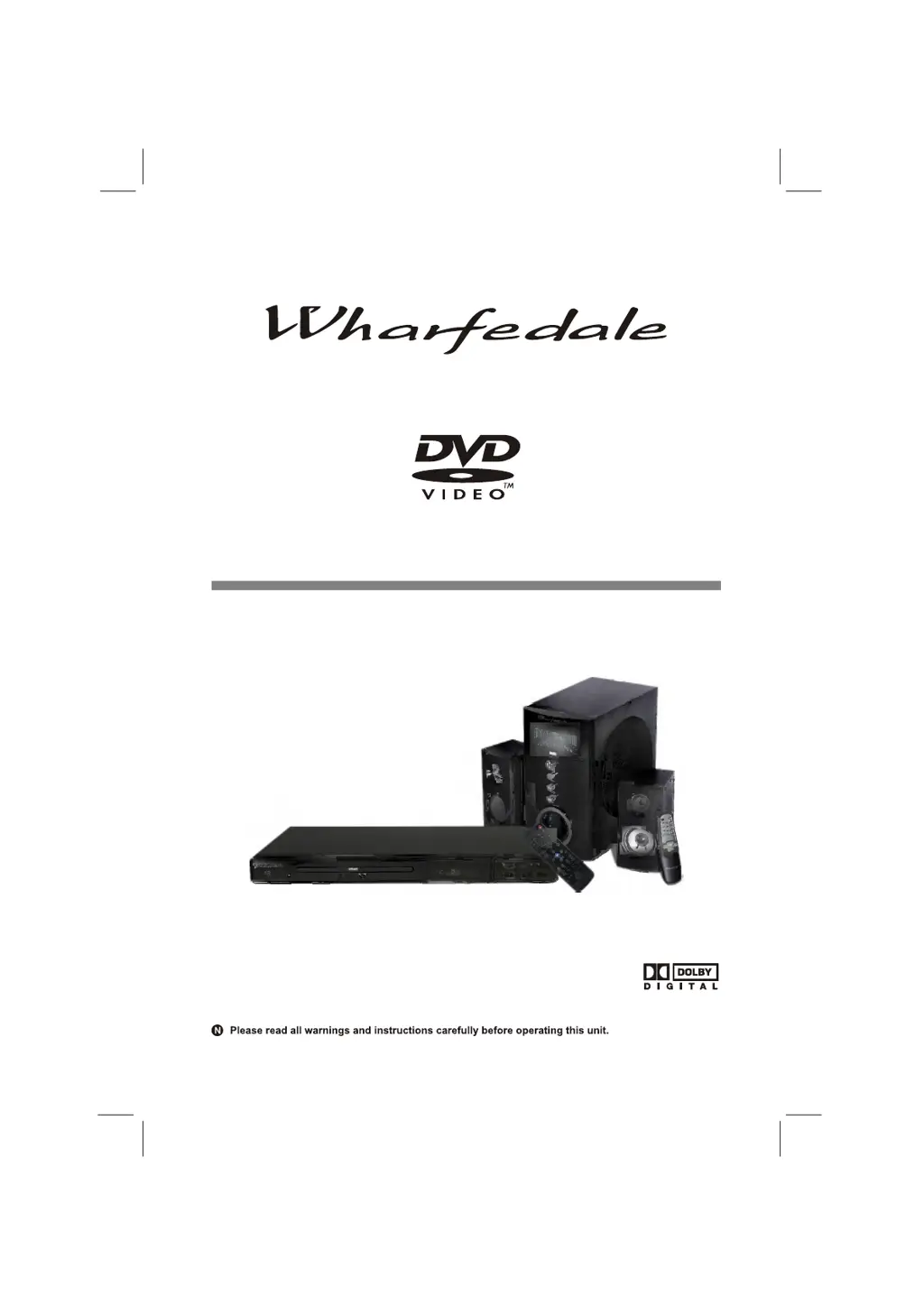
MODEL: DS-5957 + AL-604
2.1 HDMI DVD HOME CINEMA KIT
PDF compression, OCR, web optimization using a watermarked evaluation copy of CVISION PDFCompressor

Questions and Answers

  • N
    njohnsonAug 4, 2025
    What to do if Wharfedale Pro Home Theater System remote control is not working?
    • D
      Devin HarringtonAug 4, 2025
      If your Wharfedale Pro Home Theater System isn't responding to the remote control, first, ensure there are no obstructions between the remote and the unit. Then, aim the remote directly at the sensor on the front panel. If it still doesn't work, check the batteries and replace them if needed.
  • S
    Susan BatesAug 8, 2025
    Why is there no picture on my Wharfedale Pro Home Theater System?
    • G
      Gabrielle RuizAug 8, 2025
      If your Wharfedale Pro Home Theater System displays no picture, ensure the connection between the player and the TV is secure and that the TV is functioning correctly. You can also try pressing the "V.MODE" button repeatedly until the picture returns to normal.
  • V
    Valerie OneillAug 12, 2025
    How to fix picture disturbance on Wharfedale Pro Home Theater System?
    • D
      Daniel ValdezAug 12, 2025
      If your Wharfedale Pro Home Theater System is showing a disturbed picture, inspect the disc for dirt or scratches. Clean the disc, or replace it if necessary. If the issue persists, shut down the unit, wait ten seconds, and then restart it.
  • B
    Brent SmithAug 16, 2025
    Why does my Wharfedale Pro AL-604 have no sound?
    • K
      kristinluceroAug 16, 2025
      If your Wharfedale Pro Home Theater System has no sound, check that the connection between the player and other devices are secure. Also, ensure that the TV and AMP are in good working order and properly set up.
  • M
    Matthew KellyAug 21, 2025
    What to do if my Wharfedale Pro AL-604 Home Theater System failed to play?
    • C
      Catherine BeckerAug 21, 2025
      If your Wharfedale Pro Home Theater System fails to play, make sure the disc is correctly inserted. If it still doesn't work, try cleaning the disc.
  • J
    jennifer49Aug 26, 2025
    How to fix Wharfedale Pro AL-604 Home Theater System when it has no power?
    • A
      Amy BradleyAug 26, 2025
      If your Wharfedale Pro Home Theater System has no power, check to ensure that the power connection is secure.
  • B
    Becky PerezAug 29, 2025
    What to do if Wharfedale Pro Home Theater System failed to work with keys?
    • D
      Dr. Katie Nguyen MDAug 30, 2025
      If your Wharfedale Pro Home Theater System failed to work with keys due to power surges or other electrical phenomena, shut down the unit, wait ten seconds, and then restart it.

Summary

Safety Precautions

Important Safety Instructions

Notice

Handling, Location, and Disturbance

Covers proper placement, environmental conditions, and potential interference with TV/radio signals.

Disc Handling and Storage

Guidelines for handling discs to prevent damage and proper storage methods to avoid warping.

Disc Cleaning and Structure

Instructions for cleaning discs and understanding the structure of DVD and Audio CD contents.

Getting Started

Disc Types

Details the types of discs supported, including DVD-Video, Audio CD, and JPEG formats.

Region Management Information

Explains the DVD player's region code and its compatibility with discs from different regions.

Accessories and Panel Overview

Front Panel Description

Identifies and describes the controls and indicators located on the front panel of the DVD player.

Rear Panel Connections

Details the various output and input ports available on the rear panel of the DVD player.

Basic Connection Guide

HDMI and Scart Connections

Instructions for connecting the DVD player to a TV using HDMI and Scart cables for optimal video and audio.

Audio;Video Cable Connection

Guide for connecting the DVD player to a TV using standard composite audio/video (RCA) cables.

Remote Control Operation

Remote Control Buttons

Detailed explanation of each button on the remote control and its function during operation.

Loading Batteries

Step-by-step instructions on how to properly insert batteries into the remote control.

Basic Playback Functions

Playback Controls Overview

Explains how to start, stop, pause, fast forward, fast reverse, and step through playback.

Navigation and Modes

Details how to navigate chapters, resume playback, and utilize single-step playback modes.

Advanced Playback Features

Video and Display Options

Explains V.MODE, OSD, ZOOM, CLEAR, and PAL/NTSC settings for picture and display adjustments.

Disc Navigation and Control

Covers subtitle selection, title/PBC control, search, repeat, A-B repeat, menus, program, and angle.

Advanced Playback Functions

Volume, Audio, and HDMI Settings

Details volume control, audio channel selection, and HDMI connectivity for enhanced audio output.

Disc Media Playback

Information on playing Audio CDs and JPEG discs, including navigation and slide-show features.

System Setup Overview

General Setup and TV Display

Configures general settings, TV screen format, display ratio, and video output types.

Screen Saver and Last Memory

Enables the screen saver function and the last memory feature for resuming playback.

System Setup Options

Audio and SPDIF Configuration

Sets up audio output modes, speaker configuration, and SPDIF (digital audio) settings.

Video and Component Output

Configures component video output settings, including TV mode and color space.

System Setup Settings

TV Mode and Video Quality

Adjusts TV scan mode, sharpness, brightness, contrast, gamma, hue, saturation, and luma delay.

HDMI and Resolution

Configures HDMI output settings, including resolution, format, and HDCP protection.

System Setup Preferences

Video, Audio Source, and TV Type

Sets video format, audio source, HDMI source, and the TV system standard (NTSC/PAL/AUTO).

Preference Settings and PBC

Configures default preference settings, PBC mode, and preferred audio language for discs.

System Setup Security

Subtitle, Disc Menu, and Parental Control

Sets preferred subtitle/menu languages, country region, and parental control levels.

Password and Default Settings

Manages password settings for parental control and resets the player to factory defaults.

Troubleshooting Guide

Symptoms and Corrections

Provides solutions for common problems such as no power, no picture, no sound, and playback errors.

Specifications Summary

Signal and Output Specs

Details signal system, frequency response, audio S/N ratio, and various audio/video output specifications.

General Device Specs

Lists power requirements, consumption, physical dimensions, weight, and operating environment.

Contact Details

Subwoofer Operation

Usage Guide

Instructions on how to use the subwoofer's controls for volume, bass, and treble adjustments.

Subwoofer Specifications

Technical details for the subwoofer, including output power, impedance, and frequency response.

Product Guarantee Information

Wharfedale Pro AL-604 Specifications

General IconGeneral
BrandWharfedale Pro
ModelAL-604
CategoryHome Theater System
LanguageEnglish

Related product manuals