EasyManua.ls Logo

Whistler GPS - User Manual

Whistler GPS
42 pages
Print Icon
To Next Page IconTo Next Page
Loading...

Questions and Answers

  • D
    duncanjamesJul 25, 2025
    What to do if Whistler GPS takes too long to get a position fix?
    • J
      Julia BrownJul 26, 2025
      If your Whistler GPS takes more than 10 minutes to get a position fix, first, move to a new location if there are obstacles nearby. Ensure the antenna is pointing up with a clear view of the sky, away from your body. Check the Satellite Status screen to see if the receiver is acquiring data. If it still doesn't get a fix, perform a Cold Start procedure.
  • D
    Darlene EllisJul 30, 2025
    Why is the battery life on my Whistler GPS so short?
    • V
      Victoria KentJul 30, 2025
      If the battery life of your Whistler GPS seems shorter than expected, make sure you're using two AA alkaline or high-capacity Ni-MH rechargeable batteries. Excessive use of the backlight can shorten battery life, so turn it off when not needed. In the 'Setting' menu, try using the 'Saving' option in the 'Navigation Mode' selection. Note that Ni-Cd batteries are not recommended; replace them with Ni-MH type rechargeable batteries.
  • T
    timothy67Aug 3, 2025
    Why does my Whistler GPS turn on and then off?
    • K
      Kristine MartinezAug 3, 2025
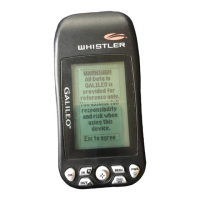
      If your Whistler GPS turns on and then turns itself off, the batteries may be weak. Replace them with two new AA alkaline batteries. Also, the unit may have timed out and turned off because the warning page was not accepted.
  • S
    Sarah MartinezAug 7, 2025
    What to do if my Whistler GPS is not leaving bread crumbs?
    • J
      Joel BlairAug 8, 2025
      If your Whistler GPS unit is not leaving “Bread Crumbs” along your route, make sure that 'Track Logs', from the main menu, is set to either 'Fill' or 'Wrap'.
  • C
    Carolyn ElliottAug 12, 2025
    Why don't the coordinates on my Whistler GPS match my chart?
    • A
      amanda08Aug 12, 2025
      If the position coordinates on your Whistler GPS receiver do not match the location on your chart (map), make sure that the Galileo™ is set up to use the same datum as your chart.
  • R
    Ryan NealAug 16, 2025
    Why is the position on my Whistler GPS map not on the road?
    • J
      Jonathan GrimesAug 16, 2025
      If the position on the map of your Whistler GPS is not exactly on the road, it could be caused by distance shifts to the digitized map. Use map information for reference only and do not rely completely.
  • D
    Dustin SmithAug 20, 2025
    Why was my Whistler GPS data not saved or corrupted?
    • T
      Traci WarrenAug 20, 2025
      This can happen to your Whistler GPS because you removed the batteries or external power while the Galileo™ was turned on.

Summary

Introduction

Customer Service

Provides contact information and operating hours for customer support.

Standard Packaging

Galileo Elite GPS

Lists items included with the Galileo Elite GPS model.

Galileo GPS

Lists items included with the standard Galileo GPS model.

Accessory Upgrade Pack

Lists items included in the optional accessory upgrade pack.

Important Safety Information

WARNING

User responsibility for prudent use and safe-driving practices with the GPS unit.

Software

Software Use Terms

Outlines copyright laws and agreement terms for the GPS operating and mapping software.

FCC Compliance

FCC Rules and Operation

Details device compliance with FCC rules and conditions for operation.

Features

Whistler Galileo Features

Lists key features including waypoints, track logs, navigational screens, and expandability.

Functions

External Functions

Describes external connection ports like power, data, battery, and antenna.

Button Functions

Explains the operation of various buttons on the GPS unit.

Battery Installation

Battery Compartment

Instructions on removing the compartment cover, insert, and installing batteries with correct polarity.

Compact Flash Card (CF)

Add or Remove CF Card

Step-by-step guide for installing and removing a Compact Flash card from the unit.

First Time Usage

Using Galileo For The First Time

Guidance on optimal conditions and steps for the initial use of the GPS unit.

Getting Started

Procedures for powering on, viewing initial screens, and recording OS/Map release info.

Simulation Mode

Simulation Mode Functionality

Explains how to use simulation mode to learn features and conserve battery life.

Adjusting Contrast

Night Viewing

Instructions on turning on the backlight for night use and adjusting its duration.

Obtaining Satellite Signals

Satellite Signal Strength

Describes how satellite signals are displayed and the factors affecting acquisition time.

Cold Start

Cold Start Procedure

Explains the process to decrease satellite lock time and when it's necessary.

Finding Your Way - Main Navigational Pages

Main Navigational Pages Overview

Briefly describes the four main navigational screens available on the unit.

Map Page

Map Display Information

Details how the map displays position, cities, POIs, and viewing information center.

Display Information

Hide or View Icons

Instructions on customizing the map display by hiding or showing icons for POIs, roads, etc.

Points of Interests

POI Information

Details how to view POI name, county, country, and distance.

Measuring Distances

Explains how to measure mileage between points on the map page.

Shortcut; GoTo Navigation

Setup a Shortcut

Step-by-step guide to setting up a shortcut for direct 'as the crow flies' navigation.

System Settings

Backlighting

Allows adjustment of the background lighting duration for optimal viewing.

Navigation Mode

Options to select Normal, Saving, or Simulate mode to conserve battery life.

NMEA Output

Enables communication with NMEA 0183 ready devices for GPS information relay.

Map Direction

Switches map orientation between North Up and Track Up modes.

Units

Allows switching between US and Metric measurement systems.

Waypoints

Set a Waypoint

Instructions on marking a location as a waypoint and saving it with a name or comment.

Trip Page

Set the Correct Time

Guide on adjusting the unit's internal clock to the correct time and time zone.

Reset Values

How to reset trip data after a trip or when reversing direction.

Change Measurement Units

Instructions for changing units between metric and US customary.

Compass Page

Change a Route to Travel to

How to select a different waypoint or route for navigation from the compass page.

Locating Services, Cities, Roads, POIs

Explains how to find various locations using the map and software features.

Find A City

Set Location

How to set a specific location to view POI information within a wider range.

Search Settings

Find a Nearest Road

Steps to find the nearest road to your current location.

Change Nearest Search Setting

How to adjust the radius for nearest search results.

Main Menu Items

Waypoint Entry Methods

Explains how to enter waypoints using two different methods.

Manual Waypoint Coordinate Entry

Detailed guide on manually entering waypoint coordinates.

Routes

Enter a Route

Step-by-step instructions for creating and saving routes using waypoints.

Routes

Turn a Route On or Off

How to activate or deactivate navigation for a specific saved route.

Inserting Waypoint into Route

Process for adding a new waypoint into an existing route before or after a waypoint.

Deleting Waypoint from Route

Instructions for removing individual or all waypoints from a route.

Track Logs

Track Log Functionality

Explains track logs as 'bread crumbs' for navigation back and storage capacity.

Track Logs

Start or Stop a Track Log

Guide on initiating and halting the recording of track logs.

Clear a Track Log

Steps to remove recorded track log data from the unit's memory.

Save a Track Log

Instructions on saving a recorded track log with a default name.

Track Logs

Change Track Log Information

How to edit the name and comment fields of a saved track log.

Turn On;Off Track Log Display

Instructions to toggle the visibility of track logs on the map display.

Track Logs; Datum

Delete A Track Log

Steps to delete a specific track log or all track logs.

Change Datum

Explains datum usage for navigation and how to change it to match charts.

Loading; NMEA Output

Loading Data

How to download detailed maps, waypoints, and routes into the Galileo unit.

NMEA Data Relay

Explains NMEA 0183 standard for relaying GPS info to other devices.

Troubleshooting

Unit Fails to Power On

Steps to resolve issues where the unit fails to power on.

Unit Powers Off Automatically

Solutions for the unit powering on and then shutting itself down.

Slow Position Fix Acquisition

Guidance for slow satellite acquisition and when to perform a Cold Start.

Track Log Recording Issues

How to ensure track logs are enabled and recording correctly.

Shortened Battery Life

Tips for improving battery life, including backlight and navigation mode settings.

Troubleshooting

Coordinate Mismatch with Chart

How to ensure chart and receiver datums match for accurate positioning.

Map Position Inaccuracy

Explains potential map digitization shifts and advises using map info for reference.

Data Save or Corruption Issues

Causes for data loss, such as removing batteries with the unit on.

Specifications

Receiver Specifications

Details receiver type, physical dimensions, weight, and power sources.

Acquisition Times

Information on typical satellite acquisition times under various conditions.

Temperature Range

Specifies the operating and storage temperature limits for the unit.

Factory Settings

Default GPS Engine Configuration

Lists default configurations for power saving, navigation, datum, and time measure.

Default Display Configuration

Outlines default display options for waypoints, roads, orientation, and units.

Default Waypoint;Route Starting Numbers

Specifies default starting numbers for waypoints and routes.

Default Track Log Configuration

Lists default settings for NMEA output, recording mode, and track log display.

Warranty Information

Consumer Warranty

Details the one-year limited warranty against defects in materials and workmanship.

Service Under Warranty

Instructions for returning units for repair during the warranty period.

Warranty Information

Service Under Warranty (Continued)

Lists required information to include with returned units for warranty service.

Warranty Information

Service Out Of Warranty

Outlines conditions for out-of-warranty service and associated fees.

Whistler GPS Specifications

General IconGeneral
GPS ReceiverSiRFstarIII
Voice GuidanceYes
BluetoothNo
Traffic UpdatesNo
DisplayColor
ResolutionUnknown
MemorySD Card Slot

Related product manuals