8. Data Storage
A. It can be connected to a computer with a Micro USB cable. The screen will show “Mass Storage”
and “PC Camera”. Select the Mass Storage mode and enter into the removable disk, then you can
copy or delete les on the computer.
B. You can also take the Micro SD card out, and use the card reader to replay or operate les.
9. Shortcut Key
In the shooting mode interface, there will be a shortcut menu coming out by sliding down from the
upper screen with your nger.
10. WIFI Connection
Step 1: Download and install the APP named “WIMIUS CAM Pro” on the phone or tablet (Android
system can be searched on the Google Play and IOS system can be searched from the APP Store.)
Step 2: Power on the camera and turn on WIFI. The camera screen will display the WIFI icon
and then the SSID and password will show as following:
SSID: WIMIUS
Password: 123456789
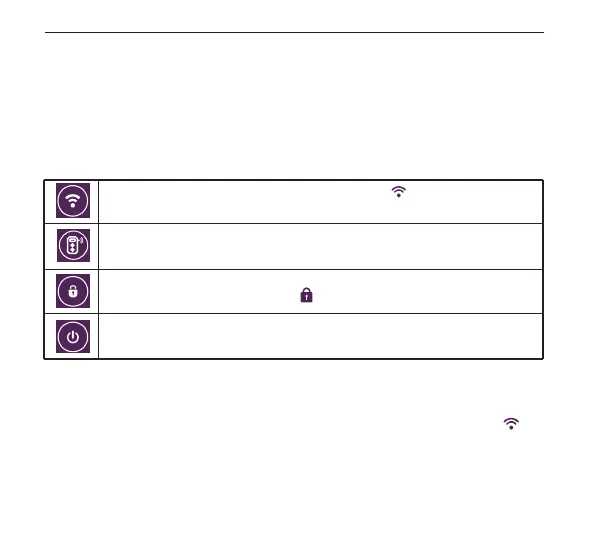
WIFI OFF / ON: Click to turn on WIFI. You will see the icon on the screen and wait
for a few seconds, the SSID and password will show.
Remote Controller (Not in the package) Connection: By default, the remote controller
is disconnected. Click to connect with the camera.
Screen Lock: Click to lock screen and the screen will be o. Press the Power button to
wake up the screen and click the icon to unlock.
Shutdown: Click and select to power o the camera.
English
1 2 3 4
5
7 8 9 10 11 12
13 14 15 16 17 18 19 20
21 22 23 24 25 26 27 28
29 30 31 32 33 34 35 36
37 38


 To Next Page
 Loading...