2. When TF card built in and successfully connect wifi,green light on.open
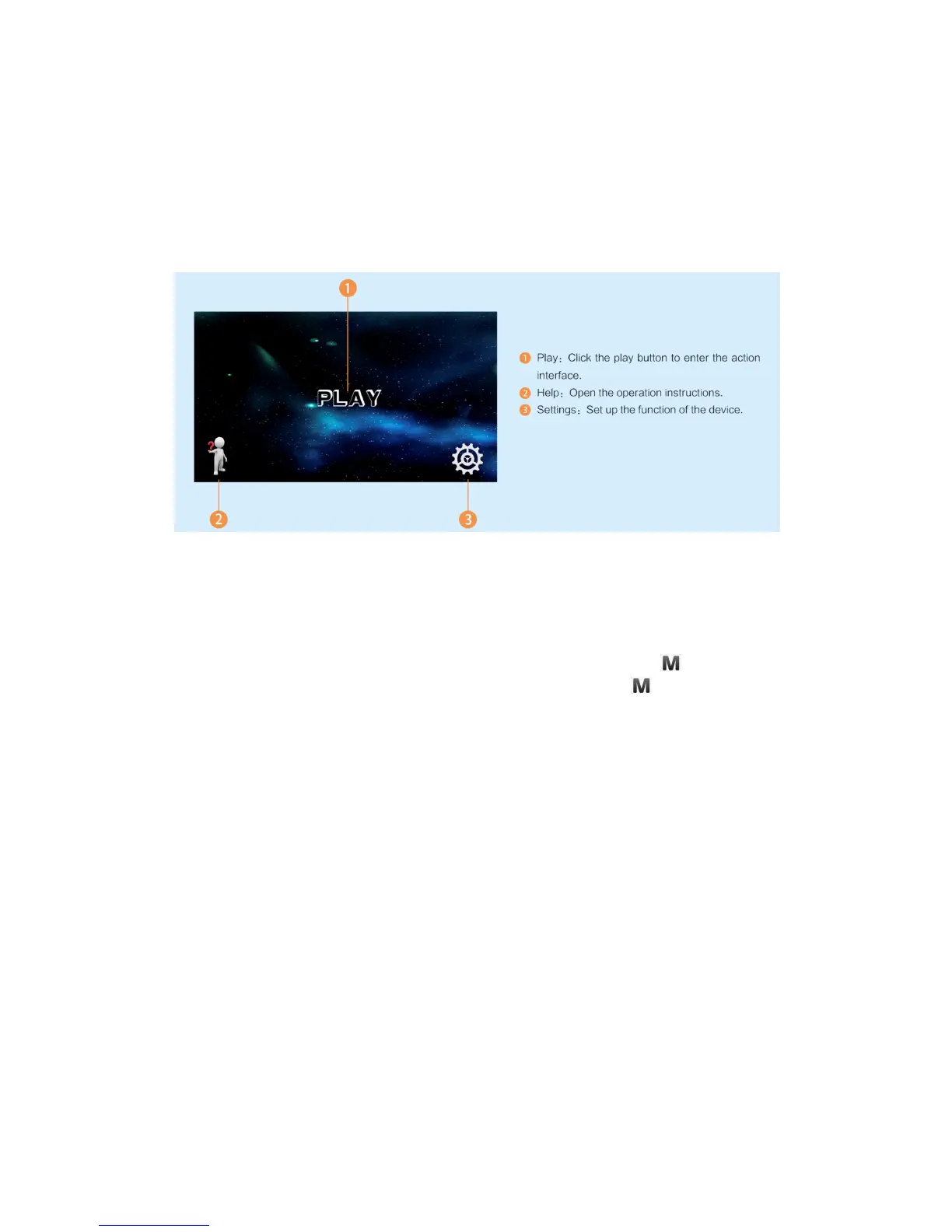
the APP and click “PLAY”enter the interface, it support to operate the video
recording/Photograph on App as well as operate by the device button. If
meet other problem, please click HELP to inquiry. (note: the video recording
will stop if out of APP or return back the interface when watching video
recording.)
(1) Change password: open the phone App and change it in the Settings.
After the password is changed, the device needs to be restarted before it
takes effect.
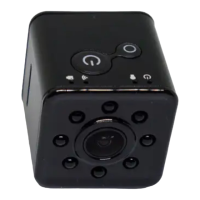
(2) IR light: Under the case of Wifi video recording, long press for 3
seconds, yellow light bright and IR light on, long press key again for 3
seconds, yellow light and IR light off.(Note: Only choose save video to TF
card IR light can be open, it can’t be open when choose to save video on
phone which would make Wifi off)
USB: Connecting to the computer under any case with USB cable, then
enter the USB mode, now you can operate the disk, the wifi is off under
this mode.
Charging: Built-in can charge Li-battary, if this is your first time use the
device, you need charge first with following ways:
1. Charging by connecting to computer with USB cable.
2. Recording and charging at same time.(connected USB 5V charger or
power bank)
3. The red light is slow flash when charging, red light will long bright after
charging finished.(You can charging more 30 mins to make sure the
charging is 100% full.)
Recording when charging: connecting to the charger, device will power on
automatically, then the next step is same with power on operation.Under the
case of this mode, the device will not power off if no TF card or the card is


 To Next Page
 Loading...