The Wi-Fi Application allows you to control your camera remotely on a
smart phone or a tablet. You can view the videos and pictures shot on your
phone, download them directly to your phone.
The connecting steps are as follows:
A: Download the iSmart DV2 App on your smart phone or tablet in Google
Play or Apple App Store.
B: Short press the up button to turn on Wi-Fi, short press again to Exit. The
status light (RED)on the top of the camera remains flashing while the
camera is waiting for Wi-Fi connection and the light stays on when the
Wi-Fi is connected.
C: Find and connect the Wi-Fi in the Wi-Fi list on your phone with the
Wi-Fi name and password displayed on the camera.
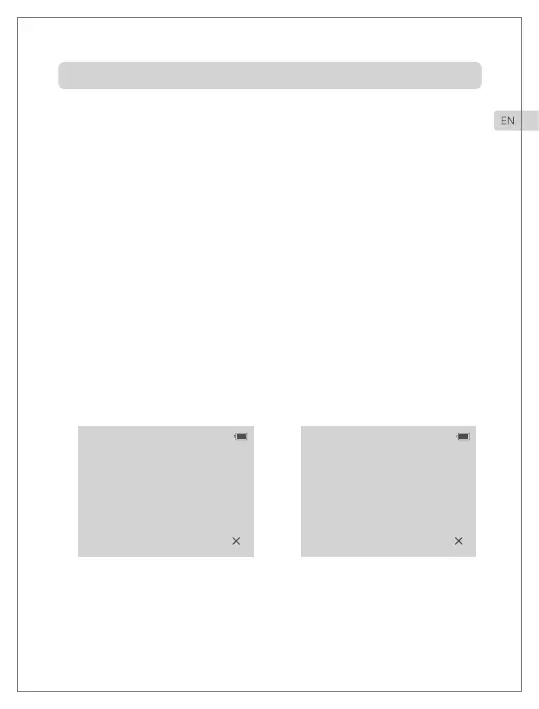
Wi-Fi Turn in an unconnected state
D: Open the iSmart DV2 App on your smart phone or tablet after the Wi-Fi
is connected, you’ll find the camera is controlled by your phone.
Wi-Fi is connected
Wi-Fi Connection
Wi-Fi/PC/TV Connection
SSID: ActionCam_81723C
PWD: 1234567890
Waiting for Wi-Fi Connection...
SSID: ActionCam_81723C
PWD: 1234567890
Wi-Fi Connection Ready!
8


 To Next Page