6
Operation (Movement and Levels)
When the desk top moves up and down and appears to be under duress check that there are no objects
obstructing the movement. This can include screens, screen glides and cabling. Ensure there are no
obstructions around the hex rod in the manual version.
If the desk moves only a short distance and then retreats 50mm, once again check for obstructions. If glides
are tight within screen channels they can produce enough resistance to activate the CMS (collision mitigation
system). Another reason for this could be that one leg is moving faster than another or the legs are at uneven
levels (This can also engage the CMS).
To reset the levels: remove any objects from under the desk (furniture etc.). If a minimum height setting is
engaged this will need to be cancelled to accommodate the next step (see user guide for relevant travel
generation for instructions on cancelling minimum height setting). Move the desk down using the handset and
holding the DOWN button until the desk goes no further. All legs will lower to their lowest possible height and
reset.
If the desk will only move down a short distance before stopping and moving up 50mm; check for, and remove
obstructions. Then move the desk down in small increments by pushing the down button on the handset for
only 1-2 seconds (if you hold for too long the desk will stop and move upwards again). This should allow you to
move the desk to the lowest point where all legs have fully retract and reset. The desk should move up and
down continuously and at a level position.
Conflicts
If the UP button moves the desk down and the DOWN button moves the desk up please refer to
troubleshooting 1 and 2 for possible solutions.
For manual desks conflict may come in the form of one leg wanting to go up and the other down or the system
binding and not moving at all. In this scenario please check the gear configuration. This can be done by
observing the medial faces (facing towards the middle or inside of the desk) of the leg columns.
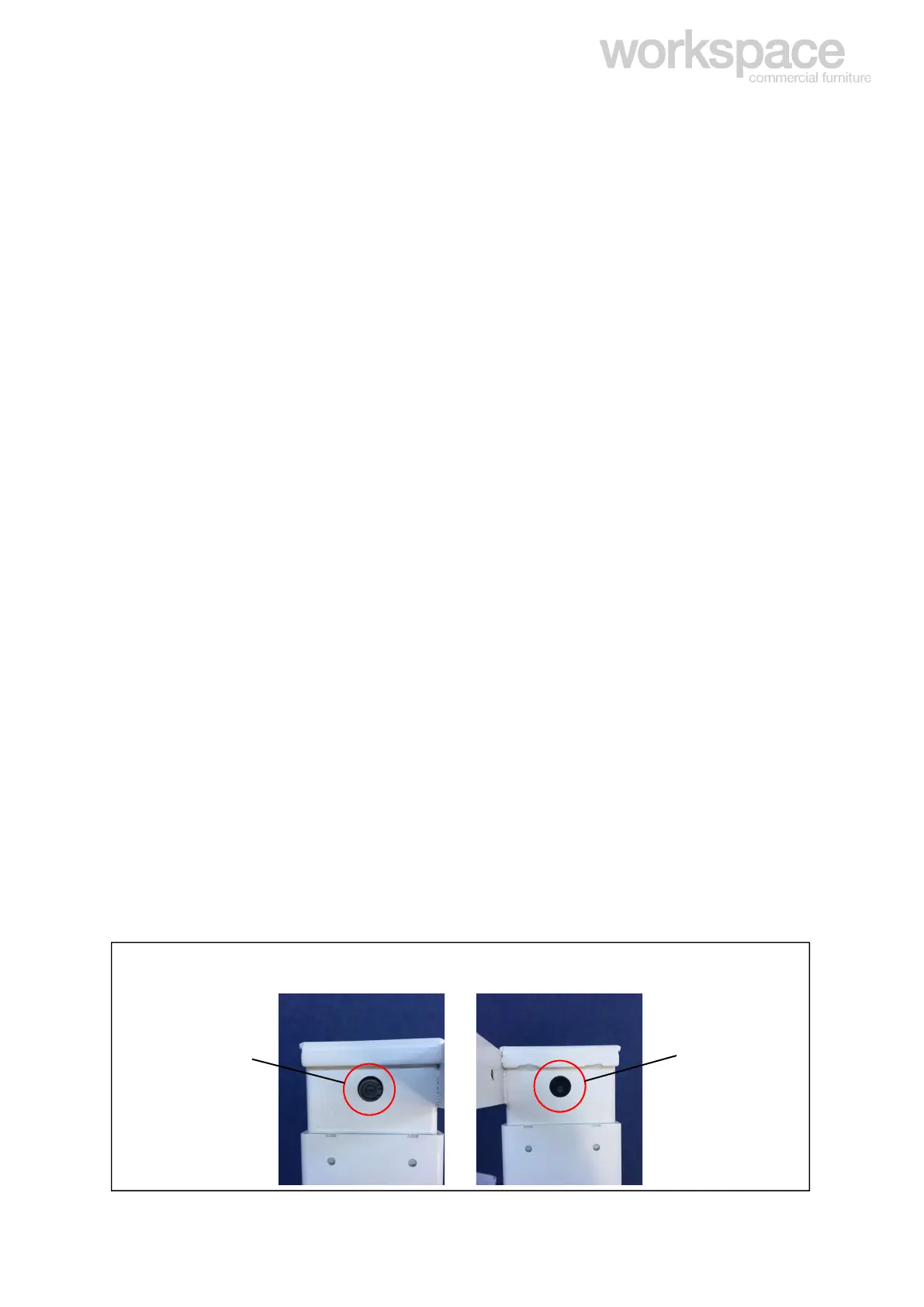
On a straight desk: the bud will be visible on one side but not the other.
On a 90 degree desk: the bud should not be visible on either outside legs but should be visible on both left and
right faces of the centre leg.
On a 120 degree desk: the bud should only be visible on alternating faces (i.e. not visible on the medial face of
the right leg, visible on the right face of the middle leg, not visible on the left face of the middle leg, and lastly,
visible on the medial face of the left leg.)
Any variations on these configurations will result in product failure.
See figure 3 to identify bud visibility.
Bud visible


 To Previous Page
 Loading...