The WOSPORTS G500 Game Camera is a trail camera designed for monitoring wildlife and outdoor environments. It captures images and videos automatically when motion is detected in its monitoring region. The camera is encased in a camouflage-dipped front case, making it blend seamlessly into natural surroundings.
Function Description:
The G500 Game Camera operates in three main modes: OFF, AIM, and ON.
- OFF Mode: This mode turns off the camera, conserving battery life. It is recommended to switch the camera to OFF before inserting or exiting the SD card and loading or unloading batteries.
- AIM Mode: In this mode, the user can access the camera's settings menu to configure various parameters. This includes setting the date and time, image and video resolution, interval time, sensor level, flash modes, active time, time lapse, and formatting the SD card. The AIM mode also allows for reviewing photos and videos captured by the camera.
- ON Mode: Once the camera is switched to the ON position, it enters a PIR (Passive Infrared) detection state. When movement occurs within the monitoring region, the camera will automatically take pictures or record videos according to the previously programmed settings. After switching to ON, a red motion-indication LED will blink for about 10 seconds, providing time for the user to close the front cover, lock it, and leave the monitored area without triggering the camera.
The camera supports both photo and video capture, as well as a "Photo & Video" mode where it takes a photo first, then records a video. It features an Infrared LED Array for night vision and a PIR Sensor for motion detection. An Indication LED provides visual feedback.
Usage Features:
- Battery Installation: The camera requires 8 AA batteries (not included). Users must ensure correct polarity when inserting batteries into the battery tray. The battery tray is released by pressing the EJECT button and locks with a "click" sound when fully inserted.
- SD Card Installation: A standard SD memory card (CLASS 6 or higher, up to 32GB max, not included) is used to save photos and videos. A class 10 memory card is recommended for burst mode. It's crucial to insert the SD card correctly until a "click" sound is heard. Formatting the SD card before first use is highly recommended to ensure optimal performance and to delete any existing data.
- Operating Buttons: The camera features an LCD screen for navigation and settings. Buttons include UP, DOWN, LEFT, RIGHT/SHOT, OK, and MENU (M).
- UP/DOWN buttons are used for page navigation in menus.
- LEFT/RIGHT buttons are used to select different options within a sub-menu.
- OK button saves settings and exits the preview interface in AIM mode.
- MENU (M) button enters the setup menu in preview mode and exchanges between the main screen and setup.
- Settings Menu: Accessible via the MENU button in AIM mode, this menu allows for comprehensive customization of camera operations.
- Set Clock/Date: Configures the current time and date.
- Photo/Video: Selects the capture mode (Photo, Video, or Photo & Video).
- Image Size/Capture Number: Sets the resolution for photos and the number of photos taken per PIR capture.
- Video Size/Video Length: Sets the resolution for videos and the duration of each video clip. Shorter video lengths are recommended to maximize battery life.
- Interval: Determines the duration the PIR sensor is disabled after each trigger, preventing immediate re-triggering.
- Sensor Level: Adjusts the sensitivity of the PIR sensor (LOW, Middle, High). Lower sensitivity is recommended for environments with high interference (wind, tall grass, shadows).
- Flash Modes: Sets the distance of infrared induction (Power Save, Long Range, Fast Motion), affecting LED output and shutter speed.
- Set Active Time: Allows the camera to operate only within specified time blocks.
- Set Timelapse: Enables time-lapse photography, taking photos at set intervals or during specific time periods.
- Format: Formats the SD card, deleting all stored images and videos. Users should back up important data before formatting.
- Default: Resets all settings to factory defaults.
- Language: Selects the display language (English, Japanese, Deutsche).
- Camera Name: Sets a serial number to identify the camera, which will be stamped on photos and videos.
- Software Update: Initiates a software update if update files are present on the SD card.
- Version: Displays the camera's current software version.
- Mounting: The camera can be mounted to a tree using the provided adjustable web belt or to a wall using the wall mount and screws. For optimal picture quality, the camera should be mounted 10-30 feet away from the monitored area, at a height of 3.6-4.5 feet. It's advised not to mount the camera facing the rising or setting sun.
Maintenance Features:
- Battery Check: Regularly check the batteries to ensure they are providing sufficient power.
- SD Card Management: Periodically check the SD card to ensure it is not full. Formatting the SD card is recommended for first-time use and to clear old data.
- Cleaning: If mounting in a dusty environment, regularly clean the camera lens and the PIR sensor to maintain optimal performance.
- Mounting Security: Periodically check the camera's mounting to ensure it hasn't come loose, especially in outdoor conditions.
- Troubleshooting: The manual provides guidance for common issues such as the camera not powering up (check batteries, polarity, and power switch), not taking images (check SD card capacity, write protect switch, power switch, and quality of SD card), short battery life (consider recording settings, frequency of activity, and SD card quality), PIR sensor not working (check interval settings, cleanliness of sensor, and temperature effects), and false triggers (relocate camera to avoid motion from branches, high heat, or water reflections).
- Image Quality: For blurred images, check and clean the lens. For overly bright or dark daytime photos/videos, ensure the camera is not aimed directly at the sun or other strong light sources. For night photos/videos, ensure subjects are within the ideal flash range (not closer than 3m) to prevent overexposure.
The WOSPORTS G500 Game Camera is designed to be a reliable tool for outdoor surveillance, with user-friendly controls and clear instructions for setup and maintenance.

 Need help?
 General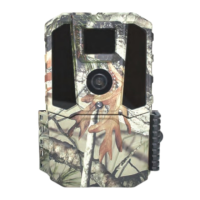

 To Next Page