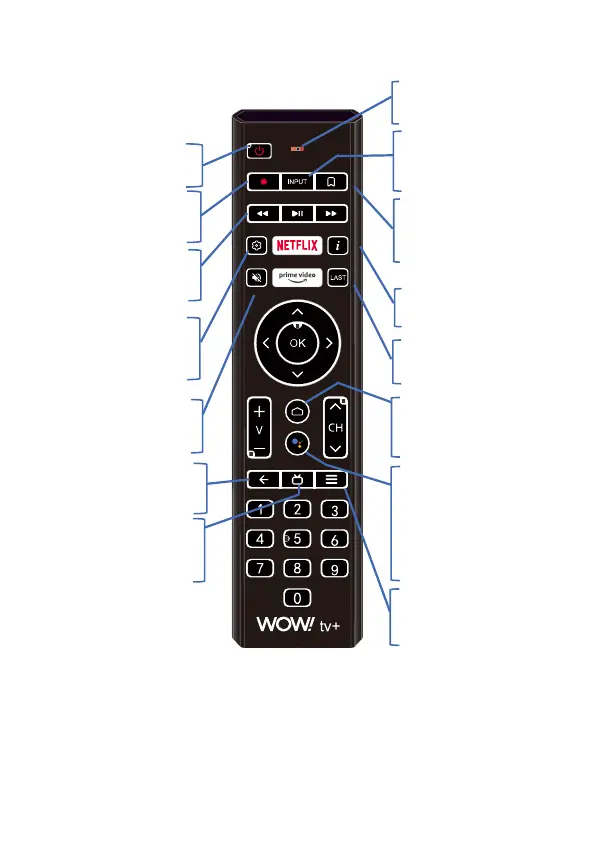
Remote Control
Google Assistant: Press the
Google Assistant button on your
remote to quickly search 500,000+
movies and shows, get
recommendations to match your
mood, control smart home devices,
and more.
Universal Power: Power off all
devices or go into standby mode.
Microphone: Speak into this for
voice functionality.
Set Recordings: Select the
recordings button to set a
recording.
Video Controls: Use the pause
and play button to control content
streaming. Use the fast forward
INPUT: Use the INPUT key to
ensure that you are on the correct
INPUT (source) for WOW! tv+.
WOW! tv+ Home Screen:
Select the Home Icon to go to the
WOW! tv+ home screen.
Mini Guide: Access the mini
guide while watching live
channels.
Adding to Favorites: Select the
bookmark key to add a title to
your favorites.
Info: Select to see information
about the content you are viewing.
Last: Select to go to the last
viewed channel.
Settings: Press to access settings
for WOW! tv+, such as parental
controls and purchase pin code.
Mute Audio: Press to mute
audio.
Back: Press to go back to the last
menu option.
TV Guide: Press to go to the TV
Bluetooth Pairing: Press and
Guide menu.
hold HOME and OK at the same
time.
Netflix and Amazon Prime Buttons: By selecting these, you will be taken directly into
the Amazon Prime or Netflix applications. To return to the WOW! tv+ application, simply
select the HOME button.


 To Next Page