EasyManua.ls Logo

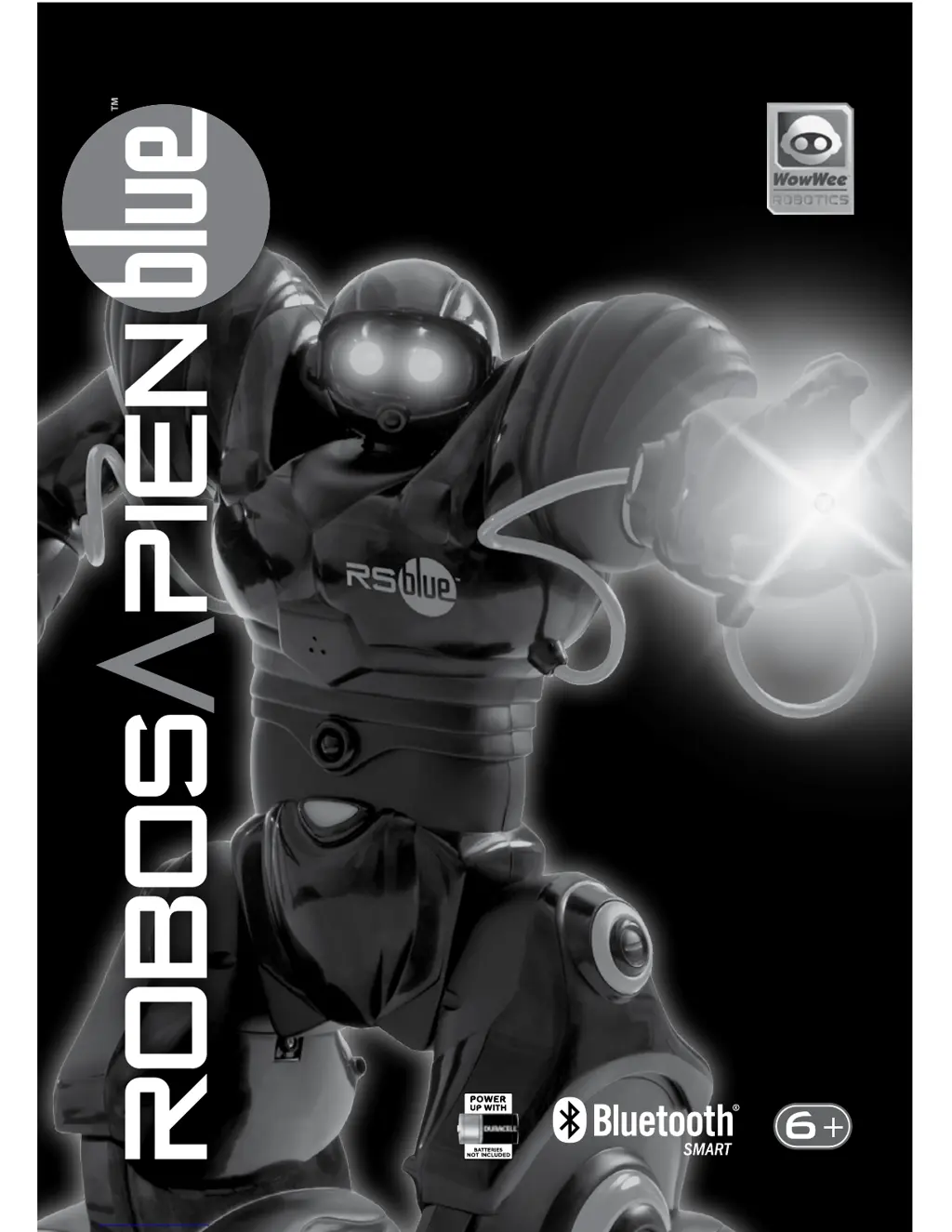
WowWee Robosapien Blue - User Manual

WowWee Robosapien Blue
20 pages
Print Icon
To Next Page IconTo Next Page
Loading...
User Manual
Item No. 8015

Questions and Answers

  • F
    Frank LarsonAug 1, 2025
    What to do if WowWee Motorized Toy Car Robosapien Blue™ is behaving erratically?
    • J
      Jeffrey CaldwellAug 2, 2025
      If your Robosapien Blue™ is behaving erratically, try the following: * Press the STOP button twice, or turn Robosapien Blue™ off and back on again. * If the batteries are very low, replace all batteries in the feet with fresh “D” batteries. * Something might be interfering with the infra-red signals. Try moving the controller closer to the robot, or move the robot to another location under different lighting.
  • K
    Kevin Scott IIIAug 13, 2025
    Why WowWee Motorized Toy Car Robosapien Blue™ has trouble walking?
    • S
      Susan CortezAug 13, 2025
      Robosapien Blue™ may have trouble walking due to several reasons: * The hand or feet sensors might be detecting objects in front or back. Use the BULLDOZER walking mode (press SELECT twice, then BULLDOZER) or SELECT-STEP or SELECT-BACKSTEP to move the robot away from the obstruction. * Robosapien Blue™ may have difficulty walking on thick carpets or slippery surfaces. For best results, only use your Robosapien Blue™ on flat, level surfaces (low pile carpets or hard floors). * Something might be stuck on the robot’s feet. Check that nothing is caught or preventing his footpads, legs, or hands from moving freely. * Try pressing < > again (or press < > twice if stopped) to enter SLOW WALK mode, which is much more stable.
  • J
    Jason JonesAug 19, 2025
    What to do if WowWee Motorized Toy Car Robosapien Blue™’s limbs are not moving the way I want?
    • J
      James Patterson Jr.Aug 19, 2025
      If Robosapien Blue™’s limbs are not moving as expected: * Remember that Robosapien Blue™’s arms and legs move to multiple positions. When a limb is fully extended, use several button presses to find new positions. * You can reset the Robosapien Blue™ to the default position by pressing SELECT then the RESET (STOP) button.
  • S
    sullivanraymondAug 27, 2025
    How to make WowWee Motorized Toy Car Robosapien Blue™ detect sounds in Listen Mode?
    • J
      John BenderAug 27, 2025
      To ensure Robosapien Blue™ detects sounds in Listen Mode: * Wait two seconds after LISTEN MODE activates before making sounds or tapping the robot’s body. * Make sure to produce a sharp sound (e.g., clapping your hands) or tap Robosapien™’s body, as it does not hear soft or low-pitched sounds.
  • K
    kristinhortonNov 6, 2025
    What to do if WowWee Motorized Toy Car Robosapien Blue™ is not responding to the controller?
    • F
      Frederick HillNov 6, 2025
      If your Robosapien Blue™ is not responding to the controller, here are a few things to try: * Stand the robot upright, clear any obstacles from the feet and hand sensors, then push Robosapien Blue™’s ON/OFF button until you hear the yawning power up sequence. * Ensure a clear line of sight between the remote and the infra-red receiver in the Robosapien™’s head. Always point the controller directly at the head and stay within 12 feet (3 meters) distance. * Check that the batteries are inserted correctly and that nothing is obstructing the battery contacts. * If Robosapien Blue™ is in PROGRAM MODE (“Beep, beep, beep”), press the PROGRAM PLAY button at the very bottom of the remote, then STOP to restore regular operation. * Certain electronic lighting or bright sunlight can interfe...

Summary

Battery Information and Installation

Battery Requirements

Specifies the types and quantities of batteries required for the robot and remote.

Battery Installation Steps

Provides step-by-step instructions for installing batteries in the robot and remote.

Important Battery Guidelines

Offers crucial guidelines on battery usage, mixing, and disposal for performance and safety.

Low Battery Indicators

Explains how to recognize low battery levels in the robot and remote.

Red Commands: Upper Controller Functions

Red Commands: Middle and Lower Body Actions

Programming Mode: Touch Sensors

Programmable Sensor Types

Identifies the Right, Left, Sonic Sensor, and Master Programs available for programming.

Programming Right & Left Sensors

Details the step-by-step process for programming right and left sensor routines.

Programming Mode: Sonic Sensors

Sonic Sensor Programs

Outlines how to set up and program the robot using its sonic sensor.

Programming Mode: Master Command

Master Programs

Explains how to create and execute master programs, including linking sensor programs.

Extending Programs

Describes linking sensor programs to extend master program length and complexity.

Troubleshooting Guide

Robot Not Responding to Controller

Provides solutions for when the robot does not respond to remote commands.

Trouble Walking

Offers solutions for issues related to the robot's movement and walking.

Listen Mode Sound Detection Issues

Addresses problems with the robot not responding to sound in Listen Mode.

Incorrect Limb Movement

Provides solutions for when the robot's limbs do not move as expected.

Erratic Robot Behavior

Offers solutions for when the robot exhibits unpredictable or erratic behavior.

App Functionality and Quickstart

Downloading the Mobile App

Guides users on how to download the required RoboRemote Bluetooth mobile application.

Connecting to the Robot

Provides steps to wirelessly connect the robot to a compatible smart device.

WowWee Robosapien Blue Specifications

General IconGeneral
BrandWowWee
ModelRobosapien Blue
CategoryMotorized Toy Car
LanguageEnglish