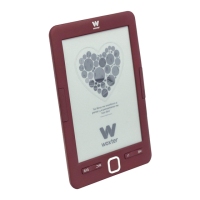
Operation
1. Turn the unit on and off,
Turn the unit on by pressing the ON/OFF button for about 5
seconds.
The unit will automatically turn on and go directly to the main
interface.
Press the ON/OFF button for about 5 seconds and then the unit
will turn off automatically.
Press the ON/OFF button for about 5 seconds and then the unit
will turn off automatically,
2. Previous or next file, Press the left or right button to go to the
previous or next file, Press the left or right button to go to the
previous or next file.
button to go to the previous or next file,
3, Connect to computer and transfer files,
Use the USB cable to connect the unit to a computer, then the
product can be used as a portable disk.
the product can be used as a portable disk for data
transmission.
When the unit is connected to the computer through the USB
port, it can be used as an external hard drive. You can easily
purchase your documents, pictures, songs, etc. without the
need for a third access partition,
4, Reset,
If the unit does not respond, press the RESET button to reset
and start again.
and start again.
Instructions for use
After you have turned on the unit and accessed the main
menu, you can use the directional buttons to access eight
different
main menu, you can use the directional buttons to access
eight different options including History, Library, Browse
ebooks, Browser, Images, Games, Calendar and Settings,
HISTORY
Select this option and press OK to access the last read books.
Briefly press the M button to exit this interface,
NOTE: Only the last 10 recently read books can be selected.
LIBRARY
Select this option and press OK to access the complete list of
books in your library, You can use the directional buttons to
move up or down to select the book you want to start reading,
Once you have selected one of the books, press OK to start
reading.
Once you have selected one of the books, press OK to start
reading, Press the M button to exit this interface.
While reading a file, you can perform the following operations:
- Make the font size larger or smaller,
- Change the display format from landscape to portrait and
vice versa,
a) When you switch to the horizontal page, press the right and
left
b) When you switch to portrait page, press the up or down
buttons to go to the previous or next page down buttons to go
to the previous or next page,
- Add a bookmark,
- Bookmarks,
- Table of contents.
- Add to favorites.
- Go to the page.
Briefly press the OK button to switch to the option to jump to a
specific page.
Enter the numbers of the page you want to go to.
Enter the numbers of the page you want to go to. If the
number exceeds the number of
If the number exceeds the actual number of pages in the book
it is considered invalid, Select YES and press OK to go to the
desired page.
press OK to go to the desired page, Press the button to exit,
- Search.
- Margin: to set margins.
SEARCH EBOOKS
Select this option and enter the name of the book you want to
read, press OK to start reading. press OK to start reading,
EXPLORER
This option allows you to manage and search for files
IMAGES
Select the IMAGES option in the main interface and press OK to
access the image list. Short press the UP or DOWN button to
select a file, then press OK to enter the full screen status, at this
time, short press the UP button to go to the previous image
and short press the DOWN button to select the next image.
Press the M button to return to the image list.
GAMES
Access the GAME option in the main menu and briefly press
the OK button. Select from the available games available.
CALENDAR
Access the CALENDAR option in the main menu and briefly
press the OK button.
SETTINGS.
Choose this option from the main menu to access the system
confIguration and press OK to access the configuration list.
There are six different options:
- Screen refresh: allows refreshing after each page,
after 3 and/or 5 pages.
- Power settings: with this option you can set the power off
time: this unit allows you to
This unit allows you to set a timer for the automatic shutdown
of the unit or to
automatic shutdown of the unit or put it into stand-by mode
(power sleep).
- Setting the time and day: allows you to set the year, month
and day using the right, right and left keys, as well as the hour,
minute and second using the up and down keys,
- Language setting: allows you to set the OSD menu language
of the unit, English, Spanish, French, etc...
- Format device,
- Restore factory defaults: use this option to return the unit to
the initial factory defaults.
- USB connection: allows connection to PC and file copying,
- Product information: displays information about the
product:
model, software version, etc... as well as used and free internal
and external memory capacity. If there is a Micro SD card, you
can also check the capacity of the card.
Battery and energy
- When the unit is in the charging state, the E icon will be
displayed at the top of the unit once charging is complete. E
icon will be displayed at the top of the unit the icon will
automatically change to HIM and appear full.
- When the battery is empty, the (+) icon will be displayed. It is
time to
time to charge it,
- If you are charging the product for the first time, we
recommend charging for more than eight hours,
- A new product must be fully charged and fully discharged
for at
least the first three times to activate it properly.
After that, the battery can be fully charged in about 2-3 hours.
In operation, the charging time is longer.
- We recommend a full charge and discharge of the battery
once every 3 months to keep the battery in perfect condition.
- After charging, please unplug the USB cable and disconnect
the charger from the mains. Do not insert the charger into a
mains socket if you are not going to connect any devices,
- If the unit is not going to be used for a long period of time,
If the unit is not to be used for a long period of time, charge
the battery fully, charge and discharge the battery at least
once every 3 months,
- When there is insufficient power, continue use after
charging; when the battery is completely empty, continue
use after charging and connect it to the PC; do charging in
the following situations:
(a) when the battery icon shows that the battery is empty,
b) the system shuts down automatically and shuts down very
soon after restarting, c) the system shuts down automatically
and shuts down very soon after restarting after starting again,
c) The buttons do not respond.
d) To ensure the charging stability, we recommend not to
charge with the PC USB, try to use the mains charger for safer
charging.
Troubleshooting
1, I CAN'T TURN ON THE E-BOOK
Connect the USB or charger, check if the battery voltage is too
low.
too low. If so, recharge it for the time, as regulated before use.
If after charging, the unit still does not turn on, please contact
the
If after charging the unit still does not turn on, please contact
the customer service system,
2. THE BUTTONS DO NOT WORK,
Confirm that the unit is not locked, If so, unlock it and try again,
3, THE FILES CANNOT BE DOWNLOADED,
Check that the connection between the PCS and the unit is
correct, check that there is enough space, check that the USB
cable is not damaged,
4, WHY DOES THE RUN TIME OF THE READER VARY,
It will depend on the operating conditions of the unit, if it is
subjected to very high temperatures, very low temperatures,
in humid environments, dry environments, etc., 5. humid, dry,
etc., the lithium battery will vary accordingly.
Technical support and warranty information
If you have any problems with this product, we
recommend that you first read this manual in detail or
go to our web page www.woxter,.es where you can
access "Frequently Asked Questions about the
product", "Troubleshooting", "Updates and Drivers",
"Manuals", etc. If the problem persists, and for any
procedure that you consider necessary, please
contact the distributor where you purchased the
product, always presenting the original purchase
invoice of the product,
Warranty terms
1. Two years warranty for our products, provided that
each and every one of the steps indicated in the
WOXTER SAT procedure available at www.woxter.es are
followed.
2. The warranty will be considered void in case of
breakage or tampering of the warranty seals, if the
material is physically damaged (abuse, blows, falls),
without proper packaging and / or transport damage,
in case of obvious signs of improper handling, misuse,
dirt ... eto
3. Woxter is in no way responsible for the discs or data
contained in our various "optical" media.
contained in our different "optical" or "magnetic"
woxter.es
supports,
being the user the only responsible for them,
4, This warranty does not cover damage to other
equipment used with the unit.
Terms subject to change without notice.
EN
25



 To Next Page
 Loading...