Need help?
Do you have a question about the X-media XM-WN3200 and is the answer not in the manual?
Provides a general overview of the 802.11n client device for high-speed wireless performance.
Lists the key specifications and capabilities of the wireless adapter.
Advises users to read the guide and uninstall other wireless adapter software.
Instructions on how to disable conflicting wireless adapters in Windows.
Basic guidelines for maintaining the product's performance and longevity.
Step-by-step instructions for installing the wireless USB adapter and its software.
Guide on connecting to wireless networks using Windows XP's built-in utility.
Guide on connecting to wireless networks using Windows 7's built-in utility.
Explanation of the adapter's operation and configuration in Station mode.
Overview of the main interface windows for the wireless LAN utility.
Explanation of the adapter's operation and configuration in Access Point (AP) mode.
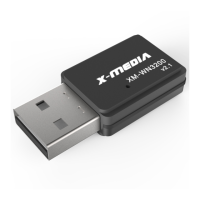
The X-MEDIA 300Mbps Wireless-N USB Adapter (Model No.: XM-WN3200 v2.0) is a client device designed to provide high-speed wireless connectivity for desktop and laptop computers. It aims to enhance the internet experience for users, facilitating activities such as downloading, gaming, and video streaming with improved performance.
The adapter operates based on 802.11n technology, which incorporates MIMO (multiple input, multiple output) for higher throughput. This allows for faster packet transfer rates, maximizing the overall throughput of the wireless connection. The device features an auto-sensing capability, enabling it to automatically detect and adjust the network transmission rate for optimal performance.
It supports two primary work modes: Ad-hoc and Infrastructure. In Infrastructure mode, the adapter connects to an existing wireless network provided by an access point (AP) or router. In Ad-hoc mode, it can establish a direct peer-to-peer connection with another wireless device without the need for an intermediary access point. Additionally, the adapter supports a Soft AP function, allowing it to act as a virtual access point to establish a wireless LAN network, enabling other wireless devices to connect to it.
Security is a key aspect of the adapter's design. It supports various encryption methods, including 64/128-bit WEP, WPA, and WPA2, along with 802.1x security authentication standards. These features are intended to prevent unauthorized access to the network and protect personal information from being exposed. The adapter also includes a Wireless Roaming function, which allows connected devices to seamlessly switch between different access points within the same network without losing connectivity.
The device is designed to be compatible with a range of Windows operating systems, including Windows 2000, Windows XP, Windows Vista, Windows 7, and Windows 8/8.1, ensuring broad usability across different computer setups.
Before installation, users are advised to read the User Guide thoroughly. It is recommended to close or uninstall any existing configuration programs for other manufacturers' wireless adapters to prevent potential user interface conflicts during installation. To avoid network conflicts, any other Wi-Fi network adapters should be disabled before installing the driver for the X-MEDIA adapter.
Installation involves inserting the wireless USB adapter into a computer's USB port and then running the setup program from the provided software CD. The installation wizard guides the user through the process, automatically installing the necessary drivers and utility software. During installation, users may encounter a "Found New Hardware Wizard" dialog, which should be ignored by clicking "Cancel" as the setup program handles the driver installation. After the driver installation begins, users will click "Next" to proceed and "Finish" to complete the process, with an option to restart the computer.
For connecting to a wireless network, users can utilize either the Windows built-in wireless utility or the dedicated Wireless LAN Utility provided by REALTEK.
Using the Windows Built-in Wireless Utility (Windows XP):
Using the Windows Built-in Wireless Utility (Windows 7):
The REALTEK USB Wireless LAN Utility can be accessed via "Start" > "Programs" > "REALTEK USB Wireless LAN Utility" or by clicking its shortcut on the desktop.
The utility's main window includes several sections:
In Station Mode, the utility provides a "General Page" with information such as:
The "Profile Page" in Station Mode allows for managing network profiles:
The "Available Networks" section lists surrounding network connections. The "Status Page" provides detailed technical information about the adapter and its connection, including NDIS Driver Version, Short Radio Header status, Encryption and Authentication types, Channel Set, MAC Address, Data Rate, Channel (Frequency), Status, SSID, Network Type, Power Save Mode, Associated AP MAC, Associated AP IP, and Up Time.
The "Global Control Bar" includes:
In AP Mode, the adapter can function as an access point. To switch to AP mode, users select "Mode (M)" from the main menu and choose "Access Point." The "General Page" in AP mode displays:
The "Advanced Page" in AP mode allows users to configure advanced network packet characteristics:
The "Statistics Page" provides a real-time analysis of packet transition, showing Tx/Rx status, including counts for Tx OK, Tx Error, Rx OK, Rx Packet Count, Rx Retry, and Rx ICV Error.
To ensure the longevity and proper functioning of the adapter, several maintenance guidelines are provided:
 General
| Model | XM-WN3200 |
|---|---|
| Category | Adapter |
| Interface | USB 2.0 |
| Frequency Band | 2.4 GHz |
| Wireless Standards | IEEE 802.11n |
| Security | WEP, WPA, WPA2 |
| Operating System Compatibility | Windows XP/Vista/7/8/10 |

 To Next Page