1) Update Media
There are "Automatic" and "Manual" two options, you can set the player to scan
automatically when SD card is inserted.
2) Gain Setting
There are two options of "G = L and" G = H "for low gain 0dB and high gain 6dB.
When using high-impedance headphones, you can choose high gain to get
more enjoyable sound quality.
3) Digital Filter
There are two kinds of digital filter: Sharp Decay and Slow Decay.
4) DSD gain
When playing DSD music, you can adjust the
gain value. Press OK to pop up the submenu,
0-6dB adjustment (as shown below), use the
Switch button to adjust, press the OK button
to finish.
5) DSD Output Mode
This menu sets the S/PDIF out, USB AUDIO
OUT output mode, can be set to D2P or DoP. When set to D2P mode, DSD
audio will be converted to PCM signal. When set to DoP mode, the DSD audio
will output the native signal.
Note: 1, S/PDIF out supports up to DSD64 native code, PCM192KHz/24Bit
output, any signal is higher will be converted to PCM or down-output.
2.My Music
In the main menu, select the My Music icon, press the OK button to enter the
music category submenu, All Songs, Album, Artist, Genres, Favorite, Playlist,
Recently Played. Press the Up / Down button to change between various
categories, press the OK button to display the classified audio files, select the file
to play.
3.Music Playing
Select the Music playing icon in the main menu, enter the music category
submenu, and use the switch key to select the category song
Song, press the OK button to enter the playing interface (if already songs are
playing, you can directly enter the song broadcast
Put page).
4.Music Settings
In the main menu, select the Music Setting icon, enter the Music Setting
submenu, use the Switch key to select the menu settings, press the OK button
to adjust settings.
1) After entering the SD card or OTG, select a folder and press the OPTION key
to delete the folder.
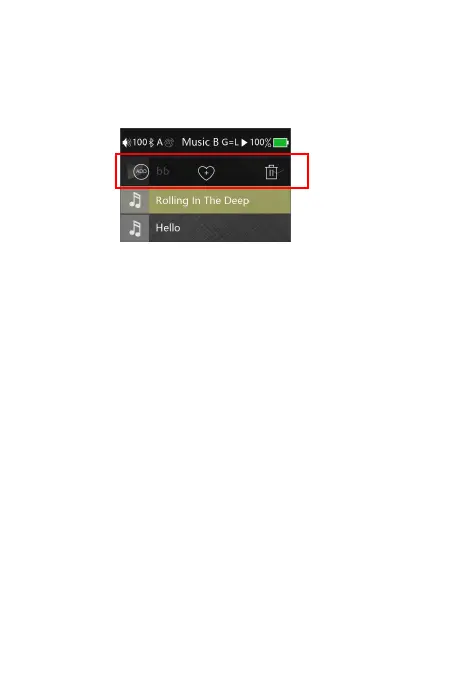
2) After entering a folder, under the Song List page, press the OPTION key will
pop up the shortcut menu(as below), you can add the current song to the Play
list, add to the "My Favorites" list, or Delete.
Set the volume limit to play music to prevent excessive volume to hurt hearing
caused by misoperation.
13) Default Volume Mode
There are Default and Memory two modes. Default mode means the player will
power on with the default volume you set. Memory mode means the player will
memorize the volume value and power on with it.
14) Default Volume
Here you can customize the default volume value.
15) Channel Balance
Short press the OK button pop-up channel balance adjustment window,
maximum support ten levels of adjustment for both channel.
16) Lyrics Display
When this function is turned on, the lyrics can be displayed on the playback
page when playing.
17) Cover Display
When this function is turned on, will show album cover when playing, show the
system default cover when this function is off.
6
2, USB AUDIO OUT support up to DSD256 original code, PCM 384KHz/32Bit
output.
6) Equalizer (EQ)
Press OK to enter the EQ menu for EQ adjustment:
Press the Switch key to EQ mode selection,
EQ modes include: Rock, Classic, Jazz, Pop, Dance,
Vocals, Blues, Metal, etc.; Each frequency can be
precisely adjusted under Custom mode:
①, Press the OK button to enter the Custom mode
②, Press the switch button to select the frequency
band to be adjusted.
③, Press the OK button, confirm the selected frequency band, use Switch key
to adjust, after one frequency band adjustment is completed, press the OK key
to confirm this frequency band adjustment is completed.
④, Repeat the second, third step to adjust other frequency.
7) Play Mode
Play mode: Sequence, Repeat all, Random play, Repeat 1.
8) Output Selection
There are two output methods, Spdif and Line out.
9) Line out Adjustment
When connecting Line out output, the volume of the player can be adjusted after
the switch is turned on. When this switch is off, system default to the maximum
volume and cannot be adjusted.
10) Pointbreak Playback
There are three modes for Pointbreak Playback: Off, Track, and Location; when
selected the Track mode, after restart, the player will be playing the same song
from the beginning,00:00, and it select the Location mode, the player would
memorize the location of the track and start from there.
11) Seamless Playback
Seamless Playback is mainly for the player to automatically switch tracks
smoothly, more user-friendly continuous enjoy high-quality music.
12) Maximum Volume


 To Next Page
 Loading...