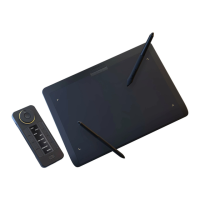
The Xencelabs Pen Tablet is a professional-grade digital drawing tablet designed for creative professionals. It comes in two main configurations: Small - Standard and Medium - Standard / Bundle, offering a range of features to enhance the digital art workflow. The tablet is designed to be used with a computer, providing a natural and intuitive drawing experience.
Function Description:
The Xencelabs Pen Tablet serves as an input device for computers, allowing users to draw, paint, and edit digital content with precision and control. It translates pen movements on its surface into digital input, mimicking traditional drawing tools. The tablet can be used wirelessly or via a USB-C cable, offering flexibility in setup. The Quick Keys remote, included in the Bundle version or available separately, provides customizable shortcut buttons to streamline workflows and reduce reliance on keyboard shortcuts.
Important Technical Specifications:
- Pen Tablet Small - Standard:
- Includes: Pen Tablet Small, Tablet Sleeve, 3 Button Pen, Thin Pen, Pen Case, Nibs (6 standard, 4 felt), Nib Extractor, Wireless Dongle, Adapter - USB-A to USB-C, USB-A to USB-C Cable L, Drawing Glove.
- Pen Tablet Medium - Standard / Bundle:
- Includes: Pen Tablet Medium, Quick Keys (for Bundle), Tablet Sleeve, 3 Button Pen, Thin Pen, Pen Case, Nibs (6 standard, 4 felt), Nib Extractor, Wireless Dongle, Adapter - USB-A to USB-C, USB-A to USB-C Cable, USB-A to USB-C Cable L (for Bundle), Drawing Glove.
- Quick Keys (available separately or in Bundle):
- Includes: Quick Keys, Wireless Dongle, Adapter - USB-A to USB-C, USB-A to USB-C Cable L, Quick Keys Case.
- Connectivity: Wireless (via dongle) or wired (USB-C).
- Operating Systems: Compatible with Windows, Mac OS, and Linux.
- Battery Life:
- Pen Tablet: Approximately 16 hours of continuous use.
- Quick Keys: Approximately 52 hours of continuous use.
- Charging: Requires a powered-on computer, powered USB hub, or other USB charger (5mAh required).
Usage Features:
- Driver Installation: While the tablet offers basic navigation without a driver, full functionality and benefits, especially for the Quick Keys, require driver installation. Drivers are available for Windows, Mac, and Linux on the Xencelabs website. A wired connection to at least one device is needed during setup. Mac users must restart their Mac after driver installation.
- Wireless Connectivity: The tablet connects wirelessly via a provided dongle. If the Xencelabs Quick Keys are part of a bundle, a single dongle connects both the tablet and the Quick Keys. An included USB-A to USB-C adapter offers versatility.
- Connection Indicator:
- Solid Blue: Connected.
- Breathing Blue: Wired Connection.
- Blinking Blue: Trying to Connect.
- Pen Tablet Features:
- Security: Kensington NANO Security Slot™ for securing the tablet.
- Charging Indicator:
- Solid Green: Full charge.
- Breathing Green: Charging.
- Solid Amber: Low charge.
- Power Slide Switch: Slide and hold to turn on/off. Adjustable sleep times can be configured in the settings panel.
- Connectivity Indicator:
- Blinking Blue: Searching for connection.
- Solid Blue: Successful wireless connection.
- Breathing Blue: Connected via USB cable.
- Buttons: Three customizable buttons at the top of the tablet for commonly used functions. Re-assignable in the settings panel.
- LED Active Area Markers: Adjustable brightness and color in the settings panel.
- Curved Palm Rest: Seamless transition from the drawing area to a gently curved palm rest for enhanced comfort.
- Sculpted Returns: Designed for easy pickup of the tablet.
- Quick Keys Features:
- Power Slide Switch: Slide and hold to turn on/off. Adjustable sleep times can be configured in the settings panel.
- Charging Indicator:
- Solid Green: Full charge.
- Breathing Green: Charging.
- Solid Amber: Low charge.
- Connectivity Indicator:
- Blinking Blue: Searching for connection.
- Solid Blue: Successful wireless connection.
- Breathing Blue: Connected via USB cable.
- Security: Kensington NANO Security slot ®.
- Eight Shortcut Keys: 5 customizable groups of 8 keys per application, totaling 40 shortcuts. Sets can be disabled if not needed, allowing users to organize workflow activities (e.g., sketching, coloring, editing).
- Dial: Customizable with 8 dimmable LED color ring options. The center button switches between up to 4 different modes per application (e.g., zoom, brush size).
- Set Button: Controls the OLED display and allows switching between up to 5 shortcut groups.
- OLED Display: Shows shortcut key assignments.
- USB-C Port: For charging the battery and/or connecting to the computer.
- Wacom Compatibility Note: For users with both Xencelabs and Wacom devices:
- Applications using Windows Ink typically work without issues.
- For applications requiring WinTab, users must exit the application, disconnect the USB port (or wireless adapter) of either the Wacom or Xencelabs device (as WinTab only supports one device at a time), and then restart the application. If unsure about WinTab requirements, users should check with the software company or try using the application, being aware of potential random pen behavior due to conflicts.
Maintenance Features:
- Charging: Both the tablet and Quick Keys can be charged by connecting them to a powered-on computer, a powered USB hub, or a 5mAh USB charger. LED indicators (amber for low, breathing green for charging, solid green for charged) provide charge status.
- Missing Items: If any items are missing from the box, users are advised to contact the Support Team at support.xencelabs.com for assistance.
- Registration: Users are encouraged to register their new product at register.xencelabs.com to receive update notifications, tips and tricks, new product announcements, special promotions, and Xencelabs events. Product support is available at support.xencelabs.com.

 Need help?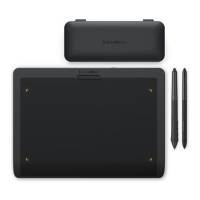

 To Next Page
 General