
 Need help?
Do you have a question about the Xiaomi Mi 10 Lite 5G and is the answer not in the manual?
Describes the initial state and switching of the home screen.
Explains how to slide left or right to switch between multiple home screens.
Provides contact information for general inquiries and business hours.
Offers support for theft, loss, or malfunction issues with business hours.
This document serves as a Quick Start Guide for the Mi 10 Lite 5G (model XIG01), providing essential information for its initial setup and basic operation. The descriptions within this manual are based on Android™ 10. For the most up-to-date and detailed instructions, a full instruction manual in Japanese is available on the au homepage.
The Mi 10 Lite 5G is equipped with a range of physical components designed for various functions. On the top edge, you'll find the Audio jack connector, allowing for wired audio accessories. The Earpiece, which also functions as a speaker, is located at the top front of the device. A Second microphone is strategically placed to reduce noise and enhance connection quality, ensuring clearer audio during calls and recordings. It's important not to puncture this microphone with sharp objects to prevent malfunction.
The front of the device houses several sensors: an Infrared sensor, a Proximity/Light sensor, and the Front camera, enabling selfies and video calls. On the right side of the device, you'll find the Volume key for adjusting audio levels and the Power key for turning the device on/off and locking the screen. The Fingerprint recognition sensor is integrated for secure and convenient unlocking.
Along the bottom edge, there's a Tray ejection hole, which is used to access the au IC card (SIM card) tray. The au IC card tray holds the au IC card (SIM card), which stores your phone number and other essential information. The device is compliant with au Nano Card 04. A USB Type-C™ connection terminal is also located at the bottom for charging and data transfer.
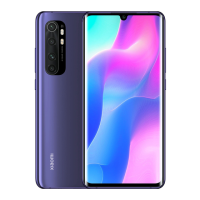
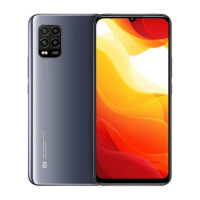
On the back of the device, a comprehensive camera system is present, including the Main camera, Macro camera, Depth camera, and Super-wide angle camera, offering diverse photographic capabilities. A Flash/Light is also included to assist with low-light photography and as a flashlight.
The device incorporates multiple antennas for connectivity: Wi-Fi®/GPS antenna, Wi-Fi®/Bluetooth® antenna, 5G/4G antenna, and a dedicated 5G antenna. These antennas are built-in, and it's crucial not to cover them with your hand to maintain optimal reception quality. An Indicator light is also present, providing visual notifications. The main display, a Touch Panel, comes with a screen protector (sample) already pasted. Finally, an NFC Location is available for near-field communication functionalities.
To begin using your Mi 10 Lite 5G, you'll need to attach the au IC card (SIM card). This card contains your phone number and other critical information. The device supports au Nano Card 04.
The process involves first inserting the SIM card removal tool (sample) directly into the tray removal hole. This action will cause the au IC card (SIM card) tray to be drawn out from the device. Once the tray is out, place the au IC card (SIM card) into the tray with the IC (metal) part facing down. Pay close attention to the direction of the notching on the card and tray to ensure correct placement. After the card is securely in the tray, insert the au IC card (SIM card) tray back into the SIM card slot until it clicks into place.
A crucial note: Do not insert the au IC card (SIM card) with a conversion adapter attached, as this may cause a malfunction.
Once the au IC card is installed, you can power on your Mi 10 Lite 5G. To do this, press and hold the Power key for more than 4 seconds. The device will then turn on, and the guide screen will appear, ready for you to proceed with the initial setup.
If you encounter a situation where you cannot turn off the power using regular methods, you can perform a forced restart by pressing and holding the Power key for more than 10 seconds.
Upon unboxing your Mi 10 Lite 5G, please confirm that the following items are included in the package:
Please note that an earphone is not included in the package. It is recommended to use only charging equipment specified by au for this product. The battery is built into the product and is not user-removable.
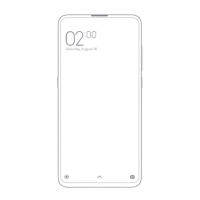
The home screen is your central hub for accessing applications and information. In its initial state, you can tap icons on the home screen to launch frequently used applications immediately. The home screen can also be customized and switched between multiple screens.
At the top of the screen, the Status bar displays important information such as network signal, battery level, and notifications. Below that, you'll find the Clock/Weather (Widget), providing quick access to time and weather information. A Quick search box (Widget) allows you to search for applications or internet information using text or voice input.
Application/folder icons are scattered across the home screen. Tapping an icon will start the corresponding application. If multiple applications are grouped into a folder, tapping the folder will display a list of the applications within it. An Indicator at the bottom of the screen shows your current position among multiple home screens.
The Dock bar, located at the bottom of the home screen, provides quick access to frequently used applications. These applications remain visible even when you switch between different home screens.
The Navigation bar (key) at the very bottom of the screen offers three essential functions:
You can customize your home screen by sliding left or right to switch between multiple screens. The indicator at the bottom of the screen visually represents your current display position.
For multitasking, you can long-touch a running application to drag and drop it into the screen separation area, initiating screen separation mode. Alternatively, you can tap the screen separation icon on the right side of the application to achieve the same.
Flicking down in a blank area on the home screen will display a search bar for recommended applications, along with access to applications, contacts, and internet information.
To access the device's settings, tap the "Settings" icon on the home screen. This will open the "Settings" menu, which is organized into various categories to help you configure your device.
Here's a breakdown of the key settings categories and their functions:
The Mi 10 Lite 5G is designed with sustainability in mind. Cell phone and PHS operators actively collect and recycle unused telephones, batteries, and battery chargers at stores bearing the appropriate logo. This initiative aims to protect the environment and promote the reuse of valuable resources.
This Quick Start Guide provides a foundational understanding of your Mi 10 Lite 5G. For a comprehensive overview and detailed instructions, refer to the full instruction manual available on the au homepage.
 General
| Display | 6.57 inches, AMOLED, 1080 x 2400 pixels |
|---|---|
| Processor | Qualcomm Snapdragon 765G |
| RAM | 6GB / 8GB |
| Storage | 64GB / 128GB / 256GB |
| Front Camera | 16 MP |
| Battery | 4160 mAh |
| Operating System | Android 10, MIUI 11 |
| Weight | 192 g |
| Dimensions | 163.7 x 74.8 x 7.9 mm |
| Charging | 20W fast charging |
| SIM | Dual SIM (Nano-SIM, dual stand-by) |
| Bluetooth | 5.1 |
| USB | USB Type-C 2.0 |
| Fingerprint Sensor | Under display, optical |
| Network | 5G, 4G LTE |
| Colors | Dream White, Aurora Blue |
| Rear Camera | 48 MP (wide) + 8 MP (ultrawide) + 2 MP (macro) + 2 MP (depth) |

 To Next Page
