
 Need help?
Do you have a question about the Xinmeng XM-RF87 and is the answer not in the manual?
Details the necessary hardware for connecting the wireless keyboard, including mobile phones or computers with Bluetooth and a USB port.
Provides a visual illustration of how to connect the device via USB.
Step-by-step instructions for pairing the keyboard via Bluetooth, including code matching light indicators.
Guide for connecting the keyboard using a 2.4G receiver, including code matching light status.
Instructions for connecting the keyboard using the provided TYPE-C cable.
Instructions for switching light modes, adjusting brightness, and breathing speed using FN key combinations.
Description of multimedia key controls activated by pressing the FN key with function keys F1 through F12.
Details the keyboard's auto-off backlight feature and how to restore it.
Addresses issues like unrecognized receivers, dim backlights, and low battery warnings.
Advises on safe usage, avoiding high temperatures, and proper disposal of damaged products.
Warns against unauthorized modifications and outlines device compliance with FCC rules.
Explains RF exposure evaluation and measures to correct potential radio or television interference.
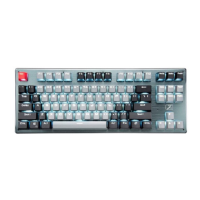
The Xinmeng (XM-RF87) Wireless Bluetooth Mechanical Keyboard is a versatile input device designed for seamless connectivity across various operating systems and devices. This mechanical keyboard supports three primary connection modes: Bluetooth, 2.4G wireless, and wired (USB). It is compatible with Windows 2000, XP, Vista, 7, 8, and 10, as well as mobile phone systems with Bluetooth capabilities.
The XM-RF87 keyboard offers a multi-mode connection experience, allowing users to switch between different modes based on their needs. The Bluetooth mode enables wireless connection to computers and mobile devices, while the 2.4G wireless mode uses a dedicated receiver for connection to computers. For a stable and low-latency connection, the wired mode utilizes a TYPE-C cable. The keyboard features 87 keys and incorporates FN key functions for multimedia control and lighting adjustments. It also includes an intelligent power-saving function to conserve battery life.
To connect via Bluetooth, turn on the keyboard's power switch. Long press FN+1 (BT1), FN+2 (BT2), or FN+3 (BT3) to activate Bluetooth broadcast mode. The corresponding code matching light will flash quickly (green for BT1, yellow for BT2, cyan for BT3). Once connected, the light will remain steady.
Turn on the keyboard's power. Long press FN+4 (2.4G key); the code matching light will flash red quickly. Plug the 2.4G receiver into a free USB port on the computer. The computer will automatically detect and install the necessary software. Once connected, the code matching light will turn solid red, indicating successful pairing.
Connect the keyboard to the computer using the provided TYPE-C cable. Press and hold FN+5 (Line key); the code matching light will flash white. It will then automatically connect, and the light will turn solid blue (or solid white when fully charged), indicating a successful wired connection.
For first-time use, it is recommended to fully charge the keyboard using the provided charging cable connected to a computer's USB port or a DC-5V charger. The keyboard indicator will light blue during charging and turn off when fully charged.
The keyboard features an intelligent power-saving function. If stationary for 2-3 minutes, the backlight will automatically turn off. Press any key to restore the light.
This device complies with Part 15 of the FCC Rules. Operation is subject to two conditions: (1) it may not cause harmful interference, and (2) it must accept any interference received. Any changes or modifications not expressly approved by the party responsible for compliance could void the user's authority to operate this equipment. The device has been evaluated for general RF exposure and can be used in portable exposure conditions without restriction. If interference occurs, try reorienting the receiving antenna, increasing separation between equipment and receiver, connecting equipment to a different circuit, or consulting a dealer/radio/TV technician.

 To Next Page
 General