Need help?
Do you have a question about the Xtrfy M4W-RGB and is the answer not in the manual?
Details the numbered buttons on the mouse and their primary functions.
Explains the function of the setting button for DPI, RGB, and PGDN modes.
Describes automatic switching between wired and wireless connection modes.
Details the LED color indications for low battery and charging status.
Instructions for connecting the wireless USB receiver and powering on the mouse.
Information on how to adjust DPI levels and their corresponding indications.
Guide on modifying the mouse shape and adjusting weight balance.
Details FCC compliance rules, potential interference, and user corrective measures.
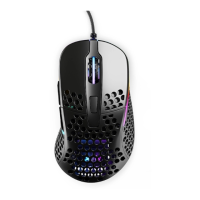
This document outlines the features, usage, and maintenance of the Xtrfy M4 Wireless Mouse, model M4W-RGB.
The Xtrfy M4 Wireless Mouse is a versatile input device designed for both wired and wireless operation. It features a multi-functional button for various settings and customizable physical components. The mouse supports adjustable polling rates and DPI levels, along with RGB lighting effects.
The mouse incorporates a mode switch that allows users to toggle between different functionalities:
The mouse is equipped with standard buttons including Left Click, Right Click, Middle Click, Forward, and Backward, along with Scroll Up and Scroll Down functions. There is also a dedicated "Setting" button for mode-specific adjustments, a "Profile" button, and a "Pairing" button for establishing wireless connections.
Wireless and Wired Functionality: The mouse automatically detects its connection type. When the USB Nano receiver is plugged into a computer, the mouse will switch to wireless mode if the mode switch is not in "Power Off" position. If the mouse is connected directly to the computer via a cable, it will automatically switch to wired mode and begin charging. This dual functionality ensures continuous operation, whether for gaming or general use.
DPI Setting and Indication: The mouse offers multiple DPI levels, allowing users to adjust sensitivity to their preference. The DPI levels are 400, 800, 1200, 1600, 3200, 4000, 7200, and 19000. To change the DPI, users simply press the setting button when the mode switch is in DPI mode. The mouse provides visual feedback for the current DPI level, though the specific color indications are not detailed in this section.
Polling Rate Adjustment: The mouse supports three polling rates: 125Hz (indicated by red LED), 500Hz (blue LED), and 1000Hz (green LED). This allows users to choose the responsiveness that best suits their needs, with higher polling rates generally preferred for competitive gaming.
Shape Change and Weight Balance Adjustment: A unique feature of this mouse is its customizable physical design. Users can unscrew the back cover to change the shape of the back shell, allowing for different ergonomic profiles. Additionally, the battery screw located under the mouse can be adjusted to move the battery forward or backward, enabling users to fine-tune the mouse's weight balance according to their grip and preference. This level of physical customization can significantly enhance comfort and control.
Pairing: In case of a lost wireless connection or if the receiver is changed, the mouse can be re-paired using a dedicated pairing tool. This ensures that users can easily re-establish a stable wireless connection.
Initial Setup: To set up the mouse for wireless use, users need to:
Low Power and Charging Indication: The mouse provides clear visual indicators for battery status:
Charging: The mouse is charged via a Type-C connection. It is recommended to use the computer's USB port and the specified cable for charging.
Safety Precautions: To ensure the longevity and safe operation of the battery and mouse, users should adhere to the following precautions:
FCC Compliance: The device complies with part 15 of the FCC Rules, ensuring that it operates without causing harmful interference and accepts any interference received. Users are cautioned that any unauthorized changes or modifications to the equipment could void their authority to operate it. The device has been evaluated for general RF exposure and can be used in portable exposure conditions without restriction. In case of interference, users are advised to reorient the receiving antenna, increase separation between equipment and receiver, connect the equipment to a different circuit, or consult a dealer/technician.
 General
| Polling Rate | 1000 Hz |
|---|---|
| Weight | 69 g |
| Cable Length | 1.8 m |
| RGB Lighting | Yes |
| Buttons | 6 |
| IPS | 400 |
| Shape | Ergonomic |

 To Next Page