11
3. Setup & Operations
3.1
Basic Navigation
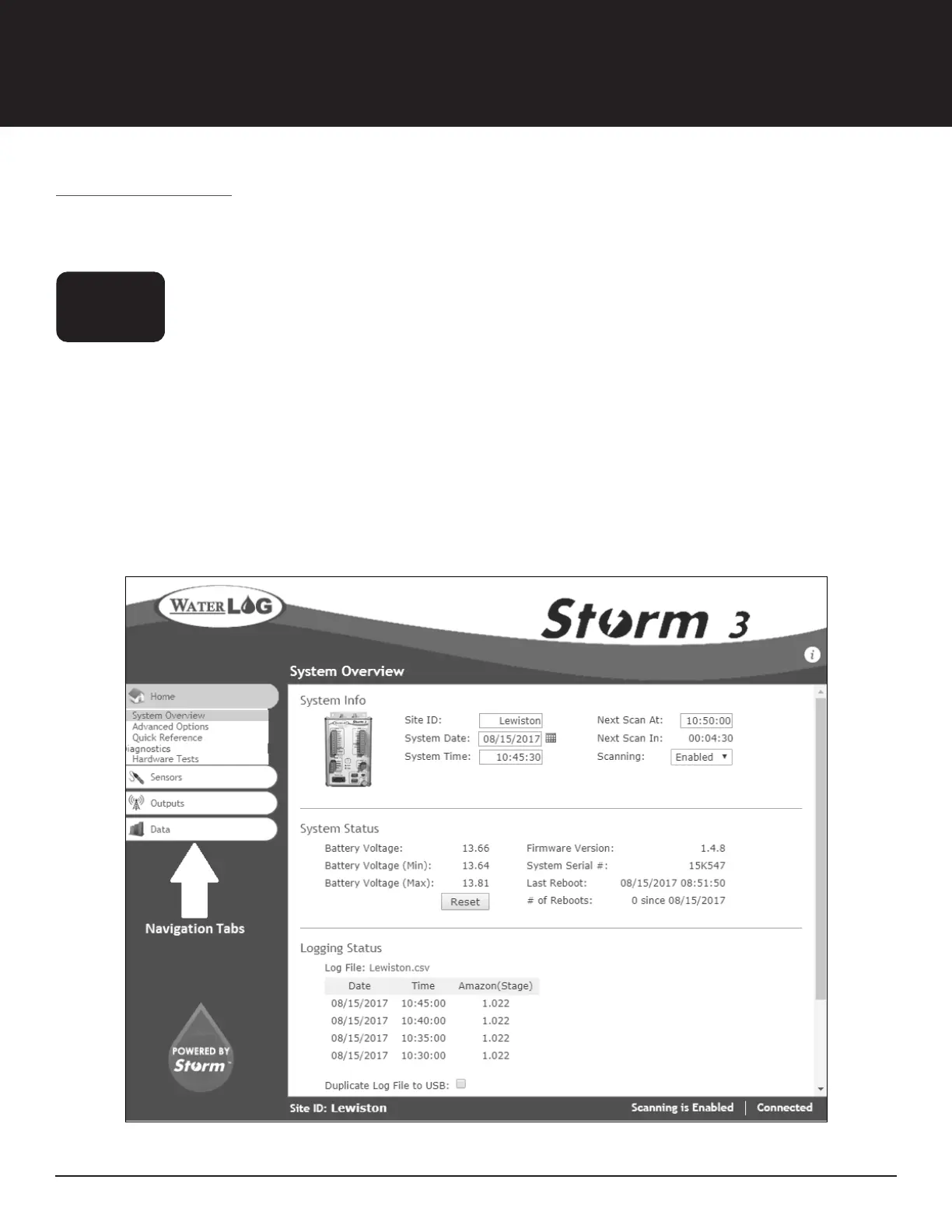
Once a connection to the Storm3 has been established, open a web browser and navigate to
http://172.20.20.20/. The Home page will become available within the opened web browser. The GUI is
divided into two main components for easy navigation: navigation tabs and the main page. The status bar
along the bottom of the GUI displays the current site ID, scanning status, and connection status.
Figure 5: Storm3 Graphical User Interface Home Page
The left side of the screen contains four navigation tabs or four main menus; Home, Sensors, Outputs, and
Data. Selecting a main menu reveals additional sub menus. Selecting a main menu or a sub menu loads
the relevant content and configurable parameters on the GUI’s main page. The current operation in use is
highlighted in green (figure 5).
Context help is available with Storm3’s information icon ‘i’ found in the upper right hand corner of the GUI.
Selecting this icon will cause several orange information icons to appear around the page. Information on a
specific section of the menu is displayed by selecting one of these orange in icons (figure 6).
Setup & Operations


 To Next Page