EasyManua.ls Logo

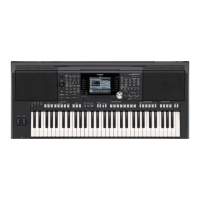
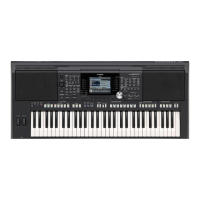
Yamaha PSR-S670 - User Manual

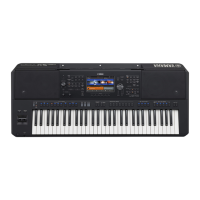
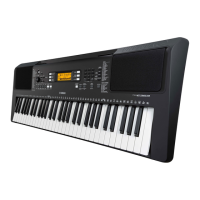
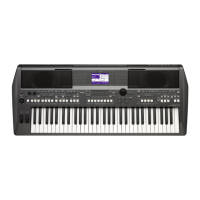
Yamaha PSR-S670
108 pages
Print Icon
To Next Page IconTo Next Page
Loading...
ES
FR
EN
Merci d'avoir choisi ce Clavier Arrangeur Professionnel Yamaha !
Nous vous conseillons de lire attentivement ce mode d'emploi afin de tirer pleinement profit
des fonctions avancées et très utiles de votre instrument. Nous vous recommandons
également de garder ce manuel à portée de main pour toute référence ultérieure.
Avant d'utiliser l'instrument, lisez attentivement la section « PRÉCAUTIONS
D'USAGE » aux pages 5 et 6.
Thank you for purchasing this Yamaha Digital Workstation!
We recommend that you read this manual carefully so that you can fully take advantage of the
advanced and convenient functions of the instrument. We also recommend that you keep this
manual in a safe and handy place for future reference.
Before using the instrument, be sure to read “PRECAUTIONS” on pages 5–6.
Le damos las gracias por adquirir esta Estación de Trabajo Digital de Yamaha.
La lectura detenida de este manual le permitirá disfrutar de las útiles y avanzadas
funciones del instrumento. Recomendamos guardar el manual en un lugar seguro y
accesible, para futuras consultas.
Antes de utilizar el instrumento, lea las “PRECAUCIONES”, en las páginas 5 y 6.
English
Français
Español
Digital Workstation
Clavier Arrangeur Professionnel
Estación de Trabajo Digital
Owners Manual
Mode d'emploi
Manual de instrucciones

Table of Contents

Other manuals for Yamaha PSR-S670

Questions and Answers

  • J
    Jeffrey GrahamAug 18, 2025
    How to fix Yamaha Synthesizer when overall volume is too low or no sound is heard?
    • L
      Lori StephensAug 18, 2025
      If the overall volume of your Yamaha Synthesizer is too low or you're not hearing any sound, here are a few things to check: * Ensure the master volume isn't set too low by adjusting the [MASTER VOLUME] dial. * Verify that all keyboard parts are turned on using the PART ON/OFF [RIGHT 1]/ [RIGHT 2]/[LEFT] buttons. * Check the volume levels of individual parts in the BALANCE display. * Confirm that the desired channel is set to ON. * Unplug any connected headphones, as they may be disabling the speaker output. * Make sure the Speaker setting is set to ON via [FUNCTION] ? MENU 1 ? UTILITY ? [ENTER] ? CONFIG 2. * If the [FADE IN/OUT] button is activated, press it to deactivate the function, as it might be muting the sound.
  • W
    william05Aug 20, 2025
    What to do if Voice selected from Voice Selection display does not sound on Yamaha Synthesizer?
    • J
      Judith ReedAug 21, 2025
      If the Voice selected from the Voice Selection display does not sound on your Yamaha Synthesizer, check whether or not the selected part is turned on. If necessary, press the appropriate PART ON/OFF button to turn the part on.
  • D
    Dr. Tonya BuckAug 23, 2025
    Why is the sound distorted or noisy on my Yamaha Synthesizer?
    • J
      Jonathan HortonAug 23, 2025
      If the sound from your Yamaha Synthesizer is distorted or noisy, the volume might be too high. Check all the volume settings and make sure they are appropriate. Also, certain effects or filter settings can cause distortion. Refer to the Reference Manual to check the effect or filter settings and change them accordingly.
  • L
    Laura GilbertAug 26, 2025
    What to do if the Style does not start when pressing [START/STOP] button on Yamaha Synthesizer?
    • R
      Raymond ConradAug 26, 2025
      If the style does not start even when the [START/STOP] button is pressed on your Yamaha Synthesizer, it might be because the Rhythm channel of the selected Style does not contain any data. To resolve this, turn the [ACMP] button on and play the left-hand section on the keyboard to sound the accompaniment part of the Style.
  • K
    Kimberly SmithAug 28, 2025
    Why is the keyboard volume lower than Song/Style playback volume on my Yamaha Synthesizer?
    • T
      Tracie MclaughlinAug 28, 2025
      If the keyboard volume is lower than the Song/Style playback volume on your Yamaha Synthesizer, the volume of the keyboard parts may be set too low. To fix this, raise the volume in the BALANCE display.
  • K
    Katherine LeeAug 30, 2025
    Why does only the rhythm channel play on my Yamaha Synthesizer?
    • K
      Kevin BauerAug 30, 2025
      If only the rhythm channel plays on your Yamaha Synthesizer, ensure that the Auto Accompaniment function is turned on by pressing the [ACMP] button. Also, make sure you are playing keys in the chord section of the keyboard.
  • K
    Kimberly ChaneySep 1, 2025
    What to do if the Main display does not appear when turning on Yamaha Synthesizer?
    • K
      karlawrightSep 1, 2025
      If the Main display does not appear even when turning the power on to your Yamaha Synthesizer, it may occur if a USB flash drive has been installed. Some USB flash drives may cause a long delay between turning the power on and the Main display appearing. To avoid this, turn the power on after disconnecting the device.
  • A
    Amy AdamsSep 3, 2025
    Why songs cannot be selected on Yamaha Synthesizer?
    • D
      Deborah LeeSep 4, 2025
      If songs cannot be selected on your Yamaha Synthesizer, it might be because the language settings have been changed. Set the appropriate language for the Song file name. Also, if the size of the Song data is large (about 300 KB or greater), the Song cannot be selected because the data is too large to be handled by the instrument.
  • L
    lawrencejacquelineSep 5, 2025
    Why does Song playback stop before the Song is finished on Yamaha Synthesizer?
    • B
      bwilkinsonSep 6, 2025
      If Song playback stops before the Song is finished on your Yamaha Synthesizer, the Guide function may be turned on. In this case, playback is “waiting” for the correct key to be played. Press the [SONG FUNCTION] button to call up the SONG FUNCTION MENU display, then press one of the [6 ??] (GUIDE) buttons to turn off the Guide function.
  • J
    james15Sep 8, 2025
    Why are some characters of the file/folder name garbled on Yamaha Synthesizer?
    • J
      Jessica GriffinSep 8, 2025
      If some characters of the file/folder name are garbled on your Yamaha Synthesizer, the language settings have likely been changed. Set the appropriate language for the file/folder name.

Summary

SPECIAL MESSAGE SECTION

Warnings and Notices

Important safety, compliance, and operational advisories for the instrument.

IMPORTANT SAFETY INSTRUCTIONS

Explanation of Graphical Symbols

Explains symbols used in the manual to denote warnings and important information.

PRECAUTIONS

For AC adaptor

Safety precautions specifically for the AC adaptor.

Instrument Safety Precautions

General safety measures for the PSR-S670, including power and environmental hazards.

Handling and Placement

Precautions for handling, placement, connections, and notices.

Welcome to Digital Workstation

Backing Band Performance

Explains the auto accompaniment feature for creating a full band sound.

Panel Controls

Top Panel Controls

Describes the controls located on the top surface of the instrument.

Rear Panel Connectors

Describes the various connectors found on the rear panel of the instrument.

Setting Up

Power Requirements and Operation

Details power connection requirements and procedures for turning the instrument on/off.

Auto Power Off Configuration

How to configure the automatic power off feature to save energy.

Basic Operations

1 Voices - Playing the keyboard -

2 Styles - Playing Rhythm and Accompaniment -

Playing Styles with Auto Accompaniment

How to select and play styles with auto accompaniment.

3 Songs - Playing, Practicing and Recording Songs -

Playing and Controlling Songs

How to play back songs and manage playback operations.

Repeat Playback and Recording Performance

Repeat playback modes and recording performance as MIDI or Audio.

4 USB Audio Player;Recorder - Recording and Playing Audio Files -

5 Multi Pads - Adding Musical Phrases to Your Performance -

6 Music Finder - Calling Up Ideal Panel Setups for Your Performance -

7 Registration Memory - Saving and Recalling Custom Panel Setups -

Registering and Saving Panel Setups

How to save current instrument settings and registration bank files.

8 Mixing Console - Editing the Volume and Tonal Balance -

9 Connections - Using Your Instrument with Other Devices -

10 Function - Making Global Settings and Using Advanced Features -

Troubleshooting

General and Voice;Style;Song Issues

Troubleshooting common problems and issues related to voices, styles, and songs.

USB and Hardware Issues

Troubleshooting problems with USB devices, mixing console, and foot pedals.

Specifications

1-YEAR LIMITED WARRANTY ON ARRANGER WORKSTATION KEYBOARDS

Yamaha PSR-S670 Specifications

General IconGeneral
Polyphony128
Style RecommenderYes
Smart ChordYes
RecordingYes
Number of Tracks16
PlaybackSMF (Format 0 & 1), XF
Time StretchYes
Pitch ShiftYes
Vocal CancelYes
Scale Type9 types
Amplifiers15 W x 2
Speakers12 cm x 2
Power Consumption15 W
Auto Power Off FunctionYes
Keyboard61 keys
Featured VoicesSweet! Voices, Cool! Voices, Live! Voices
Styles230 styles
Featured StylesDJ Styles
FingeringMulti Finger, Full Keyboard
One Touch Setting (OTS)Yes
USB Audio RecorderYes
Registration Number8 banks x 4
MiscellaneousMetronome, Transpose, Tuning
External DrivesUSB Flash Memory
ConnectivityUSB to HOST, USB to DEVICE, AUX IN
Power SupplyPA-300C or an equivalent recommended by Yamaha
Dimensions1004 x 134 x 410 mm
Weight8.1 kg
EffectsReverb, Chorus, DSP, Master EQ
Display320 x 240 dots LCD
Voices930 Voices + 13 MegaVoices + 30 Sweet! Voices + 64 Cool! Voices + 90 Live! Voices

Related product manuals