EasyManua.ls Logo

Yamaha Tyros5 - User Manual

Yamaha Tyros5
128 pages
Print Icon
To Next Page IconTo Next Page
Loading...
EN
Owners Manual
Before using the instrument, be sure to read “PRECAUTIONS” on pages 6–7.
DIGITAL WORKSTATION
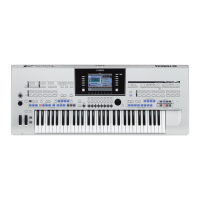
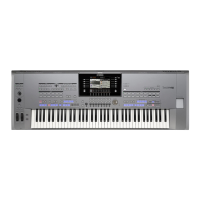
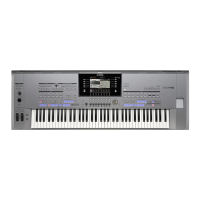
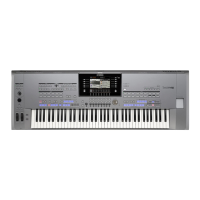
Tyros5-76 Tyros5-61

Table of Contents

Other manuals for Yamaha Tyros5

Questions and Answers

  • S
    srussellSep 23, 2025
    What to do if an error message appears when recording audio to the internal hard disk drive on my Yamaha Musical Instrument?
    • S
      Shane HernandezSep 23, 2025
      If an error message appears in the Audio Recorder/Player function, and audio cannot be recorded to the internal hard disk drive, the data on the hard disk drive is fragmented and cannot be used as is. To resolve this, first back up the data to a computer by using the USB storage mode, then format the drive, and finally copy the data back to the drive (using the USB storage mode again). Performing this copy/restore operation effectively defragments the drive, allowing you to use it again.
  • T
    Tara JosephAug 23, 2025
    Why is there noise coming from my Yamaha Musical Instrument?
    • M
      martinjenniferAug 25, 2025
      Noise from your Yamaha Musical Instrument might occur if a mobile phone is nearby or ringing. Try turning off the mobile phone or moving it further away from the instrument.
  • L
    Linda EvansAug 25, 2025
    How to fix distorted or noisy sound on Yamaha Musical Instrument?
    • S
      Steven BaileyAug 26, 2025
      If the sound from your Yamaha Musical Instrument is distorted or noisy, ensure that all volume settings are appropriate. The issue may also be related to certain effects or filter resonance settings. Check the effect or filter settings and change them accordingly.
  • C
    Cassidy GoldenAug 27, 2025
    Why can't I select audio files on my Yamaha Musical Instrument?
    • C
      Corey PattersonAug 27, 2025
      If you cannot select audio files on your Yamaha Musical Instrument, the file format may not be compatible. The instrument supports MP3 and WAV formats. Note that DRM-protected files cannot be played back.
  • J
    Jamie CarrollAug 27, 2025
    Why does my Yamaha Musical Instrument power off automatically?
    • K
      Katelyn RushAug 27, 2025
      The automatic power off is normal behavior due to the Auto Power Off function. If you want to change this, set the parameter of the Auto Power Off function.
  • J
    jennifer26Sep 15, 2025
    Why can't songs be selected on my Yamaha Musical Instrument?
    • J
      Jonathon MartinezSep 15, 2025
      If the size of the Song data is large (about 300 KB or greater), the Song cannot be selected because the data is too large to be read by the instrument.
  • S
    Samantha HolmesSep 12, 2025
    Why can't I copy or cut an audio song in the internal HDD of my Yamaha Musical Instrument?
    • F
      fnorrisSep 13, 2025
      If an audio song in the internal HDD cannot be copied or cut on your Yamaha Musical Instrument, the audio song file name (which contains the file path, internally) in the internal HDD may be too long. Shorten the song name or copy/paste the file to a higher folder level.
  • C
    christopher67Sep 14, 2025
    Why does the sound change unexpectedly when I change a rhythm Voice on my Yamaha Musical Instrument?
    • S
      Stacey HicksSep 14, 2025
      When changing the rhythm/percussion Voices (drum kits, etc.) of the Style and Song from the VOICE parameter, the detailed settings related to the drum voice are reset, and in some cases you may be unable to restore the original sound. In the case of Song playback, you can restore the original sound by returning to the beginning of the Song and playing back from that point. In the case of Style play, you can restore the original sound by selecting the same Style again.
  • M
    michelle00Sep 5, 2025
    Why is the song sound too low or inaudible on my Yamaha Musical Instrument?
    • B
      Brandon RiveraSep 5, 2025
      If the sound of a song is too low or cannot be heard on your Yamaha Musical Instrument, check the position of the Cross Fader. If the Cross Fader is set to the right position, you can not hear MIDI song. If this is the case, adjust the Cross Fader to the center position.
  • F
    frostbenjaminSep 2, 2025
    What to do if the Main display doesn't appear on my Yamaha Musical Instrument?
    • L
      Larry RobinsonSep 3, 2025
      If the Main display does not appear when turning on your Yamaha Musical Instrument, it may be due to a USB flash memory device being installed. Turn the power on after disconnecting the device to avoid this issue.

Summary

PRECAUTIONS

WARNING

Safety warning about electrical shock, fire, and other hazards.

CAUTION

Safety warning about physical injury and instrument damage.

Panel Controls and Terminals

Top Panel

Description of controls on the upper surface of the instrument.

Rear Panel

Description of connectors and ports on the back of the instrument.

Starting Up

Power Supply

Instructions for connecting the power cord and outlet.

Turning the Power On;Off

Steps to power the instrument on and off.

Basic Operations

Display-based Controls

Explanation of how to use the LCD and surrounding buttons.

File Management

Procedures for saving, naming, copying, moving, and deleting files.

1 Voices - Playing the Keyboard -

Playing Preset Voices

How to select and play instrument sounds.

Playing Ensemble Voices

How to use multi-voice settings for ensemble sounds.

2 Styles - Playing Rhythm and Accompaniment -

Playing a Style with the Auto Accompaniment

How to play with backing tracks.

Chords

Explanation of chord types and fingering.

4 Songs - Recording Your Performances as MIDI Songs -

Basic Procedure for Recording

Steps to record keyboard performances as MIDI songs.

Playback of Songs

How to play back recorded or loaded songs.

11 Connections - Using Your Instrument with Other Devices -

Connecting a Microphone ([MIC INPUT] jack)

How to connect a microphone for vocals.

Connecting USB Devices ([USB TO DEVICE] terminal)

How to connect USB flash drives and other devices.

Troubleshooting

Overall

Common issues and solutions related to general operation.

Voice

Troubleshooting specific problems with instrument sounds.

Yamaha Tyros5 Specifications

General IconGeneral
Number of Keys61
Power SupplyAC Inlet
Keyboard TypeFSX keyboard
Polyphony128-note
Voices1279 Voices + 480 XG Voices
EffectsReverb, Chorus, DSP, Master EQ, Part EQ
DisplayTFT Color LCD
StorageInternal Flash Memory
ConnectivityUSB to Host, USB to Device, MIDI In/Out/Thru
Speakers2 x 13cm + 2 x 5cm
Amplifiers15 W x 2 + 20 W x 2
Weight16.0 kg

Related product manuals