Need help?
Do you have a question about the Yealink WH66 and is the answer not in the manual?
Lists all items included in the headset package.
Instructions for connecting the headset to a PC or desk phone using a USB cable.
Steps to ensure the headset is properly charged before initial use.
Information about the Yealink USB Connect software for managing headsets.
Steps to connect the headset base to a PC using Bluetooth for audio.
Instructions for pairing the headset base with a compatible desk phone via Bluetooth.
Guide on connecting the headset base to a smartphone using Bluetooth.
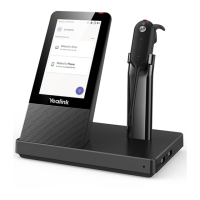
Overview of the base unit's components: Power LED, Touch Screen, Speaker, and Microphone.
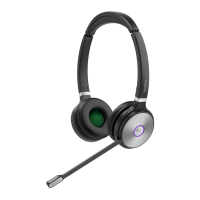
Details on headset buttons: Mute, Volume Up/Down, Call Control, and Status LED.
How to select the default device for outgoing calls from multiple connected devices.
Settings for language, Bluetooth, backlight, ring tones, and speaker volume.
Settings for call priority, autoanswer, and hearing protection technology.
Instructions for answering, ending, rejecting, holding, resuming calls, and adjusting volume using headset controls.
Procedures for placing, answering, ending, rejecting, silencing, holding, resuming calls, and adjusting volume via the base.
Steps to transfer calls between the desk phone and the headset.
Managing multiple calls, including ending, holding, and switching between calls.
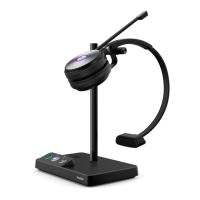
The Yealink WH66 Mono or Dual DECT Headset is a versatile communication solution designed for seamless integration with PCs, desk phones, and smartphones, offering both mono and dual headset options to suit various user preferences. This user manual provides comprehensive guidance on setting up, operating, and maintaining the headset system, ensuring an optimal communication experience.
The Yealink WH66 system comprises a base unit and a DECT headset, functioning as a unified communication hub. The base unit serves as the central control point, connecting to multiple devices and managing call handling, audio routing, and headset settings. The DECT headset provides wireless audio communication, allowing users freedom of movement while maintaining crystal-clear sound quality. The system supports various connectivity options, including USB for PC and desk phone connections, and Bluetooth for PC, desk phone, and smartphone integration. This multi-device compatibility makes the WH66 an ideal solution for professionals who frequently switch between different communication platforms.
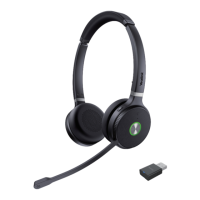
The initial setup involves unboxing the headset and its accessories, which include the base unit, mono or dual headset, power adapter, USB-C to USB-A cable, and USB-A to USB-A cable. It's crucial to use the provided accessories to avoid compatibility issues. The base unit must be connected to a DC power supply, not solely a USB power supply, for proper operation. The included USB-A to USB-C cable is specifically for connecting the wireless charge feature (coming soon).
Connecting the headset to a PC or desk phone is achieved via the included USB cable. One end connects to the PC port on the base, and the other to a USB port on the PC or desk phone. It's important to connect the PC to the USB port on the base marked "PC." Before initial use, the headset should be docked in the charger for at least 30 minutes. Docking the headset also automatically pairs it with the base.
For Bluetooth connectivity, the base can connect to a PC, desk phone (Yealink T54W and T58A are compatible), or smartphone. The Bluetooth range is approximately 100 ft. When connecting via Bluetooth, the base primarily handles voice pickup and audio playback, with call control features not available on the headset display. To connect to a PC via Bluetooth, users navigate to PC settings, ensure Bluetooth is on, then tap the Bluetooth icon on the headset base, go to Basic Settings, and tap Bluetooth to enter pairing mode. On the PC, "Add Bluetooth or other device" is selected, and "Yealink WH66" is chosen when it appears. The process is similar for desk phones and smartphones: tap the Bluetooth icon on the headset base to enter pairing mode, then enable Bluetooth on the desk phone or smartphone and select "Yealink WH66."
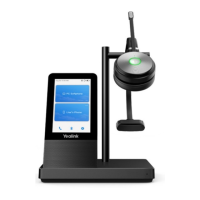
The base unit features a Power LED, a touch screen, a speaker, and a microphone. The Power LED indicates the base status. The touch screen displays battery status, headset connection status, and allows users to select items and navigate menus. The speaker and microphone provide hands-free (speakerphone) audio output.
The headset itself includes a Mute Button, Volume Up Control, Status and Busylight LED, Call Control Button, and Volume Down Control. The Mute Button toggles the microphone on or off. The Volume Up/Down Controls adjust the in-ear volume. The Status and Busylight LED indicates charging and call status. The Call Control Button is central to managing calls: holding it for three seconds powers the headset on or off.
For incoming and active call management, the Call Control Button's function varies depending on the number of calls. For a single call, pressing it once answers an incoming call, double-pressing rejects it, and pressing once ends an active call. For multiple calls, holding the button for two seconds answers an incoming call and places the active call on hold, or switches between held and active calls. Pressing once ends the current call and answers an incoming call, while double-pressing keeps the active call and rejects the second incoming call.
The WH66 base allows for extensive customization of headset, base, and general settings, which can also be managed through the Yealink USB Connect application. This software, available from the Yealink website, enables personalization and management of Yealink Headsets.
Users can change the default outgoing dialer device when multiple devices are connected by tapping the Audio Device card, then tapping "..." in the upper right corner, and selecting "Selected as audio device." Note that when using MaX UC, call control must be done through the MaX UC application, not the headset or base.
Basic settings are accessed by tapping the gear icon on the headset base, then "Basic Settings." General settings include language selection (13 options), enabling/disabling Bluetooth, adding up to four additional headsets, setting time and date manually, and busylight availability (coming soon from Northland).
Display settings allow customization of backlight active level and time, screensaver waiting time, and themes (background and card style).
Sound settings offer control over ring tones (enable/disable base to play built-in tone for incoming calls), dial tone (enable/disable paired headset to play dial tone when entering dialing screen), keypad tone (enable/disable paired headset to produce sound when pressing keypad keys), and speaker volume adjustment.
Advanced settings, accessed via "Advanced Settings," include Wireless Range selection (Long: ~500 feet, Medium: ~100 feet, Short: ~33 feet), Voice Announcement (enable/disable paired headset to play voice announcements, coming soon from Northland), and Platform availability (coming soon from Northland).
Call settings allow auto-dial (base automatically dials entered number within 5 seconds), selection of call device for outgoing calls, and call priority for second calls (New call: first call on hold, new call active; Current call: first call active, new call rings). Autoanswer when undocked (incoming calls answered by undocking headset) and Open Line when undocked (enter dialing screen by undocking headset) can also be enabled/disabled.
Hearing protection settings include configuring anti-startle technology and daily noise exposure levels (no limiting, 80dBA, or 85dBA).
Call handling from the headset is straightforward. To answer a call, press the Call Control button or undock the headset (if Auto Answer is enabled). To end a call, press the Call Control button or dock the headset. Rejecting a call involves double-pressing the Call Control button. Holding a call requires holding the Call Control button for two seconds, and resuming a held call is done by holding it for another two seconds. Volume adjustment is managed by pressing the Volume Control button up or down.
Call handling from the base is also intuitive. To place a call, tap the device card on the touch screen or the phone icon, enter the number, and tap the call icon. Answering a call is done by tapping the green phone icon. Ending a call involves tapping the red phone icon. Rejecting a call is done by tapping the red phone icon. Silencing a call requires tapping the bell icon. Holding a call is achieved by tapping the "..." icon. To resume a held call, tap "RESUME." Volume can be adjusted by tapping the "-" or "+" icons. Muting/unmuting the microphone is done by tapping the microphone icon. To place a second call, tap the "..." icon and then "New Call."
Calls can be moved between the desk phone and the headset. To move a call from the desk phone to the headset, ensure the call is active on the desk phone (handset or speakerphone), then press the Headset Key on the desk phone. The audio will transfer to the headset. To move a call from the headset to the desk phone, ensure the call is active on the headset, then pick up the handset or press the speaker key on the desk phone.
Handling multiple calls from the headset is efficient. To end the current call and answer an incoming call, press the Call Control button. To place the current call on hold and answer an incoming call, hold the Call Control button for two seconds. To switch between a held call and an active call, hold the Call Control button for two seconds. To reject an incoming call while on an active call, double-press the Call Control button.
The Yealink USB Connect software plays a crucial role in maintaining and personalizing the WH66 headset. Users are encouraged to download this device manager client from the Yealink website (https://www.yealink.com/product/yuc). This software allows for managing and personalizing Yealink Headsets, ensuring they are always up-to-date with the latest firmware and settings. A separate Quick Reference Guide for Yealink USB Connect is available at www.northland.net/support. Regular use of this software helps to optimize performance and address any potential compatibility or functionality issues.
The manual emphasizes the importance of using only the included accessories. This is a critical maintenance feature as using third-party or incompatible accessories can lead to compatibility issues, reduced performance, or even damage to the device. Ensuring the base is connected to a DC power supply rather than just a USB power supply is also a key aspect of proper maintenance, as it guarantees stable power delivery to the unit.
Proper charging of the headset is essential for its longevity and performance. The instruction to dock the headset for at least 30 minutes before initial use and to ensure it is docked for pairing highlights the importance of correct charging procedures. Consistent and correct charging practices help maintain battery health and ensure the headset is always ready for use.
By following these detailed instructions for setup, usage, and maintenance, users can maximize the potential of their Yealink WH66 Mono or Dual DECT Headset, enjoying a reliable and high-quality communication experience across various devices.
 General
| USB-C Port | Yes |
|---|---|
| Connectivity | Bluetooth, USB |
| Charging Time | 2.5 hours |
| Microphone | 2 Microphones |
| Wearing Style | Over-the-head |
| Bluetooth | Bluetooth 5.0 |
| USB Ports | 2 x USB 3.0 |
| Display | 4.0 inch touch screen |
| Compatibility | Microsoft Teams |
| Noise Cancellation | Yes |
| Earpiece Design | Monaural/Binaural |

 To Next Page