Need help?
Do you have a question about the Yealink Portable WH62 and is the answer not in the manual?
Details major updates in the user guide for version 1.1.
Instructions for powering the WH62 portable headset on and off.
Instructions for powering the WH63 portable headset on and off.
Steps to charge the WH62 portable headset using a USB connection.
Steps to charge the WH63 portable headset using a USB connection.
Explains LED indicators for battery status during charging.
Steps to pair the WDD60 dongle with the WH62 portable headset.
Steps to pair the WDD60 dongle with the WH63 portable headset.
Instructions for connecting WH62 to PC or IP phone.
Instructions for connecting WH63 to PC or IP phone.
Guidance on how to wear the WH62 portable headset.
Guidance on how to wear the WH63 portable headset.
How to perform basic call functions with the WH62 headset.
How to manage multiple calls with the WH62 headset.
How to perform basic call functions with the WH63 headset.
How to manage multiple calls with the WH63 headset.
Instructions for downloading and installing Yealink USB Connect software.
Steps for updating the headset firmware using USB Connect.
Configure sound, PC softphone, and deskphone ringtone settings.
Configure audio bandwidth and wireless range for optimal performance.
Adjust voice, mute, audio, and system platform settings.
Frequently Asked Questions and link to online guide.
Important safety information regarding storage and cleaning.
The Yealink WH62/WH63 Portable Wireless Headset is designed to provide a seamless audio experience for both office and home use, supporting a hybrid work environment. This user guide covers the essential functions, usage features, and maintenance aspects of these portable headsets.
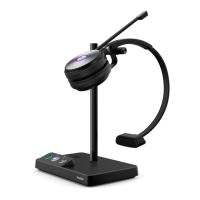
The Yealink WH62/WH63 Portable Wireless Headset is a communication device that allows users to make and receive calls, listen to audio, and interact with various platforms such as PC softphones and IP phones. The headset connects wirelessly via a WDD60 dongle, which can be paired with the headset for initial setup or if purchased separately. The WDD60 dongle facilitates connectivity to both PCs and IP phones, ensuring versatility across different communication setups. The WH62 is an over-ear headset, while the WH63 is an in-ear headset, offering different wearing styles to suit user preferences.
The core function of these headsets is to provide clear audio for calls and media consumption. They support call control features, including answering, ending, rejecting, holding, and resuming calls. Volume adjustment and microphone muting are also integrated, allowing users to manage their audio experience directly from the headset. The headsets are equipped with LED indicators and voice prompts to provide real-time status updates on power, battery level, pairing status, and call activity.
For enhanced user experience, the headsets incorporate features like auto-switch, which allows them to seamlessly connect to a base or WDD60 dongle when moving between office and home environments, provided they have been previously paired. This ensures continuous connectivity without manual re-pairing. The Yealink USB Connect software further extends the functionality by offering device management capabilities, including firmware updates, device status monitoring, and support features like log file collection and device recovery.
To power on the WH62 Portable, hold the power button for 3 seconds until a solid red LED appears and a "power on" voice prompt is heard. To power off, hold the power button for 3 seconds until the LED flashes red 3 times and a "power off" voice prompt is heard. The WH62 Portable automatically powers off after 10 minutes of disconnection from the WDD60 to conserve battery. The WH63 Portable follows a similar power-on/off procedure with corresponding LED indicators and voice prompts.
The WH62 Portable and WH63 Portable headsets are charged via a USB connection. A full charge takes approximately 3 hours. LED indicators provide clear battery status:
If the WDD60 dongle is unpaired or purchased separately, it needs to be paired with the headset.
After pairing, the headset and WDD60 are ready for use. Simply connect the WDD60 to your PC or IP phone, and power on the headset. The WDD60's LED will glow blue, indicating a paired headset.
The WH62/WH63 headsets support pairing with multiple devices (Base/WDD60 dongle) for office and home use. Once paired, the headset will automatically connect to the base or WDD60 when moved between locations, providing a seamless hybrid work experience. A headset can only be connected to one WDD60 or one base at a time. To manually pair with a base (purchased separately), connect the base to power, then dock the headset. The headset and base will pair automatically, and the headset's LED will glow blue.
This computer software allows users to manage their Yealink USB devices. It provides an overview of connected devices, enables firmware updates for the WDD60 and headset (including over-the-air transmission for the headset), and offers device support functions like log file collection, feedback, and device recovery. To install, connect the WDD60 to a PC, and follow the prompts to run the installer from the CD Drive (E:) USB Connect. Alternatively, download the Yealink USB Connect from the Yealink website. If Yealink USB Connect is already installed, it will run automatically upon connection.
The headset should be stored within a temperature range of -30°C to +70°C (-22°F to +158°F). The charging temperature should be between +32°F and 104°F (0°C to 40°C).
To prolong battery life, avoid storing the headset for extended periods without recharging. It is recommended to recharge the battery at least every three months if not in regular use.
If the headset or WDD60 dongle becomes dirty, clean them with a soft, lint-free cloth that has been dampened with clean water. This helps maintain the device's appearance and hygiene.
Regular firmware updates are available through the Yealink USB Connect software. These updates can improve performance, add new features, and address any known issues. The headset supports over-the-air (OTA) upgrades, ensuring convenient updates without direct cable connection to the PC for the headset itself, once the WDD60 is updated.
The Yealink USB Connect software provides tools for device support, including log file collection for troubleshooting, feedback submission, and device recovery options. This ensures that users can easily diagnose and resolve potential issues with their headset.
By following these guidelines, users can ensure optimal performance, longevity, and a satisfying experience with their Yealink WH62/WH63 Portable Wireless Headset.
 General
| Type | Wireless Headset |
|---|---|
| Microphone | Dual Microphone |
| Frequency Response | 20 Hz - 20 kHz |
| Storage Temperature | -10°C to 60°C |
| Humidity | 10% to 90% (non-condensing) |
| Connectivity | DECT, USB, Bluetooth |
| Compatibility | PC, Mobile |
| Supported Profiles | HSP, HFP, A2DP, AVRCP |
| Operating Temperature | 0°C to 40°C |
| Wearing style | Over-the-head (adjustable headband) |
| Charging Time | 2.5 hours (5V/1.2A) |

 To Next Page